
Thunderbird is a free, open-source mail client from Mozilla that runs on Windows, macOS, and Linux. It's a popular choice for CanSpace clients who want a powerful desktop mail app without Outlook's subscription. This article covers setup — which is usually so fast you won't need most of it.
Quick steps: Thunderbird → Tools → Account Settings → Account Actions → Add Mail Account → enter name, email, and password → Thunderbird auto-detects the right settings. Click Done.
Before you start
- You'll need the mailbox password — not your cPanel password. If you don't remember it, reset it in cPanel first: How do I change my email password?
- You'll need your server hostname (e.g.
eos.canspace.ca), which you can find on cPanel's Connect Devices page. Thunderbird's auto-detect usually figures it out from the domain, but having it handy is useful if auto-detect misses.
Set up Thunderbird (auto-detect — usually works)
- Open Thunderbird. On first launch, it opens the account setup wizard automatically. Otherwise, go to Tools → Account Settings, click Account Actions at the bottom of the left column, and choose Add Mail Account.
- Enter your name (as you want it to appear in sent mail), your full email address, and your mailbox password. Click Continue.
- Thunderbird queries your domain's DNS (autoconfig record) and offers IMAP and POP3 options. Select IMAP and click Done.
That's usually it. Thunderbird auto-fills the correct hostname, ports, and SSL settings. If it works, skip ahead to IMAP vs POP3.
Even faster path: cPanel's Connect Devices page includes a "Mozilla Thunderbird" auto-config script. Click it to launch Thunderbird with every setting pre-filled.
Set up Thunderbird manually (if auto-detect fails)
In the account setup wizard, click Configure manually instead of Continue. You'll get this screen to fill in:
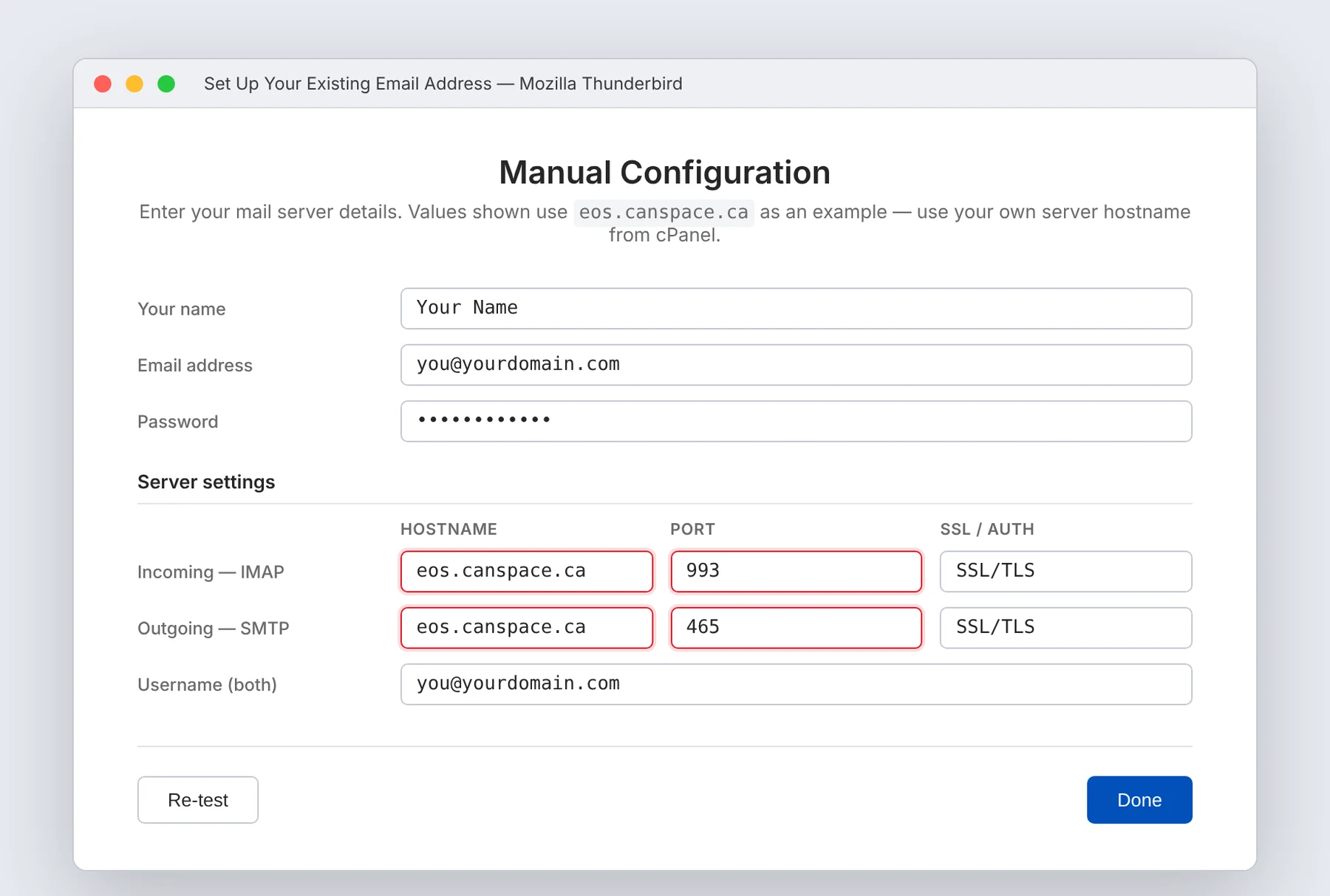
Server settings
| Setting | Incoming (IMAP) | Outgoing (SMTP) |
|---|---|---|
| Protocol | IMAP | SMTP |
| Hostname | Your server hostname from Connect Devices (e.g. eos.canspace.ca) | |
| Port | 993 | 465 |
| Connection security | SSL/TLS | SSL/TLS |
| Authentication | Normal password | Normal password |
| Username | Your full email address (not just the part before the @) | |
- Click Re-test and Thunderbird will verify the settings work.
- Click Done to finish.
Also available
Once the account is added, Thunderbird gives you a few per-account options worth knowing about:
- Cached vs. non-cached IMAP: Thunderbird keeps message bodies cached locally for offline reading. You can change this in Account Settings → Synchronization & Storage. Keeping it on (default) lets you read old messages without a connection.
- Junk mail filters: Account Settings → Junk Settings. Thunderbird has its own adaptive spam filter that improves as you mark messages. This runs on top of our server-side SpamAssassin.
- End-to-end encryption (OpenPGP): Account Settings → End-To-End Encryption. Thunderbird has built-in PGP support for signing and encrypting messages with someone else's public key.
- Filters / rules: Tools → Message Filters. Useful for sorting incoming mail into folders, forwarding, or tagging.
IMAP or POP3 — which should I use?
- IMAP (recommended): messages stay on the server. Read or delete on one device, and the change is reflected everywhere. Use this if you check email on more than one device.
- POP3: messages are downloaded to this computer and deleted from the server. Only use this if this computer is the only place you'll ever check this email, and you want it all offline.
Common issues
- "Thunderbird failed to find the settings for your email account" — the auto-detect DNS query didn't find a match. No problem — click Configure manually and enter settings from the table above.
- "The username or password is incorrect" — the username must be your full email address, not just the part before the
@. Confirm the password by logging in at webmail. - "Error setting up SMTP server" / certificate warning — make sure the hostname matches exactly what cPanel shows (e.g.
eos.canspace.ca), notmail.yourdomain.com. SSL certs on shared hosting may not covermail.subdomains. - Sending fails after working for a while — check Account Settings → Outgoing Server (SMTP), select the CanSpace SMTP server, click Edit, and confirm Connection security: SSL/TLS and Authentication: Normal password. Re-enter the password if needed.
- Everything hangs on launch — if you have many large folders set to full offline sync, Thunderbird may spend a long time syncing at startup. Go to Account Settings → Synchronization & Storage and tune which folders to keep offline.
- Password keeps prompting — Thunderbird uses the OS password manager on macOS (Keychain) and Linux (GNOME Keyring); on Windows it uses its own. If the saved password gets lost, re-enter it and tick Use Password Manager to remember this password.
Related articles
- How do I create a new email account?
- How do I change my email password?
- How do I access my Webmail account?
- Email troubleshooting checklist
Still stuck? Open a support ticket


