
When you're migrating from another cPanel host, we can copy everything over from a full cPanel backup — mailboxes and all — in one shot. When you're coming from a provider that doesn't use cPanel (Hostinger, Namecheap Private Email, Zoho, Google Workspace, Microsoft 365, Rackspace, Squarespace-provided email, Wix-provided email, or any old POP3 setup), there's no equivalent one-click transfer for your message history. Creating the new mailboxes on our side is trivial; getting your existing messages into them takes a bit of manual work. This article walks through the options.
What the free migration covers — and doesn't
The free migration included with every hosting plan covers standard formats: cPanel backups, WordPress exports, SQL dumps. If your email lives on another cPanel host, it comes across with the backup — no action needed.
When your email lives in a proprietary system (Gmail, Microsoft 365, Zoho, etc.), there's no vendor-provided backup file we can restore. The migration has to happen over IMAP, one message at a time, using a mail client on your own computer. The Thunderbird method below is the most reliable way to do it.
Before you start
- Sign up for a CanSpace hosting plan if you haven't already.
- Create your email accounts on our side — see How do I create a new email account?. Give each new mailbox a password; you don't need to match your old password, but it's fine if you do.
- Confirm you can log in to both. Test the new CanSpace mailbox via webmail (
https://webmail.yourdomain.comor your cPanel's webmail link) and confirm you can still log in to the old mailbox — either via its webmail, or by having the credentials ready for IMAP setup. - Keep the old host running during the migration. Don't cancel anything at the old provider until you've confirmed the messages have arrived safely on our side.
Method 1: Thunderbird IMAP-to-IMAP copy (recommended)
This is the universal method that works regardless of where your mail is hosted today. Install Thunderbird on any computer (Mac, Windows, Linux — all free at thunderbird.net), add both your old and new mail accounts to it, and drag messages between them. The mail stays on both servers during the copy, so there's no risk of losing anything.
Step 1: Add the old account
- Open Thunderbird. If this is your first launch, it'll prompt you to add an account. If not, go to Settings → Account Settings → Account Actions → Add Mail Account.
- Enter your name, the old email address, and its password.
- Click Continue. Thunderbird will try to auto-configure — for most providers (Gmail, Outlook, etc.) this works. If it doesn't find settings automatically, click Configure Manually and enter the IMAP hostname and port (see the per-source details below).
- Choose IMAP — never POP3 — so your mail stays on the server while you copy.
- Complete the setup. Thunderbird will download your folder list.
Step 2: Add the new CanSpace account
Same steps as above, but with your new CanSpace mailbox.
- Email:
[email protected](the new mailbox you just created in cPanel). - Incoming (IMAP):
yourhostname.canspace.ca, port 993, SSL/TLS. - Outgoing (SMTP):
yourhostname.canspace.ca, port 465, SSL/TLS. - Username: the full email address.
Your specific hostname is in the "New Account Information" email we sent when you signed up. After adding the account, you should see it in Thunderbird's folder pane alongside the old one.
Step 3: Create matching folders on the new account
If your old account has custom folders (Clients, Projects, Receipts, etc.), create the same folders on the new account so you have a destination to copy into. Right-click the new account in the folder pane and choose New Folder. Inbox, Sent, Drafts, and Trash are created for you automatically.
Step 4: Copy messages, folder by folder
Click a folder in the old account, press Ctrl+A (Windows/Linux) or Cmd+A (Mac) to select all messages, then right-click and choose Copy To → your new CanSpace account → the matching folder.
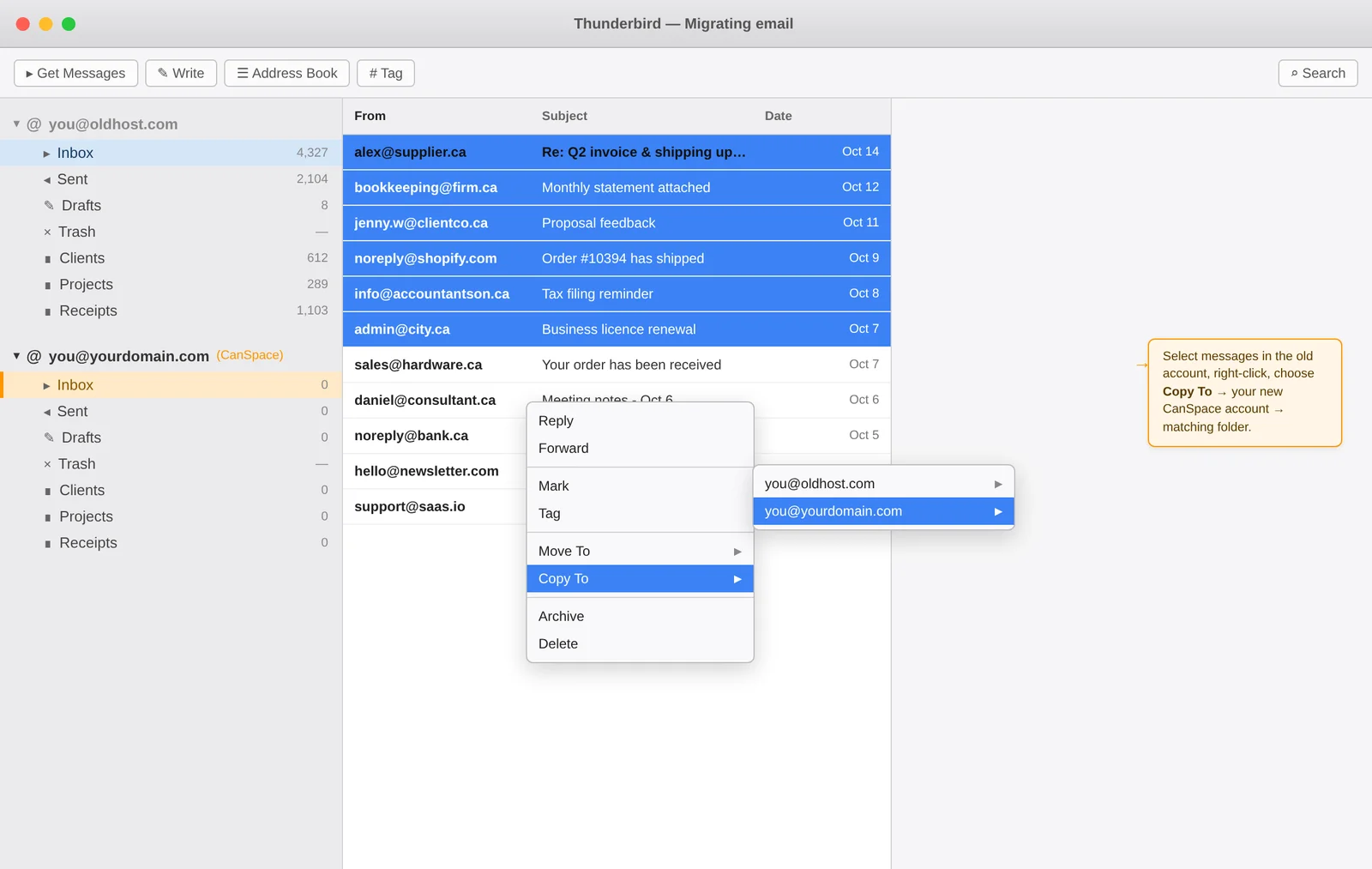
Always use "Copy To," not "Move To." Copying leaves the original intact as a safety net — if something goes wrong with the copy or the new mailbox, your old mail is still on the old server.
Repeat for each folder: Inbox, Sent, Drafts, Clients, Projects, and so on. The copy runs message by message over IMAP, so a large folder takes a few minutes. Don't close Thunderbird during the copy — the upload is client-side.
Step 5: Verify
After each folder copies, check the message count on the new side matches the old side. Open a few sample messages on the new account via webmail to confirm they display correctly.
Thunderbird tips for large mailboxes
- Copy in batches of 5,000-10,000 messages. Copying 50,000 messages in a single operation can stall. For large folders, sort by date and copy a year at a time.
- Raise the connection timeout if your internet link is slow. Settings → General → Config Editor, find
mailnews.tcptimeout, change from 100 to 300. - Turn off "Automatic Junk Mail Detection" on the new account during the copy — it otherwise re-scans every incoming message and can trip server-side rate limits.
- Close other IMAP connections — don't have your phone, webmail, and another desktop client all connected during the copy, since most servers cap concurrent IMAP sessions.
Method 2: Apple Mail (macOS)
Apple Mail works almost identically to Thunderbird for this purpose:
- Open Mail, then Mail → Settings → Accounts, click + to add both your old and new accounts (pick IMAP for each).
- In the mailbox list on the left, you'll see both accounts with their folders.
- Select a folder, press Cmd+A to select all messages, then hold Option while dragging them to the matching folder on the new account. Holding Option makes it a copy rather than a move.
- Alternatively: Message → Copy To and pick the destination folder.
Apple Mail generally handles larger folders more gracefully than Thunderbird, but the 20,000-message-per-batch guideline still applies for reliability.
Method 3: Classic Outlook (Windows)
If you're on Windows, classic Outlook works similarly. In the 2024+ "New Outlook," IMAP support is patchy and PST import isn't there yet — use classic Outlook (toggle at the top right of the window) or Thunderbird instead.
- Add both accounts via File → Add Account, choosing IMAP for each.
- Select messages in the old folder, right-click → Move → Other Folder, then pick the new account's folder.
- Outlook has no "Copy To" equivalent in its right-click menu — use drag-and-drop with Ctrl held to copy rather than move.
If your old mail is POP3 (stored only on your computer)
POP3 typically downloads messages to your device and deletes them from the server. If you've been using POP3 for years, your "archive" is probably entirely local — inside Thunderbird, Outlook, or Apple Mail on your desktop — with nothing on any server to migrate.
The fix is essentially the same Thunderbird approach, but using your local folders as the source:
- Add your new CanSpace account (IMAP) to Thunderbird or your current mail client.
- Find your local folders — in Thunderbird these appear under Local Folders in the sidebar. In Outlook, they're in your .pst file's folder tree. In Apple Mail, they're under On My Mac.
- Select messages in each local folder, Copy To → your new CanSpace account → matching folder (create the folder on the new account first if it doesn't exist).
Once the mail is on the CanSpace server, it's accessible from any device — phone, webmail, other computers — the way modern email is supposed to work. Consider switching from POP3 to IMAP on your devices going forward.
Per-source notes
Google Workspace (also: Squarespace Email, Wix Business Email)
- IMAP host:
imap.gmail.com, port 993, SSL. - App password required. Google no longer accepts regular passwords for IMAP clients. Go to myaccount.google.com/apppasswords, generate a new app password, and use that in Thunderbird instead of your normal password. You need 2-Step Verification enabled first (two-step verification settings).
- Admin check for Workspace: the Google Workspace admin may need to enable IMAP org-wide at Admin Console → Apps → Google Workspace → Gmail → End User Access → IMAP access. If IMAP is disabled at the org level, no individual user can use it regardless of their own settings.
- Squarespace and Wix business email are both resold Google Workspace — the admin console is accessed through Squarespace's or Wix's interface, but the settings are Google's.
- Gmail's IMAP has a soft rate limit of roughly 500 MB uploaded per day. Large migrations may need to span multiple days — copy in batches and resume the next day if you hit the limit.
Gmail (personal / free accounts)
Same as above — app password required if 2-Step Verification is on (and it should be). Without 2SV, Gmail increasingly blocks plain-password logins with "Please log in via your web browser" errors. Enable 2SV, generate an app password, and you're good.
Microsoft 365 (Exchange Online) and Outlook.com
- IMAP host:
outlook.office365.com, port 993, SSL. - Outlook.com / Hotmail.com (personal accounts): app password required if you have 2-step verification on. Generate at account.microsoft.com/security → Advanced security options → App passwords.
- Microsoft 365 business/enterprise: IMAP with a basic password has been disabled by default since 2022. The tenant admin needs to either temporarily re-enable basic auth for the migrating mailbox via Exchange PowerShell (
Set-AuthenticationPolicy -AllowBasicAuthImap $true), or set up OAuth — more involved. If you're an admin and not sure, contact us; we can walk through the options. - Microsoft's throttling is aggressive — large migrations to or from Exchange Online genuinely can take a day or two. Copy in smaller batches and spread the transfer across several sessions.
Zoho Mail
- IMAP host:
imap.zoho.com(orimap.zoho.eu,imap.zoho.infor regional accounts), port 993, SSL. - IMAP must be enabled in Zoho's settings: Settings → Mail Accounts → IMAP Access → Enable IMAP.
- App password required if 2FA is on. Zoho Account → Security → App Passwords.
Rackspace Email (Cloud Office)
- IMAP host:
secure.emailsrvr.com, port 993, SSL. - Mailbox password works directly — no 2FA or app passwords to deal with.
- Heads up: Rackspace has announced the retirement of their Cloud Office product. If you haven't migrated yet, this is a good time.
Hostinger Email (Titan or legacy hMail)
- Titan Email (newer plans):
imap.titan.email, port 993, SSL. - Legacy hMail (older plans):
imap.hostinger.com, port 993, SSL. - Mailbox password works directly.
Namecheap Private Email
- IMAP host:
mail.privateemail.com, port 993, SSL. - Mailbox password works directly.
Any other IMAP-capable host
If your provider isn't listed, find their IMAP settings in their documentation or support pages (search "[provider name] IMAP settings"). As long as IMAP is offered at all, the Thunderbird method works.
After the migration: switch MX records
The copy step moves your existing messages. New email coming in after the switch needs to be routed to our servers — that's done via DNS.
- Confirm all messages arrived on the new mailbox and things look right.
- If we host DNS for your domain (you're using our nameservers), the MX records are already pointed at our servers — new mail will start flowing in as soon as DNS propagates.
- If your DNS is elsewhere (Cloudflare, your registrar's default DNS, etc.), update the MX records to point to our mail server. The exact records are in your "New Account Information" email.
DNS propagation typically completes within a few hours, up to 24-48 in some cases. During the transition window, mail may deliver to either server depending on where each sender's DNS resolver is in the propagation cycle. Leave IMAP active on both accounts in Thunderbird during this window and just keep copying any new messages from old to new until you stop seeing any mail land on the old side.
Common issues
"Authentication failed" connecting to the old account
Nine times out of ten this is a password or app-password issue. Gmail, Microsoft 365, and Zoho all require an app password (not your regular password) for IMAP clients when 2-factor auth is enabled. Double-check you've generated one and pasted it correctly.
"Connection refused" or "could not connect"
Either the wrong hostname/port, or the provider hasn't enabled IMAP for your account. Verify the settings against the per-source table above. For Gmail Workspace and Microsoft 365, check with your admin that IMAP is enabled at the org level.
Copy stalls at a specific folder
Usually a single large folder (the All Mail label in Gmail is the classic culprit — it contains everything, so copying it in addition to the individual folders causes duplicates and huge transfer volumes). Skip All Mail and copy folders individually. If an individual folder is genuinely huge, sort by date and copy one year at a time.
Copied messages show today's date instead of the original
This happens if your mail client uses the current time for the APPEND operation instead of preserving INTERNALDATE. Thunderbird and Apple Mail both preserve the original date by default. If you see this in classic Outlook, toggle the "preserve internal date" option in IMAP account settings.
Gmail labels become duplicate messages
Gmail represents labels as folders over IMAP. If you have a message tagged with three labels, it appears in three IMAP folders. Copy each folder and you'll end up with three copies of the same message. To avoid: copy only the "real" folders (Inbox, Sent, Drafts) and skip [Gmail]/All Mail, which contains everything in every label.
"Request is throttled" from Microsoft 365
Exchange Online aggressively limits concurrent connections and daily bandwidth. Slow down — copy one folder at a time instead of in parallel, and spread the migration across several sessions rather than pushing everything at once.
Related articles
- What's included in our free website migration
- How do I create a new email account?
- Set up email in Mozilla Thunderbird
- Email troubleshooting checklist
- Migrate from Hostinger
Have questions about migrating your email? Open a support ticket


