
Plugins extend WordPress with new features (contact forms, e-commerce, SEO tools, security, caching, and so on); themes change how it looks. WordPress can install both directly from its built-in directories, or from a ZIP file you upload. This article covers all three sources, plus how to keep them updated and stay safe.
Install a plugin from the WordPress.org directory
- Log in to your WordPress admin (
yourdomain.com/wp-admin/). - In the left sidebar, click Plugins → Add New Plugin.
- Use the search box at the top right to find what you need (e.g. "contact form", "yoast", "wp super cache").
- Click Install Now on the plugin you want. Wait a few seconds.
- Click Activate. The plugin is now live on your site.
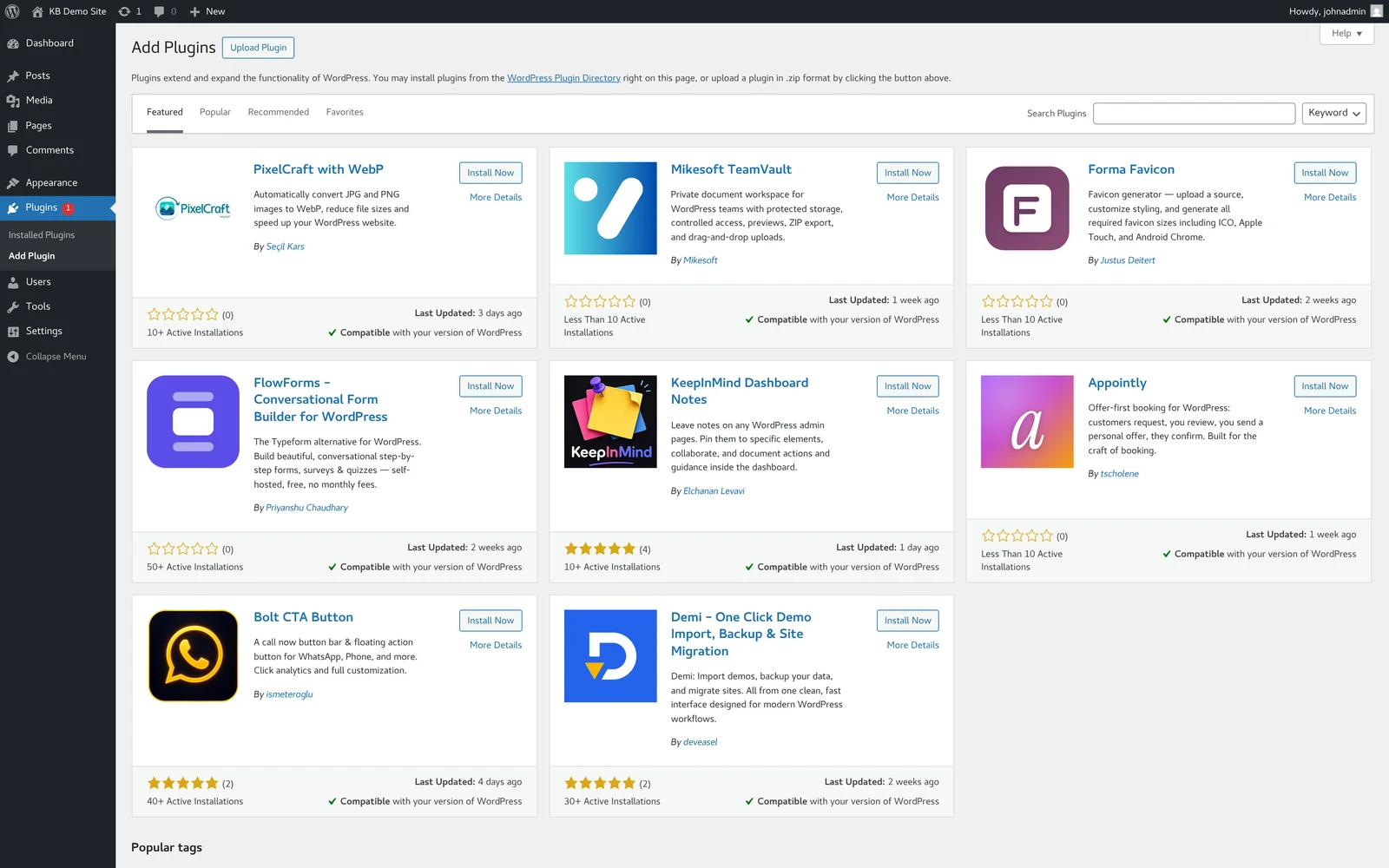
Most plugins add their own menu in the WordPress sidebar after activation, where you configure their settings.
Install a theme from the WordPress.org directory
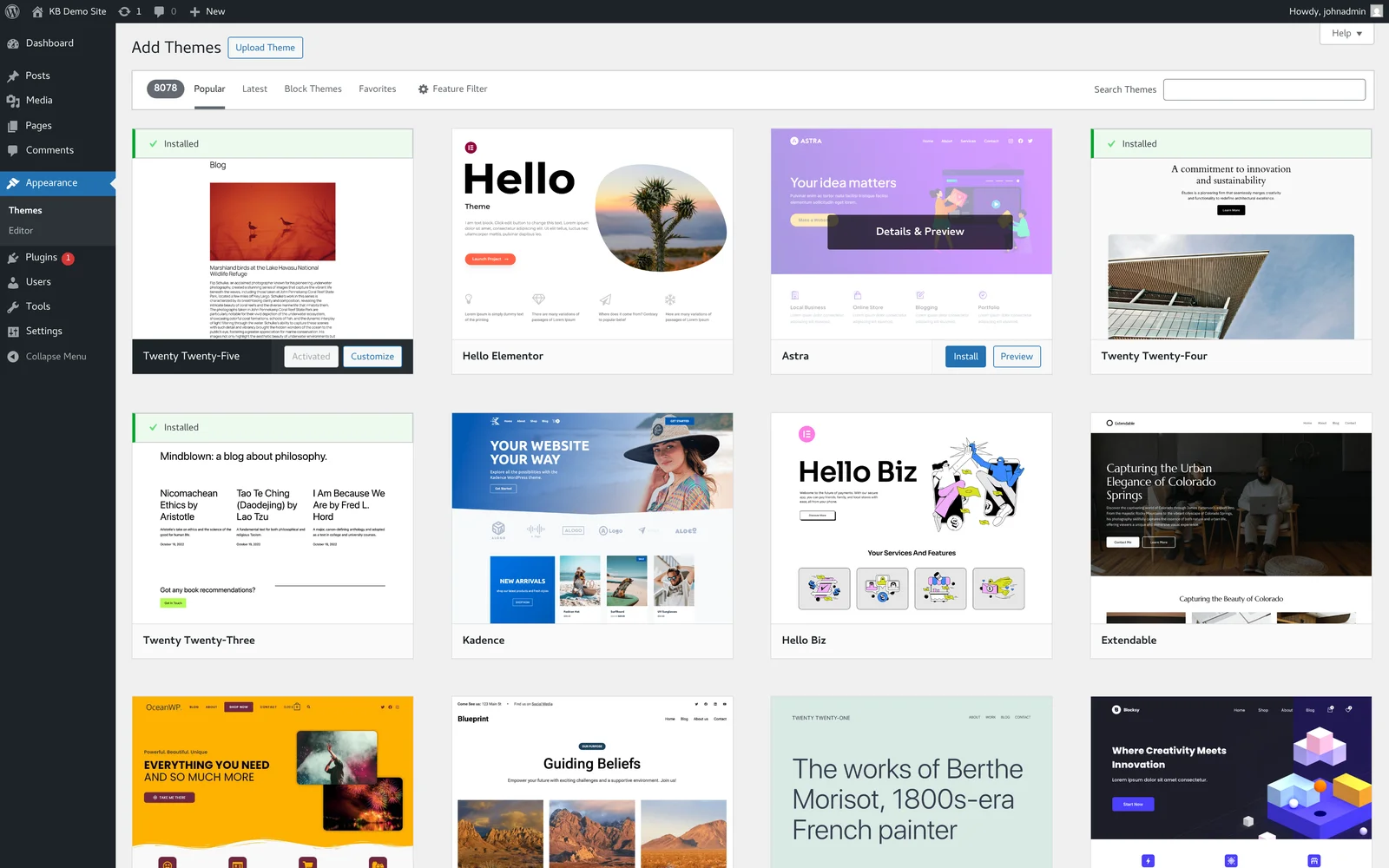
- In the WordPress admin sidebar, click Appearance → Themes → Add New Theme.
- Browse Featured / Popular / Latest, or use the search box.
- Hover over a theme card and click Preview to see what your site would look like with it (using your real content).
- Click Install, then Activate to switch your site to it.
Install a paid / premium plugin or theme (from a ZIP file)
Premium plugins (Elementor Pro, WP Rocket, Astra Pro, Gravity Forms, etc.) and premium themes are sold as .zip downloads. You upload the ZIP and WordPress installs it.
- Download the
.zipfrom the vendor's account dashboard. Don't unzip it — WordPress wants the ZIP itself. - For plugins: Plugins → Add New Plugin → Upload Plugin. For themes: Appearance → Themes → Add New → Upload Theme.
- Click Choose File, pick the ZIP, click Install Now.
- After installation, click Activate.
- Most premium plugins ask for a license key after activation — enter the key from your vendor account so you receive updates.
Where to find plugins and themes you can trust
Be cautious about where you download premium plugins from. Pirated / "nulled" copies on third-party sites often contain malware that opens a backdoor on your site — we see compromised WordPress sites every week, and pirated plugins are a top source.
Trusted sources:
- WordPress.org Plugin Directory — the search inside WP admin. Free, vetted, large but variable quality.
- The vendor's official website — for paid plugins and themes (Elementor, Beaver Builder, WPForms, etc.).
- Theme marketplaces — ThemeForest (Envato), StudioPress, Astra, Kadence, GeneratePress all have legitimate paid themes.
If a "premium" plugin is being given away on a forum or torrent site, it's almost certainly compromised. The annual license fee is far cheaper than recovering from a hack.
Keeping plugins and themes updated
Outdated plugins and themes are the #1 way WordPress sites get hacked. WordPress will tell you when updates are available:
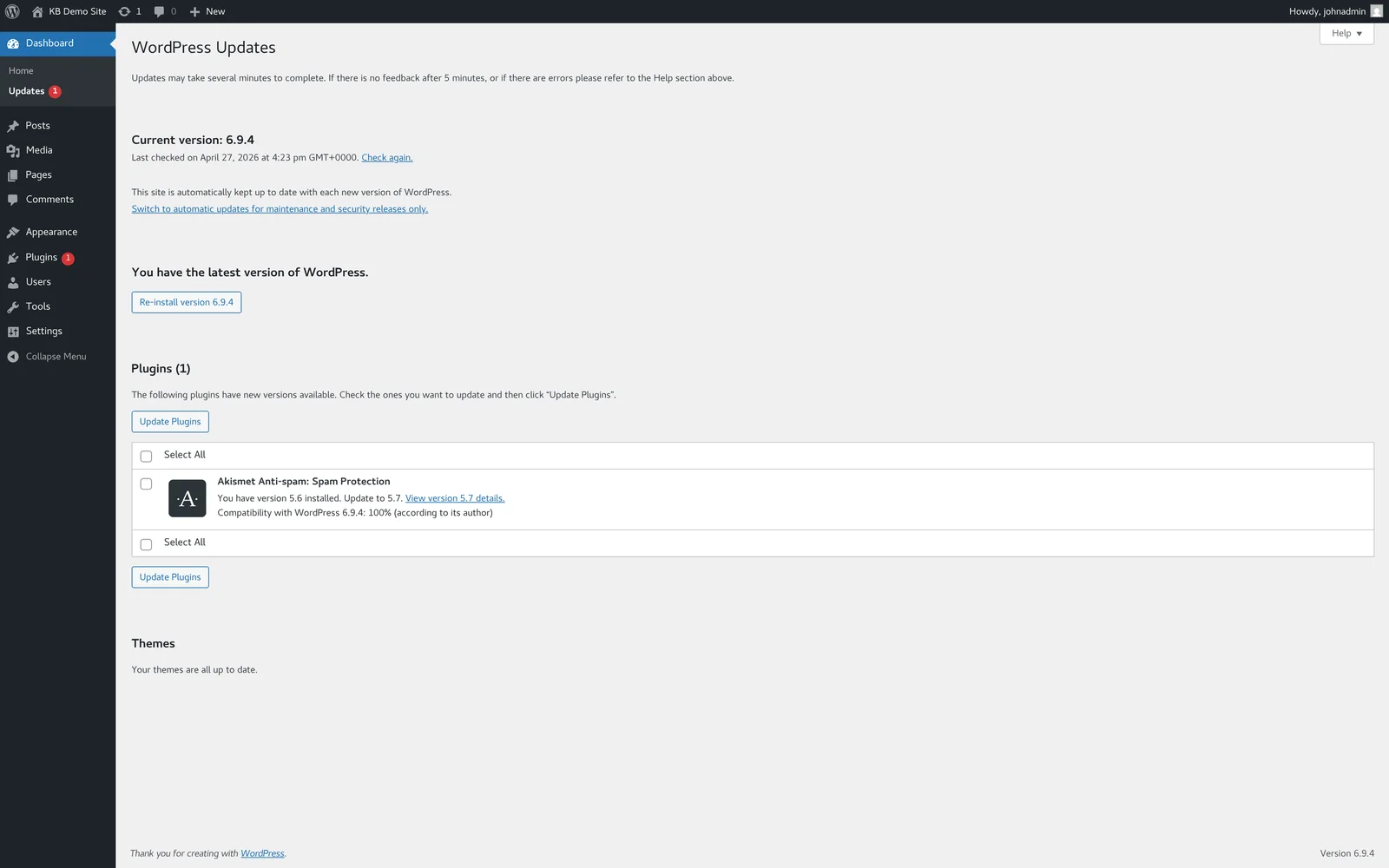
- Updates badge — the number next to "Updates" in the sidebar shows pending updates.
- Dashboard → Updates — review and apply pending updates. You can update everything at once or pick individually.
- Auto-updates — from the Plugins or Themes screen, you can enable auto-updates per item. Recommended for security plugins and well-maintained ones; for plugins that have broken your site in past updates, leave it off and update manually.
Major-version vs minor-version updates
Minor updates (e.g. 2.4.1 → 2.4.2) are almost always safe — bug fixes and security patches. Major version jumps (2.x → 3.0) sometimes break compatibility with other plugins or your theme. For heavily customized sites, test major updates on a staging copy first.
Disabling vs deleting
- Deactivate — the plugin is off, but its files and settings stay. Reactivate any time. Good for "I might want this back."
- Delete — removes the files entirely. Some plugins remove their database tables on deletion; many leave them behind ("orphaned" data). Use a plugin like Advanced Database Cleaner periodically to clean these up.
Related articles
- WordPress security hardening checklist
- Speed up your WordPress site
- Common WordPress errors and how to fix them
Still stuck? Open a support ticket


