
If you need to run a persistent Python application (Flask, Django, FastAPI, or anything that has to keep running between requests) on your hosting account, cPanel includes a Setup Python App tool that handles the heavy lifting — picking a Python version, creating a virtual environment, wiring it into Apache, and starting the app under Passenger.
Before you start
- Have your Python code ready in a folder under your home directory (typically inside
public_html/or a subfolder of it). - Know your app's startup file (e.g.
app.py,wsgi.py,main.py) and the variable name of your WSGI/ASGI application object (usuallyapporapplication). - Have a
requirements.txtin the same folder if you're using pip dependencies.
Create a Python application
-
Log in to cPanel. Scroll down to the Software section and click Setup Python App.
-
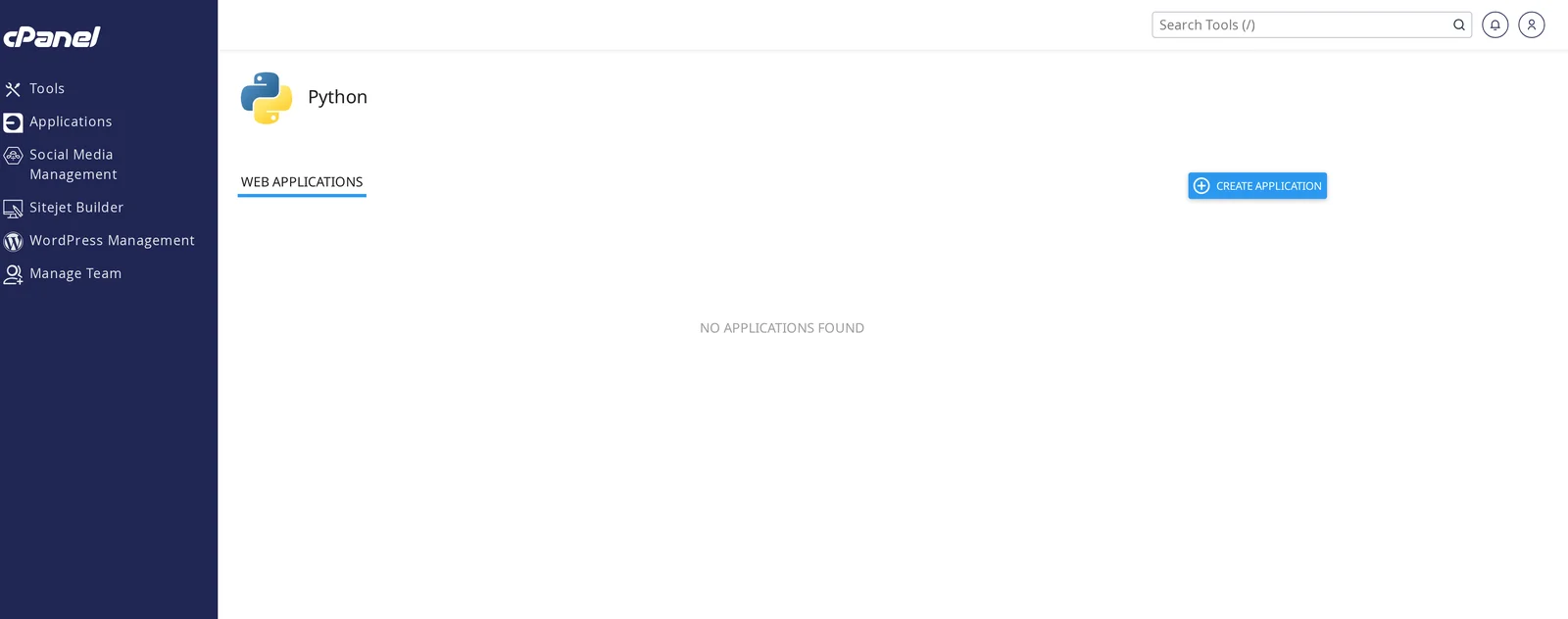
Click Create Application in the top-right corner.
-
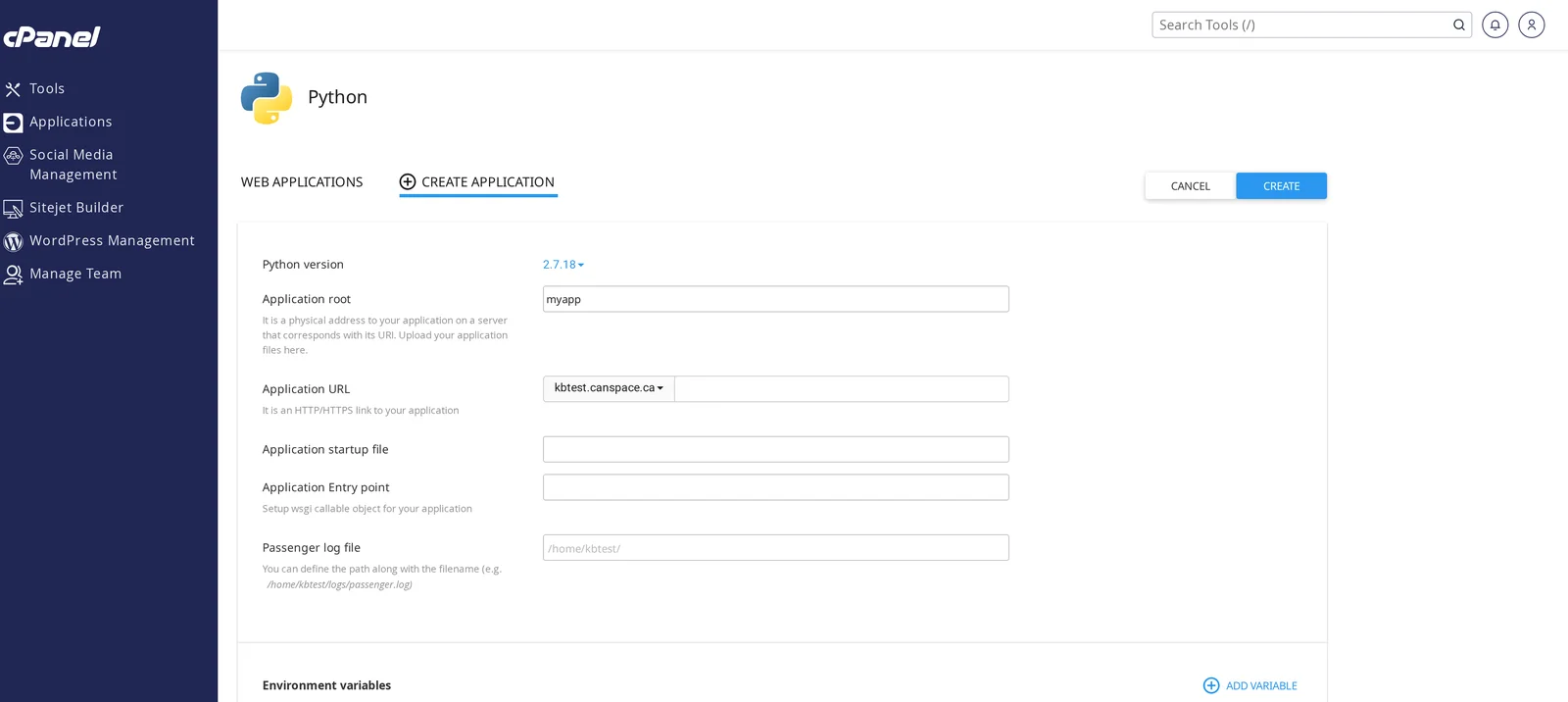
Fill in the application details:
- Python version — choose the version your code targets (3.11, 3.12, etc.).
- Application root — the folder under your home directory containing your code (e.g.
myapp, which becomes/home/youruser/myapp/). - Application URL — the domain (or subdomain) and path the app will be served at (e.g.
yourdomain.com/api). - Application startup file — your entry-point file (e.g.
app.py). - Application Entry point — the WSGI/ASGI variable inside that file (e.g.
app).
-
Click Create. cPanel creates the virtual environment, wires up Passenger, and starts the app.
-
Visit your Application URL in a browser to confirm the app is running.
Install dependencies (requirements.txt)
From the Setup Python App page, click your application to expand it, then look for the Run Pip Install button (it appears once a requirements.txt is detected in your application root). One click installs everything.
You can also install dependencies manually from the cPanel Terminal: click Terminal at the top of cPanel, then activate your virtual environment with the command shown on the Setup Python App page (it's labelled "Enter to the virtual environment") and run pip install -r requirements.txt.
Restart your app after code changes
Passenger caches your app between requests. After you upload new code (or change anything), you need to tell it to reload:
- From the Setup Python App page — click Restart next to your application.
- From SSH or Terminal — run
touch tmp/restart.txtinside your application root.
View errors and logs
Anything your app prints to stdout/stderr (and any unhandled exceptions) goes to the per-vhost Apache error log. The easiest way to view it is cPanel → Metrics → Errors.
When to host on a VPS instead
The shared-hosting Python environment is great for moderate apps. Move to a VPS if you need:
- Native compilation that pulls in system libraries beyond what cPanel installs (heavy ML / numerical packages).
- Multiple background workers (Celery, RQ, etc.).
- A persistent socket service the rest of your stack talks to (Redis, custom queue listeners).
- Full root control over Python, system packages, and ports.
Related articles
- Set up a Node.js app on cPanel
- Enable SSH and connect from your computer
- Change your PHP version and tune PHP settings
Need help getting your Python app running? Open a support ticket


