
cPanel's Setup Ruby App tool lets you run a persistent Ruby application — Rails, Sinatra, or anything else that needs to keep running between requests — directly from your hosting account. It handles the Ruby version, gem environment, and Apache integration via Passenger.
Before you start
- Have your Ruby code ready in a folder under your home directory.
- Know your app's startup file. For Rack-based apps (Sinatra, plain Rack) the standard is
config.ru. For Rails, the entry point is alsoconfig.ruat the project root. - Have a
Gemfilein the same folder if you're using Bundler.
Create a Ruby application
-
Log in to cPanel. Under the Software section, click Setup Ruby App.
-
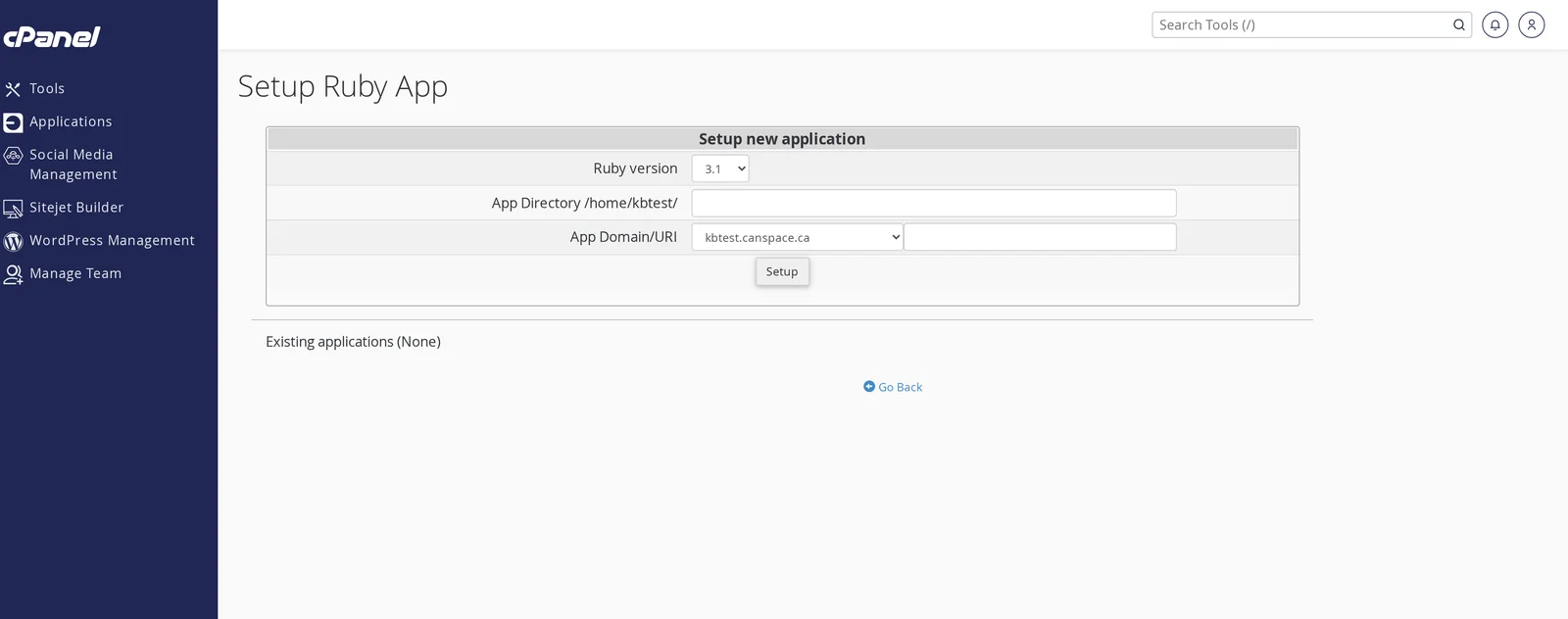
Fill in the setup form:
- Ruby version — choose the version your code targets.
- App Directory — the folder under your home directory containing your code (e.g.
myrailsapp, which is created at/home/youruser/myrailsapp/). - App Domain/URI — pick the domain from the dropdown and (optionally) enter a path your app should be served at.
-
Click Setup. cPanel creates the gem environment, configures Passenger, and registers the app.
-
Once the app is registered, expand it under Existing applications below the form to manage gems, environment variables, and to start, restart, or stop the app.
Install gems with Bundler
Once the app is created, expand it under Existing applications on the Setup Ruby App page. Click Run Bundler — cPanel runs bundle install against your Gemfile in the application's gem environment.
For one-off gems or interactive bundle work, open Terminal from cPanel, activate your application's environment using the command shown on the Setup Ruby App page, then run gem and bundle commands as you would locally.
Rails-specific notes
- Database — create your MySQL database and user from cPanel → MySQL Databases (database names will be prefixed with your cPanel username, e.g.
youruser_railsdb). Update yourconfig/database.ymlwith those credentials, hostlocalhost. - Asset precompilation — run
RAILS_ENV=production bundle exec rake assets:precompilefrom the Terminal after deployment. - Migrations — run
RAILS_ENV=production bundle exec rake db:migratethe same way. - Secrets — set
RAILS_MASTER_KEYas an environment variable on the Setup Ruby App page (look for Add Variable).
Restart your app after code changes
- From Setup Ruby App — expand your application under Existing applications and click Restart.
- From SSH or Terminal — run
touch tmp/restart.txtinside your application root.
View errors and logs
Application output and unhandled exceptions go to the per-vhost Apache error log. View it via cPanel → Metrics → Errors. Rails-specific logs (log/production.log, log/development.log) sit inside your application root and you can tail them from the Terminal.
When to host on a VPS instead
Move to a VPS for any of:
- Background job processors (Sidekiq, Resque) that need a persistent worker process beyond the web app.
- WebSockets or ActionCable beyond Passenger's defaults.
- Native gems that need system libraries we don't install on shared hosting.
- Multiple separate Ruby apps with high traffic on the same account.
Related articles
Need help getting your Ruby app running? Open a support ticket


