
Every CanSpace VPS and dedicated server runs CSF (ConfigServer Security & Firewall). It blocks IPs that show signs of brute-force attempts (failed SSH, cPanel, mail logins, etc.), keeping your server safe automatically. Now and then it'll block an IP you actually want to allow — yours, a developer's, or a third-party service. This article shows you how to manage that yourself from WHM.
Find the firewall plugin in WHM
- Log in to WHM at
https://your-server.canspace.ca:2087. - In the left sidebar search box, type ConfigServer.
- Click ConfigServer Security & Firewall.
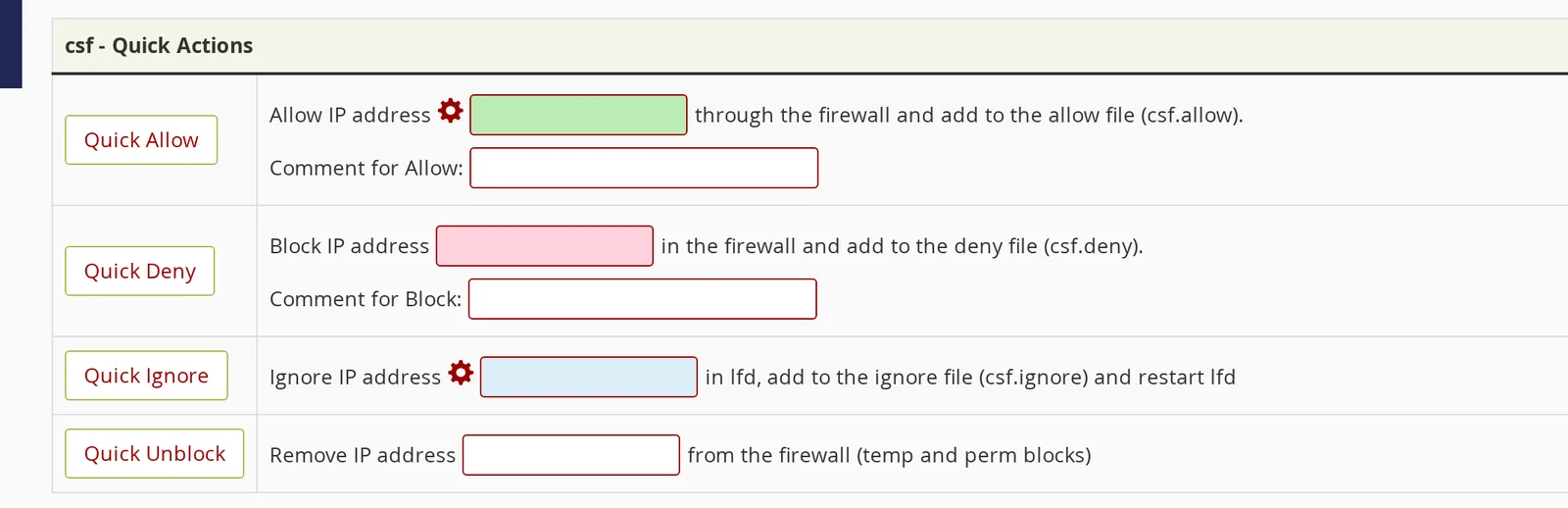
The CSF home page has a long list of buttons. The two you'll use most are Quick Allow (whitelist an IP) and Quick Unblock (remove a current block).
Unblock an IP
If someone (you, a developer, an automated service) has been blocked by the firewall, paste their IP into the Quick Unblock field and click the button.
- Find the blocked IP. If you're locked out yourself, check whatismyipaddress.com from a different network or your phone's mobile data.
- In CSF, paste the IP into the Quick Unblock field.
- Click Quick Unblock.
- CSF removes the block immediately and shows a confirmation page.
The IP is now allowed to connect again — but if it triggers the same brute-force pattern that got it blocked in the first place, it can land back on the deny list. If that's a recurring problem (e.g. an external server running automated scripts), use Quick Allow instead, which whitelists the IP permanently.
Whitelist an IP permanently
Use Quick Allow for any IP you want CSF to never block:
- Paste the IP in the Quick Allow field.
- Click Quick Allow.
Check if a specific IP is blocked
Use the Search for IP feature in CSF (or Quick Deny Search on some versions). Paste the IP and CSF tells you whether it's currently blocked, in the deny list, or allowed.
From the command line via SSH:
csf -g 198.51.100.42This shows the IP's status in deny lists, temp bans, and live iptables rules.
Why do legitimate IPs get blocked?
The most common causes:
- Wrong email password on a phone or laptop. Outlook and iPhone Mail keep retrying with the wrong password every few minutes — CSF reads that as a brute-force attempt and blocks the IP.
- Wrong cPanel/WHM password. Same pattern.
- Failed SSH attempts. Either someone is actually scanning the IP (common, ignore) or you mistyped the password a few times (less common but it happens).
- Bad mod_security signatures. A specific request matched a security rule and the IP got blocked. Less common, more involved to diagnose.
To dig into why a specific IP was blocked, SSH in and look at the LFD log:
grep 198.51.100.42 /var/log/lfd.log | tail -20If you're locked out completely
If you can't reach WHM or SSH at all because your IP is blocked:
- Try from a different network (mobile data, a friend's wifi).
- If that's not an option, open a support ticket from any working network and tell us your IP. We can unblock it server-side in seconds.
Common CSF commands (SSH)
| Command | What it does |
|---|---|
csf -g IP | Check status of an IP across all CSF rules |
csf -dr IP | Remove from deny list (unblock) |
csf -a IP "comment" | Allow / whitelist an IP |
csf -ar IP | Remove from allow list |
csf -d IP "comment" | Manually deny an IP |
csf -t | List all temporary bans |
csf -tr IP | Remove a temporary ban for the given IP |
csf -r | Restart CSF (after manual config changes) |
Related articles
Need a hand with the firewall? Open a support ticket


