
WP-CLI is a command-line tool for managing WordPress sites. Anything you can do from the WordPress admin (and a lot of things you can't) is one terminal command away. It's bundled and ready to go on every CanSpace shared hosting server, so all you need is SSH access.
Get connected
- SSH into your account — see Enable SSH and connect from your computer for the full walkthrough. Quick version:
ssh -p 5622 [email protected] - Change into your WordPress directory:
cd ~/public_html(Or wherever your WordPress install lives — for an addon domain it might be
~/public_html/yourotherdomain.com.) - Confirm WP-CLI works:
wp --infoYou should see WP-CLI's version, PHP binary path, and a few other details. If you get "command not found", you're probably on a server where
wpisn't in the PATH — try/usr/local/bin/wp --info.
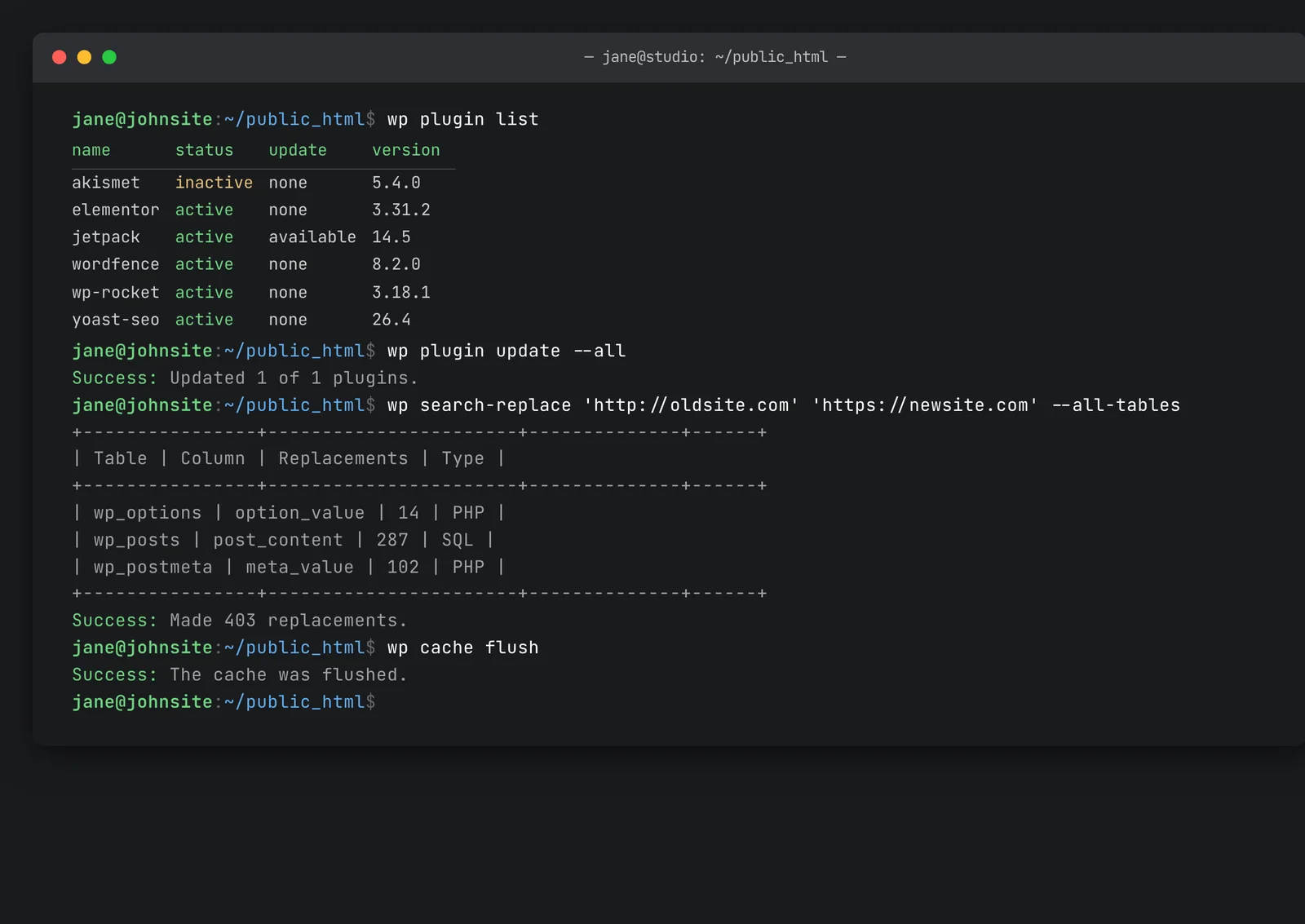
The commands you'll use most
Plugins
# list installed plugins
wp plugin list

# install + activate a plugin in one step
wp plugin install wp-super-cache --activate

# update all plugins
wp plugin update --all

# deactivate / activate
wp plugin deactivate wp-super-cache
wp plugin activate wp-super-cache

# uninstall (deactivate + delete)
wp plugin delete wp-super-cache
Themes
wp theme list
wp theme install astra --activate
wp theme update --all
wp theme delete twentytwentythree
Core
# show current core version
wp core version

# update WordPress core to the latest stable
wp core update

# update the database after a core upgrade (rarely needed, but good to know)
wp core update-db
Users
# list users
wp user list

# create a new admin
wp user create alice [email protected] --role=administrator --user_pass=ChangeMe!2026

# reset a user's password
wp user update admin --user_pass=NewPasswordHere

# promote / demote
wp user set-role bob editor
Database
# open a MySQL prompt against the WP database
wp db cli

# export the database to a SQL file in the current directory
wp db export

# search-and-replace (handles serialized data — much safer than raw SQL)
wp search-replace 'http://oldsite.com' 'https://newsite.com' --all-tables

# size + table info
wp db size --tables
Cache and rewrite rules
# flush object cache
wp cache flush

# flush rewrite rules (after permalink changes)
wp rewrite flush

# regenerate Elementor CSS (critical after migrations)
wp elementor flush-css
Options (wp_options)
# read a single option
wp option get siteurl
wp option get home

# update an option
wp option update siteurl 'https://newsite.com'

# read a complex option as JSON
wp option get my_plugin_settings --format=json
Common workflows
Lock yourself out of WP admin? Reset your password.
cd ~/public_html
wp user list
wp user update YOURUSERNAME --user_pass=NewSecurePassword
Switching from HTTP to HTTPS
wp search-replace 'http://yourdomain.com' 'https://yourdomain.com' --all-tables
wp cache flush
wp rewrite flush
Bulk-update everything before going on vacation
wp core update
wp core update-db
wp plugin update --all
wp theme update --all
Stale cron event piling up?
# list scheduled events
wp cron event list

# delete a specific hook
wp cron event delete some_old_hook
Tips
- Run from the WordPress directory. WP-CLI auto-detects the install when you're inside it. From elsewhere, pass
--path=/home/user/public_html. - --dry-run is your friend. Many commands (
search-replace,plugin update, etc.) accept--dry-runto preview what they'll change. - Always back up before bulk operations. A quick
wp db export pre-update.sqltakes seconds and gives you a fallback. - Help is built in.
wp help,wp help plugin,wp help search-replace, etc. — every command has its own help page.
Full documentation
Every command is documented at developer.wordpress.org/cli/commands/. The cheat sheet above covers ~90% of day-to-day use, but there's a lot more under the hood (multisite, image regeneration, post import, taxonomy work, etc.).
Related articles
- Enable SSH and connect from your computer
- Reset your WordPress admin login
- Change your WordPress URLs
Stuck on a specific WP-CLI command? Open a support ticket


