
SiteJet's Publish button takes the design you've built in the editor and pushes it to your live site. Most of the time it's instant. When it isn't, the cause is almost always one of a small number of issues — this article covers each one and how to fix it.
How publishing works in SiteJet
When you click Publish, SiteJet renders your project to static HTML/CSS/JS and uploads it to your hosting account. The files land in your domain's document root (usually public_html/) and replace whatever was there.
"Why don't I see my changes?" almost always boils down to one of:
- You haven't actually published the latest version (it's still in draft).
- The browser is showing a cached copy.
- Your site is on a CDN (Cloudflare, etc.) that's still serving cached pages.
- Your DNS hasn't pointed at our servers yet.
- An older
index.html,index.php, orindex.phtmlis taking priority.
1. Make sure the project actually published
-
Open SiteJet from cPanel → Software → SiteJet Builder. You'll see the list of websites on your account — click the domain name (or the action button) to open the editor.
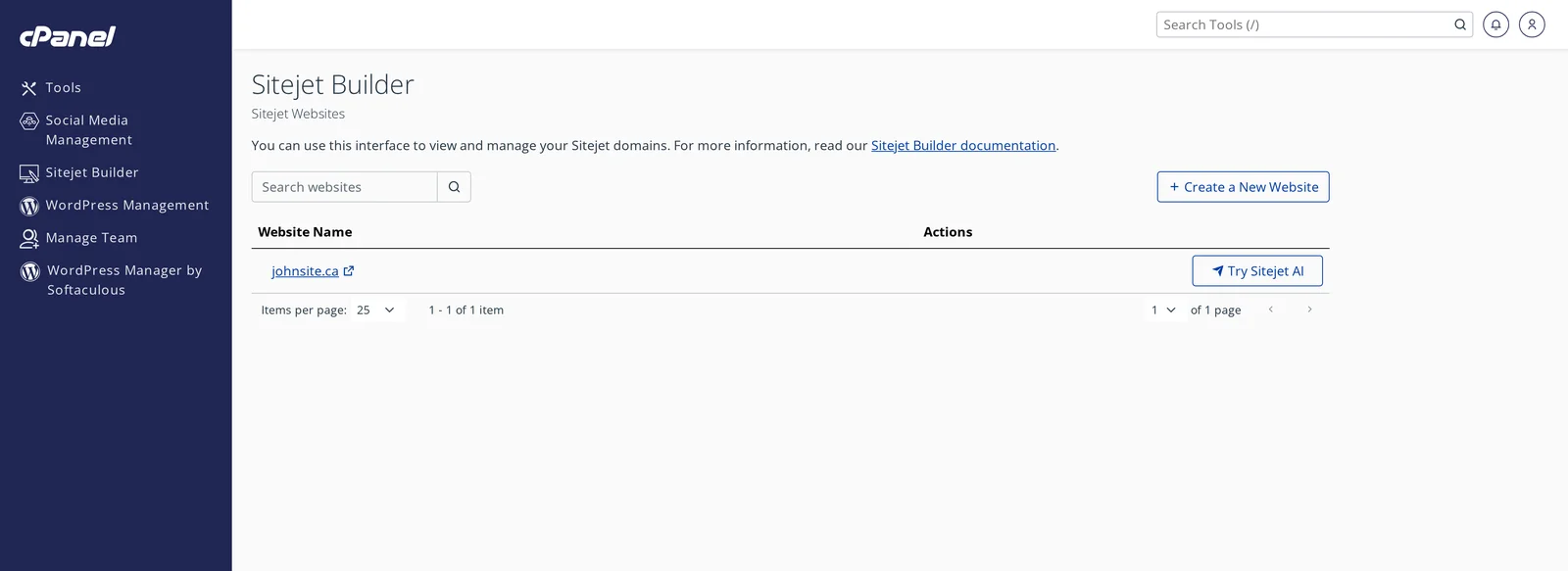
- Inside the editor, click Publish in the top-right corner.
- Wait for the success notification — it can take 30-60 seconds for larger sites.
- If you see an error, screenshot it and open a ticket — that's typically a permissions or quota issue we can sort out quickly.
2. Hard-refresh your browser
Browsers cache aggressively, especially CSS and images. After publishing:
- Windows / Linux: Ctrl+F5 or Ctrl+Shift+R
- macOS: Cmd+Shift+R
- Mobile: close the tab entirely and reopen — most mobile browsers don't have a hard-refresh shortcut.
If the page still looks old, try opening it in a private / incognito window — that bypasses your local cache and any signed-in session state.
3. Clear the server-side nginx cache
Our shared servers run an nginx caching layer in front of Apache. Recently-published changes can take a few minutes to propagate through it. To force a clear:
- From cPanel home, scroll to the right-hand sidebar.
- Find the NGINX Caching panel.
- Click Clear Cache.
4. Clear Cloudflare (or other CDN) cache
If you're using Cloudflare in front of your site, it caches HTML and assets at its edge nodes globally. After a SiteJet publish:
- Log in to your Cloudflare dashboard.
- Open your domain.
- Go to Caching → Configuration → Purge Cache → Purge Everything.
For non-Cloudflare CDNs (BunnyCDN, Cachefly, etc.), the option will be in their dashboard under "Purge" or "Invalidate".
5. Check that the right index file is being served
SiteJet publishes index.html. Apache's default DirectoryIndex order is index.phtml, index.php, then index.html. So if your account has a leftover index.phtml (the default cPanel "Coming Soon" page) or an old index.php from a previous WordPress install, that file will be served instead of your SiteJet site.
- Open cPanel → File Manager.
- Navigate to
public_html/. - Look for
index.phtmlorindex.php. If they're there, delete them (or rename them, e.g. toindex.phtml.bak). - Hard-refresh your site.
6. Confirm DNS is pointing at our servers
If you're a brand-new client and your domain still points at your previous host, SiteJet is publishing correctly to our servers but visitors aren't reaching them. Check via:
- whatsmydns.net — search your domain, choose A record. The IPs returned should match your CanSpace server.
- Or run
dig +short yourdomain.comfrom a terminal.
If the IP doesn't match, you need to update your nameservers at the domain's registrar — see Change your nameservers.
7. Pages publishing inconsistently (some show, some don't)
Almost always a caching issue at one of the layers above. Work through them in order: hard-refresh in browser → nginx cache clear → CDN purge.
Less commonly, a page in SiteJet has been edited but not actually saved before publish. The editor saves automatically, but if you closed the tab mid-edit, the change might be lost. Open the page, check it, click Save explicitly, then publish again.
8. Still stuck?
If you've worked through the list above and the site still isn't showing the published version, open a support ticket with:
- The domain name.
- What you're seeing vs. what you expect to see.
- Any error from the SiteJet Publish step (screenshot is best).
We can check the server-side state and figure out what's happening.
Related articles
- Launch the SiteJet website builder
- SiteJet and DNS: what happens when you publish
- My website still shows the "Coming Soon" page
Need a hand publishing your SiteJet site? Open a support ticket


