
A parked (or aliased) domain is a second domain that shows the same site as your main domain. For example, if your main site is yourbusiness.com and you also own yourbusiness.ca, you can park yourbusiness.ca on top of your existing site so visitors get the same content either way.
blog.yourdomain.com). See Create and manage subdomains and Add another domain to your account.When to park a domain
- You own multiple TLDs of your brand (
.com,.ca,.net) and want them all to show the same site. - You're rebranding and want the old domain to show the new site (you can also do this with a redirect — see below).
- You want defensive registration (typo-domains pointing at the real site).
Before you start
- The domain you want to park needs to be registered in your name (with CanSpace or another registrar).
- Its nameservers need to point to CanSpace, OR an A record needs to point at your CanSpace server's IP. If the domain is registered with CanSpace and you have hosting with us, this is usually already set up.
Park a domain via cPanel
- Log in to cPanel.
- Under the Domains section, click Aliases (older cPanel: Parked Domains; current cPanel calls these "Aliases" or simply uses the unified Domains page).
-
If you see the unified Domains page: click Create A New Domain in the top-right.
If you see a dedicated Aliases page: type the domain in the Domain field at the top.
- Type the domain you want to park (e.g.
yourbusiness.ca). -
Tick the option "Share document root with [your main domain]". Picking the existing main domain's document root is what makes this an alias — the same files served at both URLs.
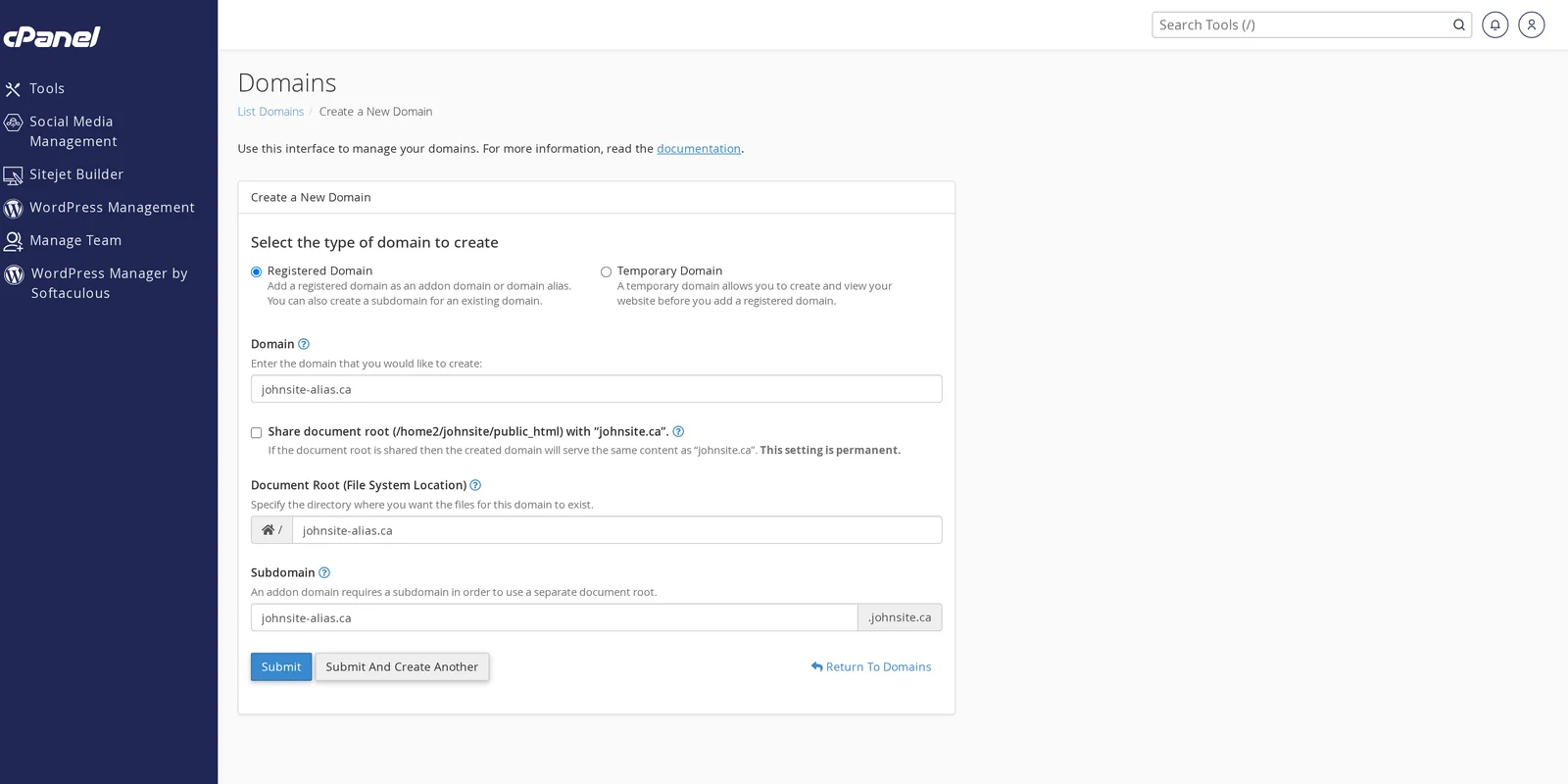
- Click Submit.
Within a few minutes (DNS propagation), visitors who type the parked domain will see the same site as your main domain.
Verify it's working
- Open a private / incognito browser window.
- Visit your parked domain (e.g.
http://yourbusiness.ca). - You should see the same homepage as your main site.
If you see a "domain not configured" page or a different site, give DNS up to a few hours to propagate, or check that the parked domain's nameservers / A record point to CanSpace.
Parked vs redirected: which to choose?
Both options make a second domain show your main site, but they behave differently for SEO and the browser address bar:
| Parked / aliased | 301 redirect | |
|---|---|---|
| Address bar shows | The domain the visitor typed | The main domain |
| SEO | Risk of duplicate content; needs canonical tag | Cleanly tells search engines "use main domain" |
| Email at the parked domain | Possible (cPanel creates MX records) | Not affected by the redirect; configure separately |
| Use case | Both domains are equally "the brand" | One domain is canonical, others are old / alternate |
Recommendation: if SEO matters, redirect rather than park. To redirect, see Set up domain forwarding. Park only when both domains genuinely represent the same brand and you don't mind the address bar reflecting whichever the visitor used.
Email at a parked domain
cPanel automatically configures MX records when you park a domain, so you can create email addresses at the parked domain just like at the main one. [email protected] and [email protected] can be entirely separate inboxes (or you can forward one to the other).
Removing a parked domain
- cPanel → Domains (or Aliases).
- Find the parked domain in the list.
- Click Manage → Remove Domain.
The domain stops resolving to your CanSpace site immediately. The domain registration itself is unaffected — that's managed separately at your registrar.
Common gotchas
- Mixed-content / HTTPS warnings on the parked domain. AutoSSL covers parked domains too — give it a few hours after parking, and a fresh SSL certificate will be issued. If it's still not working after 24 hours, open a ticket.
- Parked domain still showing the old "Coming Soon" page or a different site. Almost always DNS not yet pointed at CanSpace for the parked domain. Check the nameservers at the registrar.
- Worried about SEO. Parking creates duplicate content. Add a
<link rel="canonical" href="https://main-domain.com/page" />tag on every page so search engines treat the main domain as the source of truth.
Related articles
- Create and manage subdomains
- Add another domain (addon) to your hosting account
- Set up domain forwarding / redirects
Need help parking a domain? Open a support ticket


