
cPanel gives you three different ways to handle mail at your domain — email accounts, forwarders, and aliases. They sound similar, and people often pick the wrong one. This article explains what each one does and how to decide.
Quick decision guide
| What you want | Use this |
|---|---|
| A real mailbox (login, password, can send and receive, has its own inbox) | Email account |
Send mail to info@ automatically to your existing Gmail / Outlook | Forwarder |
sales@ and support@ both deliver to the same existing mailbox | Aliases (technically forwarders) on one mailbox |
Send mail to a typo address ([email protected]) to the right mailbox | Forwarder (or default address) |
| Catch all mail to non-existent addresses | Default address (sometimes called catch-all) |
Email accounts
An email account is a real mailbox at your domain. It has:
- A username (
[email protected]) and password. - Storage on the server (Webmail / IMAP / POP3 access).
- The ability to send mail FROM that address, not just receive.
This is what most people mean when they say "set up an email at my domain." See Create a new email account.
Use an email account when:
- You want a dedicated mailbox for that address (with its own inbox, sent items, etc.).
- You'll log in to read mail directly (Webmail, Outlook, iPhone, etc.).
- You'll send mail FROM that address.
Forwarders
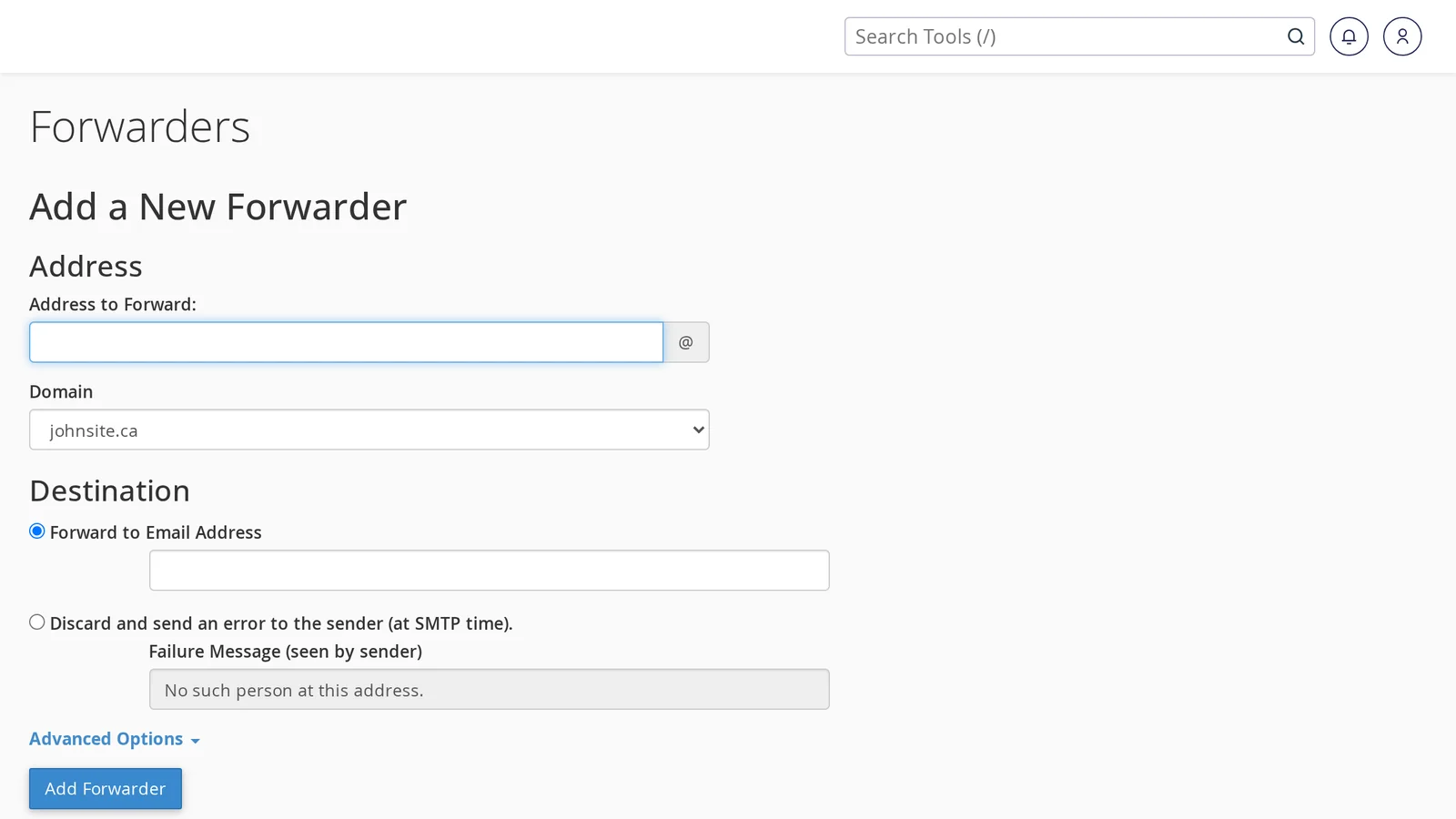
A forwarder is a rule that says "any mail sent to address A, deliver to address B instead." There's no inbox at address A — the server just hands mail off to wherever you forward it.
Use a forwarder when:
- You want mail to
[email protected]to land in your Gmail without setting up a separate inbox. - You want one mailbox to collect mail from several addresses (e.g.
info@,contact@,hello@all go to the same place). - You're forwarding to an external address you already check (Gmail, Outlook.com, work email, etc.).
To set one up: cPanel → Forwarders → Add Forwarder.
Aliases
"Alias" is a slightly fuzzy term in cPanel. There's no separate "Aliases" feature for email — instead, you create multiple forwarders that all point to the same mailbox.
For example, if you want sales@, support@, and billing@ all going to your [email protected] mailbox:
- cPanel → Forwarders.
- Add
[email protected]→ forward to[email protected]. - Add
[email protected]→ forward to[email protected]. - Repeat for any other aliases.
You only need to manage one mailbox (info@), but mail to any of those addresses lands there.
Default address (catch-all)
The "default address" handles mail sent to any address at your domain that doesn't have a real mailbox or forwarder. Three options:
- Discard — silently drop the mail. Recommended for most setups.
- Forward to a specific email — every typo'd or randomly-targeted address ends up in one inbox.
- Send a bounce message — reply to the sender saying the address doesn't exist.
[email protected], [email protected], and a thousand other made-up addresses. Discard is the safer default.Configure: cPanel → Default Address.
Sending mail FROM a forwarded address (Gmail trick)
If you forward [email protected] to your Gmail, you receive mail there but Gmail will reply from your Gmail address by default — looking unprofessional. The fix:
- Create a real email account at
[email protected](not just a forwarder). - In Gmail: Settings → Accounts → Send mail as → Add another email address.
- Use SMTP details from your CanSpace welcome email.
- Verify, then choose to "always reply from the address mail was sent to."
Now you can send AND receive at [email protected] while still using Gmail's interface.
Summary
- Email account — real mailbox, login, send and receive. Use for primary addresses.
- Forwarder — no mailbox, just a rule. Use to forward to existing inboxes elsewhere.
- Aliases — multiple forwarders pointing at one mailbox. Use to consolidate
sales@+support@+ etc. into one inbox. - Default address — catch-all for non-existent addresses. Set to discard unless you really need otherwise.
Related articles
Not sure which one you need? Open a support ticket and we'll help you decide.


