
Each email account on your hosting plan has a storage quota — by default, "Unlimited" up to your plan's overall storage limit, but you can override that per-mailbox. Increasing or decreasing a mailbox's quota takes about 30 seconds in cPanel.
Increase a mailbox's storage quota
- Log in to cPanel.
- Under the Email section, click Email Accounts.
- Find the mailbox you want to change.
- Click Manage next to it.
-
Scroll down to the Allocated Storage Space section.
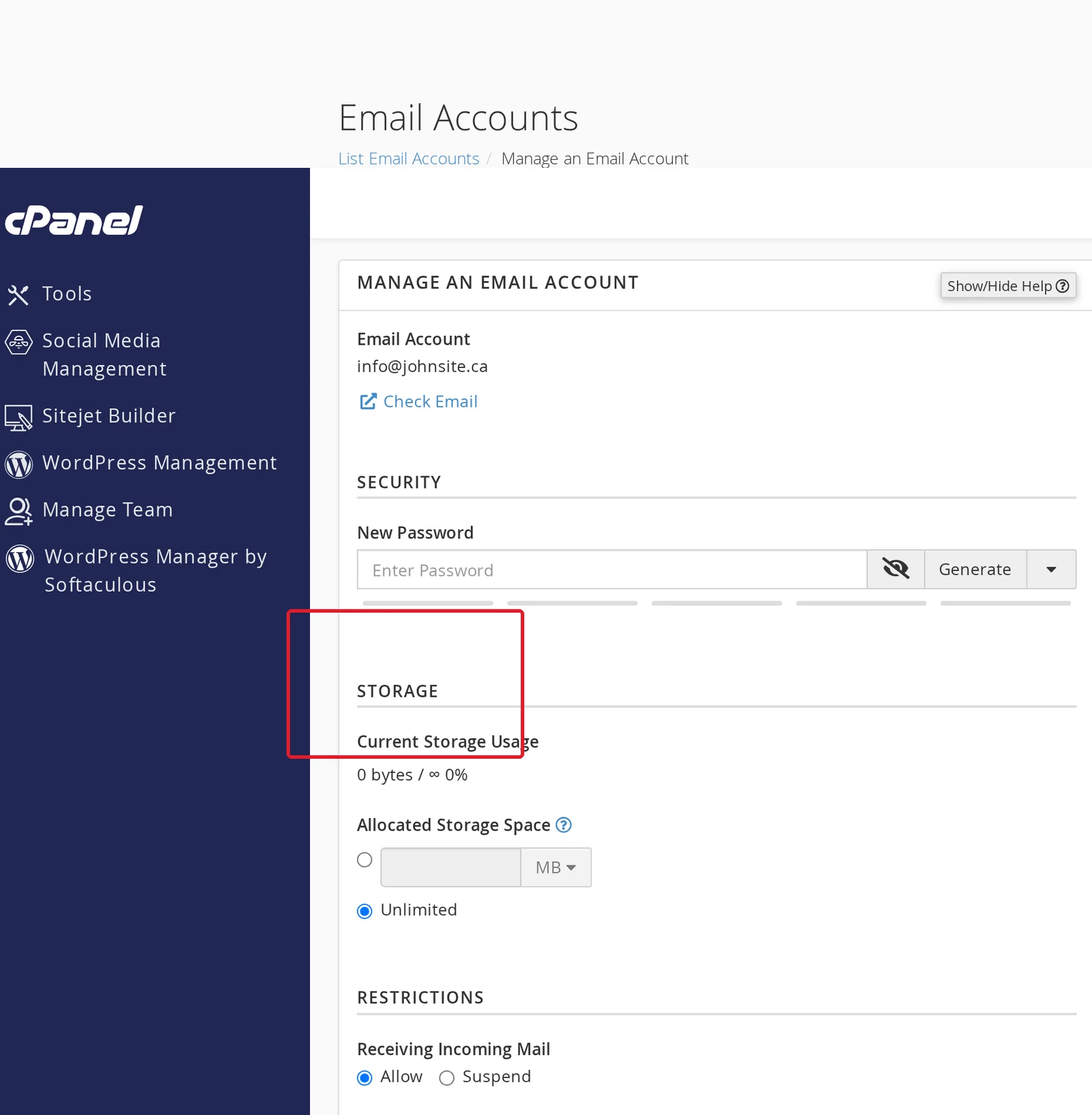
- Set the new quota in MB or GB. Or click Unlimited to remove the cap entirely (uses up to your plan's total storage).
- Click Update Email Settings at the bottom.
The change is immediate. The mailbox can now receive mail up to the new limit.
How big should I make a mailbox?
Depends on how the mailbox is used:
| Use case | Suggested quota |
|---|---|
| Personal mailbox you check daily and clean up | 2-5 GB |
| Business mailbox with attachments | 10-20 GB |
| Heavy mailbox (years of history, lots of attachments) | 50 GB or Unlimited |
| Catch-all / monitoring mailbox | 500 MB - 2 GB |
| Forward-only address (no real mailbox) | 0 (use a forwarder, not an account) |
If you're on a plan with limited storage (Starter has 5GB total), keep an eye on the total — if every mailbox is set to Unlimited, one mailbox can starve the others.
Decrease a mailbox quota
Same process — set a smaller number.
Bulk-change quotas across all mailboxes
Useful if you've been on the default Unlimited and want to apply per-mailbox limits going forward:
- cPanel → Email Accounts.
- For each mailbox, click Manage → set quota → Update.
cPanel doesn't have a bulk-quota-edit feature. For accounts with many mailboxes, the cPanel API or a small shell script can do this in one go — open a ticket if you'd like us to apply a uniform quota across all your mailboxes.
Check current usage
From the Email Accounts page, each mailbox shows its current usage as a percentage of its quota. To see total mail usage across the whole account:
- cPanel → Disk Usage (under Files).
- Look for the
mail/directory total.
This is also where to look if you're getting close to your overall account quota — see Understanding your disk quota.
What to do if a mailbox is full
If a mailbox is at quota, new mail bounces back to the sender with a "mailbox full" error. Two options:
- Increase the quota using the steps above.
- Clean up the mailbox — delete old emails and large attachments. From Webmail, sort by size and delete the largest items first; or use Outlook / iPhone to do the same.
For more on this scenario, see Mailbox is full and not receiving new emails.
Related articles
- Create a new email account
- Mailbox is full and not receiving new emails
- Understanding your disk quota
Need help adjusting mailbox quotas? Open a support ticket


