
FTP and SFTP let you transfer files between your computer and your CanSpace hosting account. They're useful for uploading large numbers of files, working with a designer or developer, or making bulk edits faster than the cPanel File Manager allows.
What you'll need
- Your cPanel username and password (from your New Account Information email or set in cPanel → Password & Security).
- Your server hostname (e.g.
eos.canspace.ca) — also in your welcome email. - An FTP/SFTP client. We recommend FileZilla — it's free, cross-platform, and handles both protocols.
Install FileZilla
- Go to filezilla-project.org.
- Download the FileZilla Client (not Server) for your operating system.
- Install and open it.
Connect via SFTP (recommended)
- Open FileZilla.
-
Go to File → Site Manager (or press Ctrl+S / Cmd+S).
- Click New Site and give it a name (e.g. "CanSpace - yourdomain.com").
-
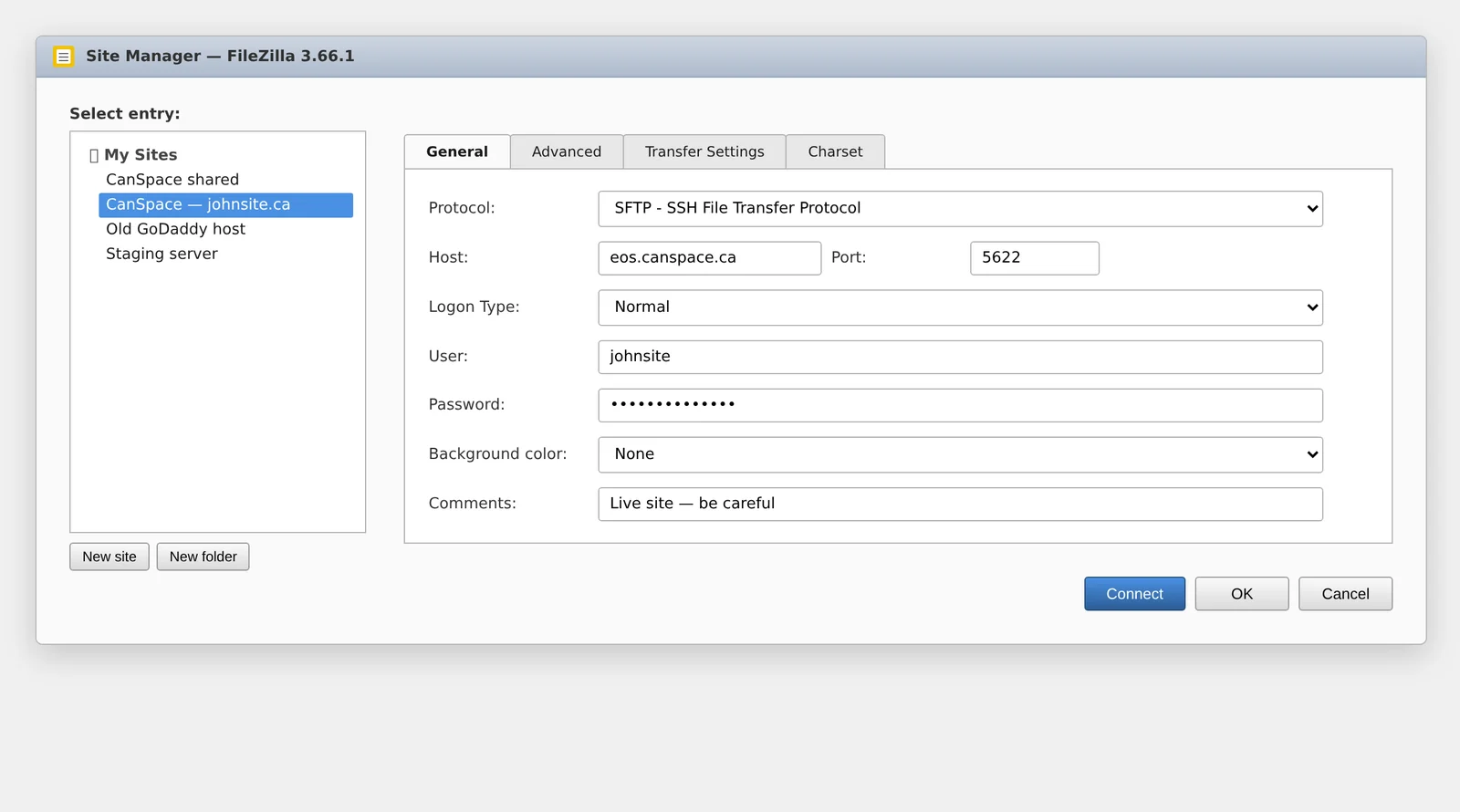
Fill in the connection details:
- Protocol: SFTP - SSH File Transfer Protocol
- Host: your server hostname (e.g.
eos.canspace.ca) - Port:
5622 - Logon Type: Normal
- User: your cPanel username
- Password: your cPanel password
- Click Connect.
- The first time you connect, FileZilla shows the server's host key fingerprint — accept it to continue.
You're in. The right pane shows your server's home directory; the left pane shows your local computer.
Connect via FTP
Same process as SFTP, but:
- Protocol: FTP - File Transfer Protocol
- Encryption: Use explicit FTP over TLS if available
- Port:
921(NOT the standard port 21) - Everything else: same as SFTP
Our FTP server uses TLS encryption automatically when you choose "Use explicit FTP over TLS" — that gets you most of the benefits of SFTP without needing SSH access.
Upload and download files
- In FileZilla's left pane, navigate to a folder on your computer.
- In the right pane, navigate to a folder on the server.
public_html/is your website's root; addon domains live in their own subfolders. - To upload: drag files from the left pane to the right (or right-click → Upload).
- To download: drag files from the right pane to the left (or right-click → Download).
FileZilla shows the transfer queue at the bottom. Successful files move to the bottom log; failed files go to the "Failed transfers" tab.
File permissions (optional)
You sometimes need to change file permissions — for example, after uploading scripts that need to be executable, or fixing files that have been set wrong. Right-click any file or folder in the right pane → File permissions.
Standard permissions on shared hosting:
- Files:
644(owner read/write, others read) - Folders:
755(owner read/write/execute, others read/execute) - Sensitive files like
wp-config.php:600or640
Never set permissions to 777 — it lets anyone on the server read, write, and execute the file. Some bad guides recommend it; it's a security risk.
Common issues
"Connection timed out"
Usually one of:
- Your IP is firewalled by CSF after failed login attempts. See Unblock your IP.
- You're using port 21 instead of 921 (we don't run FTP on the default port).
- Your local network blocks outbound connections to non-standard ports (corporate networks often do).
"Authentication failed"
Wrong username or password. Test the same credentials in cPanel — if they work there but not in FileZilla, double-check that you typed them exactly (no leading/trailing spaces).
"Could not retrieve directory listing" (FTP only)
Switch to Passive mode in FileZilla → Site Manager → Transfer Settings → Transfer mode: Passive. Active mode rarely works through home routers.
Slow uploads
FileZilla uploads one file at a time by default. Speed it up:
- FileZilla → Edit → Settings → Transfers.
- Set Maximum simultaneous transfers to 4 or 6.
FTP accounts for developers
If you want to give a developer FTP access without sharing your main cPanel password, create a separate FTP account scoped to a specific folder:
- cPanel → FTP Accounts.
- Fill in a username (their domain login becomes
[email protected]). - Set a strong password.
- Set the directory — restrict them to a project folder if you want.
- Click Create FTP Account.
Send them the username, password, hostname, and port. They connect just like you do.
Related articles
Trouble connecting via FTP / SFTP? Open a support ticket


