
If you've stopped receiving email and senders are getting bounce-back messages mentioning "mailbox full", "quota exceeded", or "554 5.2.2", your mailbox has hit its storage limit. This article covers how to confirm it and three ways to fix it.
Confirm the mailbox is actually full
- Log in to cPanel.
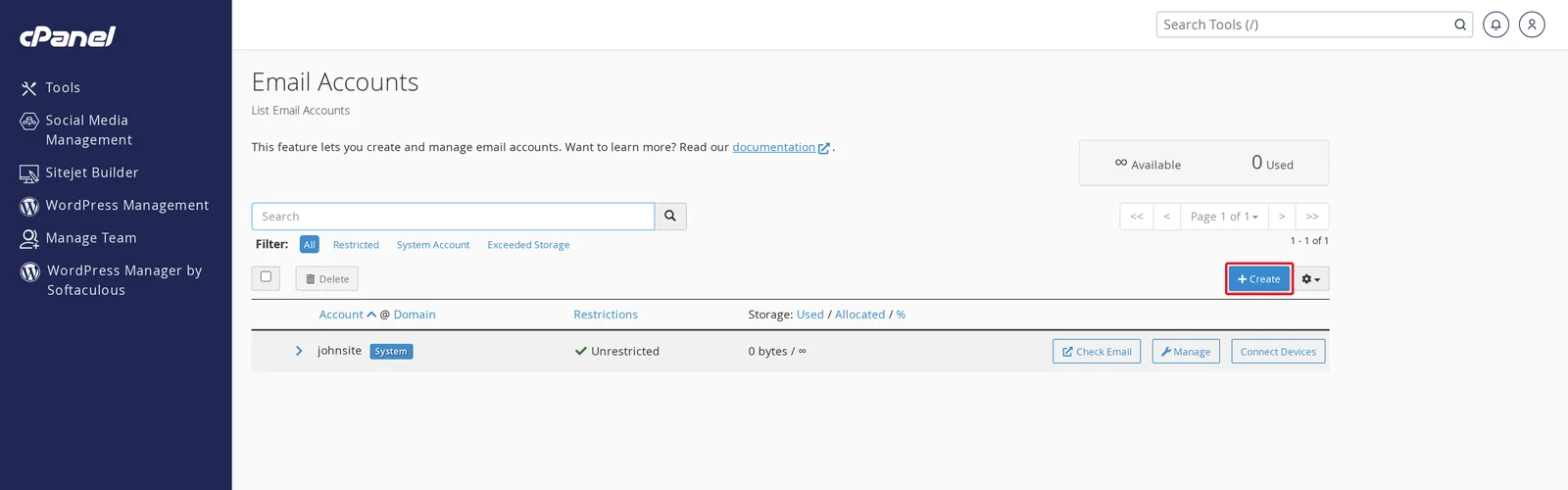
- Under the Email section, click Email Accounts.
-
Look at the Storage: Used / Allocated / % column on the Email Accounts list. If your mailbox is at or near 100%, that's the cause.
Option 1: Increase the quota
Fastest fix. The mailbox keeps everything that's there and starts accepting new mail again.
- From the Email Accounts page, click Manage next to the full mailbox.
- Scroll to Allocated Storage Space.
- Set a higher number (or click Unlimited).
- Click Update Email Settings.
See Increase a mailbox storage quota for full details.
Option 2: Clean up the mailbox
If you'd rather free up space than allocate more, the most effective approach is to delete large attachments and emails you don't need.
From Webmail (Roundcube)
- Log in to Webmail.
- Click the Inbox column header to sort. If sorted by date, click again to switch to Size.
- Sort descending. The biggest emails are at the top.
- Select and delete what you don't need. Make sure to also empty the Trash folder afterward — deleted mail still counts toward the quota until trash is emptied.
From Outlook / Apple Mail / Thunderbird
- Click the size column header to sort by size.
- Delete large items.
- Empty the Trash / Deleted Items folder.
If you're using IMAP (which most clients are), deletions sync to the server immediately. With POP3, your local client might have already downloaded the messages — deleting them locally won't free server-side space.
From the cPanel Email Disk Usage tool
cPanel has a dedicated tool for finding large email folders:
- cPanel → Email Disk Usage.
- Choose the mailbox.
- It shows you the size of every folder in the account.
- Use the controls to delete old messages, archive folders, or remove large attachments.
Option 3: Move old mail off the server
If you want to keep all your email but get it off the server, set up a local archive:
- Configure Outlook (or Thunderbird, or Apple Mail) with your email account.
- Drag old emails from the IMAP inbox into a local folder on your computer (not another IMAP folder).
- The mail moves off the server and onto your local machine — same content, no longer counting toward your mailbox quota.
Backups: if you do this, make sure your computer is being backed up. Local-only mail isn't on the server anymore, so it's not in our backups either.
Common patterns that fill up mailboxes
- Large attachments piling up. A handful of design files / videos / PDF reports per week adds up to gigabytes per year.
- Sent Items never cleaned out. Many people only think about Inbox. Sent Items grows just as fast.
- Spam folders with "delete after never". Some clients are configured to never delete spam — set that to 30 or 60 days.
- Calendars with attachments. Less common, but ICS files with embedded attachments can be surprisingly large.
- Mailing lists / notification mail. If you're on multiple mailing lists or get high-volume automated mail (e.g. server alerts, transaction confirmations), set up filters that auto-archive or delete after a window.
Set up a "size guard" filter (advanced)
If you want to keep your mailbox small without thinking about it, set up filters in cPanel → Email Filters that automatically:
- Move attachments over X MB to a "Large Attachments" folder you check less often.
- Auto-delete from a folder after N days.
This is more involved. Open a ticket if you'd like help setting it up.
What about senders who got bounces?
Mail that bounced while your mailbox was full is gone — the sender's mail server already returned it as undeliverable. They'll either resend manually or assume their message went through; you'll need to reach out if there's something specific you were waiting on.
Related articles
Need help cleaning up a stuck mailbox? Open a support ticket


