
cPanel's Backup Wizard is the friendliest way to download a complete backup of your hosting account — files, databases, email, the works — as a single archive you can save to your computer.
What's in a full backup
A full account backup includes:
- All files in your home directory (websites, email storage, anything in
public_html/, etc.). - Every MySQL database on the account.
- All email account credentials and settings.
- Email forwarders, filters, autoresponders.
- FTP accounts.
- DNS zone files.
- Cron jobs.
- SSL certificates.
It does not include things outside your account (server-wide settings, other accounts).
Generate and download a full backup
- Log in to cPanel.
-
Under the Files section, click Backup Wizard.
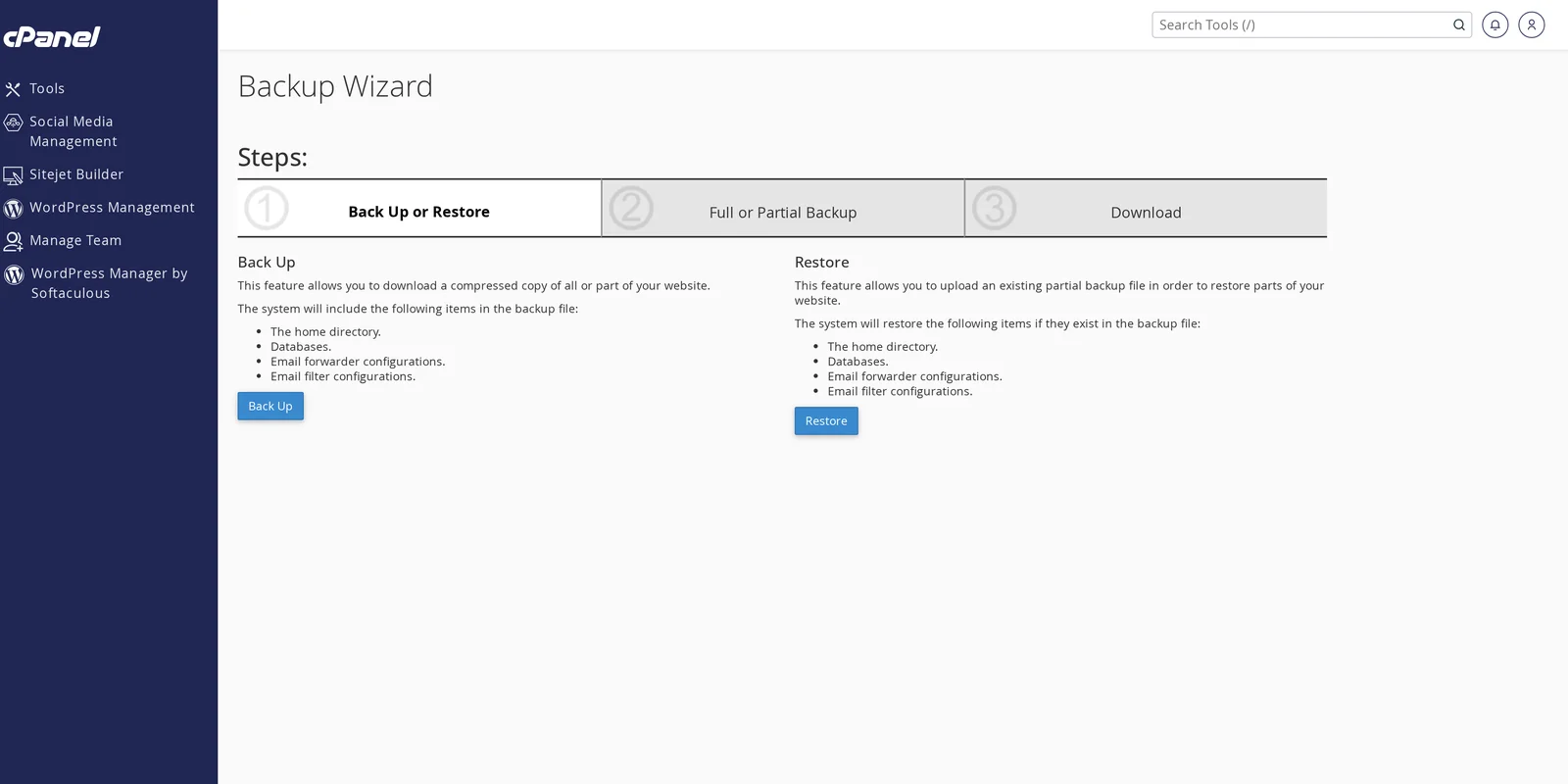
- Click Backup on the left.
- Click Full Backup.
-
Choose where to send the backup:
- Home Directory — generates the backup and stores it on the server (you can download it later via File Manager / FTP).
- SCP / FTP / FTP Passive Mode — generates the backup and pushes it to a remote server you specify.
- (Optional) Enter an email address to receive a notification when the backup is ready.
- Click Generate Backup.
-
cPanel queues the backup. Depending on account size, it can take a few minutes to a few hours. You'll get an email when it's done — at which point a file like
backup-MM.DD.YYYY_HH-MM-SS_yourcpaneluser.tar.gzexists in your home directory.
Download the backup
Once it's generated, you can grab it via:
- cPanel File Manager — navigate to your home directory, find the
backup-*.tar.gzfile, click it, then click Download. - FTP / SFTP — log in via FileZilla and download the file. See Set up FTP or SFTP with FileZilla.
- SSH —
scp -P 5622 [email protected]:~/backup-*.tar.gz .
Save it somewhere safe (an external drive, cloud storage, both).
Partial backups
If you only need part of your account, the Backup Wizard offers smaller exports. Click Backup, then under Partial Backups, choose:
- Home Directory — files only, no databases / email config.
- MySQL Databases — pick a database and download just it (the same as a phpMyAdmin export).
- Email Forwarders — list of forwarders only.
- Email Filters — list of filter rules only.
Partial backups generate immediately (no queuing) and download to your browser.
Restoring from a Backup Wizard backup
Important: the Backup Wizard's "Restore" feature only works for partial backups (databases, email forwarders, etc.). Full account restores from a backup file require server-side action — open a ticket and we'll restore the full backup for you.
For database / forwarder / filter restores:
- cPanel → Backup Wizard.
- Click Restore.
- Pick the type (Home Directory, MySQL Databases, etc.).
- Upload the partial backup file.
- Click Upload.
How often should I take backups?
Depends on how often the site changes:
| Site type | Suggested frequency |
|---|---|
| Static / brochure site | After any major change |
| Blog with weekly posts | Weekly |
| Active e-commerce site | Daily (consider an automated plugin) |
| SiteJet site | After any major design change |
Remember, we keep daily backups on our end. Your own backups are an additional layer — useful if you ever leave us, want to test a restore, or need to roll back further than our retention window.
Automated backups (alternatives)
For automation, options include:
- WordPress plugins — UpdraftPlus, BlogVault, or Jetpack Backup. They run on a schedule and push backups to Dropbox, Google Drive, or S3.
- Cron job + custom script — for technical users who want full control.
- Our daily server-side backups — already running, no setup needed; restore on request.
Related articles
Need help with a backup or restore? Open a support ticket


