
An email signature shows up at the bottom of every email you send — your name, role, contact details, maybe a logo. This article covers setting one up in the most common places: Webmail (Roundcube), Outlook, Apple Mail, and Gmail.
Signatures are set in your email client, not on the server. Each device / app you use to send mail has its own signature. If you want consistency, set up the same signature in each one.
Set a signature in Webmail (Roundcube)
- Log in to Webmail (or directly at
https://yourdomain.com/webmail). - Click the Settings icon (gear / cog) in the top right.
- In the left menu, click Identities.
- Click your email address in the list.
-
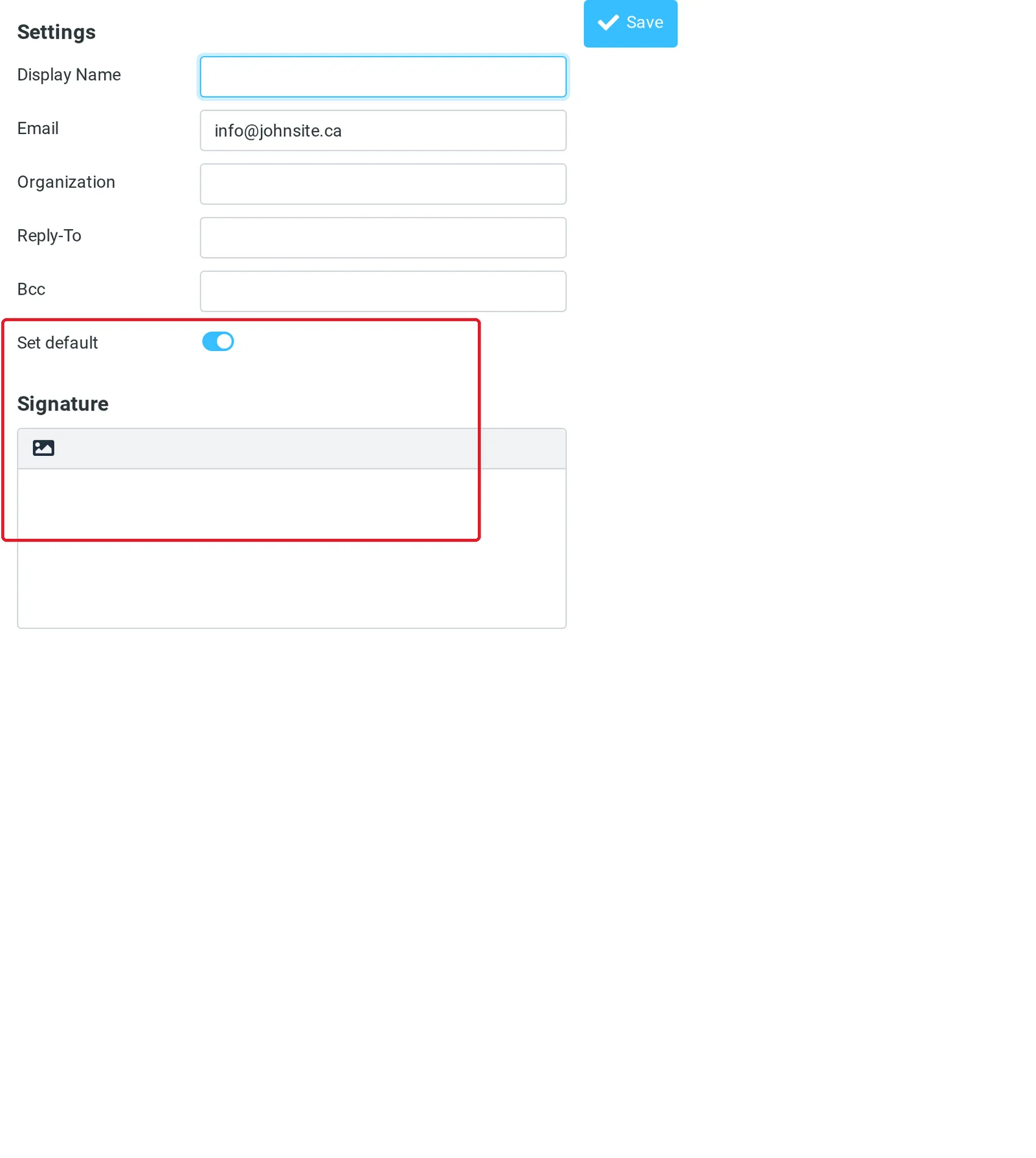
Fill in the form:
- Display Name — how your name shows up to recipients.
- Email — your email address (already filled in).
- Reply-To — leave blank unless you want replies to go to a different address.
- Signature — the actual signature text. The editor toolbar lets you bold / italic / colour text and insert a logo.
- Click Save.
From now on, new emails composed in Webmail include the signature at the bottom automatically.
Set a signature in Outlook (Windows / Mac)
Outlook for Windows (current version)
- Click File → Options → Mail → Signatures.
- Click New and give the signature a name (e.g. "Default").
- Type the signature in the text box. The toolbar lets you bold, change colours, insert images, add hyperlinks.
- Under Choose default signature, set:
- E-mail account: pick your CanSpace account.
- New messages: select your signature.
- Replies/forwards: select your signature (or "(none)" if you only want it on new mail).
- Click OK.
Outlook for Mac
- Click Outlook → Preferences → Signatures.
- Click the + to create a new signature.
- Type the signature; format with the toolbar.
- Close the Signatures panel.
- Click Default Signatures → pick your account → pick your signature.
Outlook on the Web
- Click the gear icon → View all Outlook settings.
- Mail → Compose and reply.
- Type your signature in the editor.
- Tick Automatically include my signature on new messages I compose and the equivalent for replies.
- Click Save.
Set a signature in Apple Mail (Mac)
- Open Apple Mail.
- Click Mail → Settings → Signatures.
- Pick your account in the left list.
- Click + to add a signature.
- Type and format. Mail supports rich text by default.
- (Optional) Drag in an image to add a logo.
- Close the Settings window.
- To make it the default, in the same panel use the Choose Signature dropdown at the bottom.
Set a signature on iPhone / iPad
- Settings → Mail → Signature.
- Choose Per Account if you want different signatures for different accounts.
- Type your signature for your CanSpace account.
iOS Mail supports plain text only — no logos / colours.
Set a signature in Gmail (when receiving CanSpace mail in Gmail)
If you've set up your CanSpace email to be checked via Gmail (Send Mail As / forwarding):
- Gmail → Settings (gear) → See all settings.
- General tab.
- Scroll to Signature.
- Click Create new, give it a name, type your signature in the editor.
- Under Signature defaults, pick your CanSpace email account from the dropdown and choose your new signature for new mail and replies.
- Scroll to the bottom and click Save Changes.
Tips for a good email signature
- Keep it short. Name, title, company, phone, website, maybe email. Anything more is clutter.
- Don't repeat the email address. The recipient already has it (it's in the From header).
- Avoid huge logos. Big embedded images bloat every email and sometimes get blocked. A 100-200 px logo is plenty.
- Hyperlinks instead of full URLs. "canspace.ca" looks cleaner than
https://canspace.ca/. - Avoid mobile-incompatible HTML. Tables, custom fonts, and complex layouts often look broken on phone screens. Plain text or simple HTML works best.
- Don't include sensitive disclaimers in marketing emails. Long legal disclaimers belong in B2B / professional contexts, not casual replies.
HTML signatures (logos, colours, links)
If you want a designed signature with a logo:
- Design it in any HTML editor or use a free signature generator (HubSpot, MySignature, etc.).
- Copy the HTML.
- In your mail client, find the signature settings → switch to HTML / source mode → paste.
- Or just paste the rendered version directly into the rich-text signature box (Outlook / Mail / Webmail all accept this).
Logos linking to images on your site. If your signature embeds a logo by URL (rather than attaching it), some recipients won't see it (their mail client blocks remote images by default). Most signature generators handle this by inlining the image as base64 data — the logo travels in the email itself.
Related articles
Need help with your email signature? Open a support ticket


