
Webmail (Roundcube) has a settings panel where you can change how mail looks and behaves. Most of the defaults are reasonable, but a few tweaks make day-to-day work much smoother — especially if you check Webmail often.
Open Webmail settings
- Log in to Webmail.
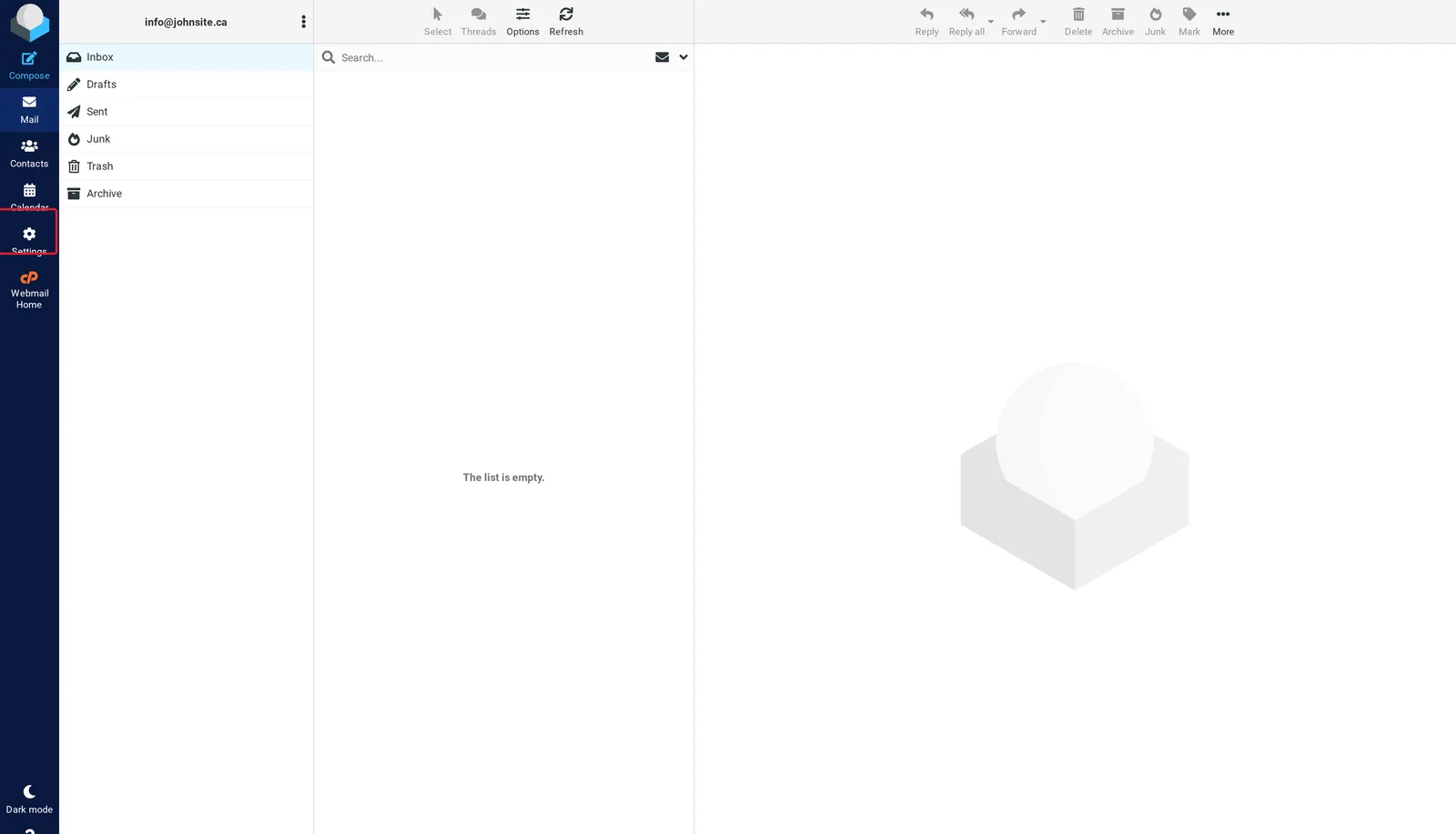
- Click the Settings icon (gear / cog) in the left navigation bar.
- The left menu lists every settings category.
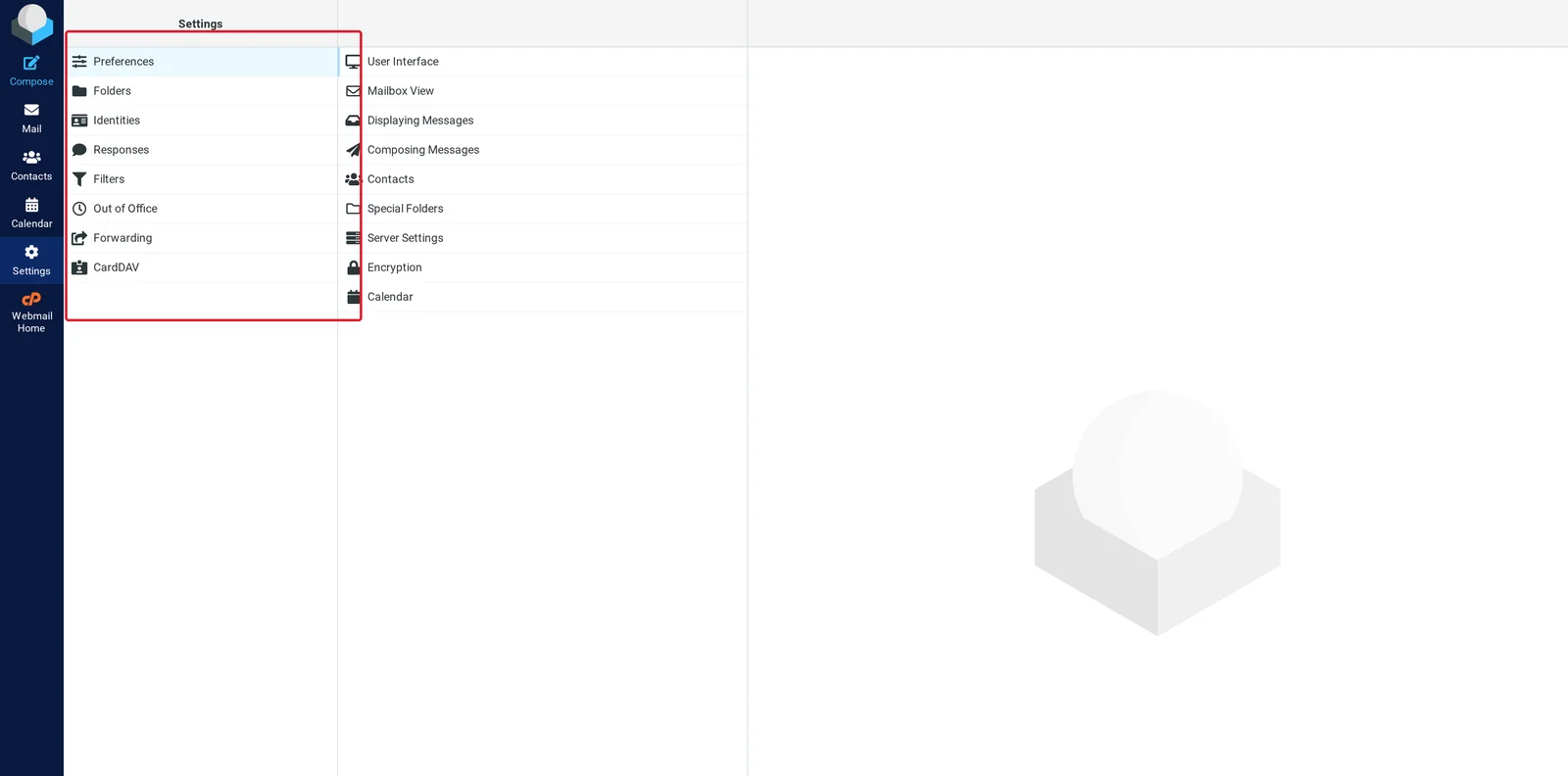
Inside the Settings area, the left column lists each category (Preferences, Folders, Identities, Responses, Filters, Out of Office, Forwarding, CardDAV) and the centre column shows the options for the selected category:
Useful settings to know about
Preferences → User Interface
- Language — defaults to English; pick whatever you prefer.
- Time zone — defaults to UTC. Change this to your local time zone so message timestamps make sense.
- Time format — 12h or 24h.
- Interface skin — Roundcube comes with a few visual themes. "Elastic" is the modern default; "Larry" is the older blue theme; "Classic" is plain.
- Display refresh interval — how often Webmail checks for new mail. The default (1 min) is fine; reduce to 30s for high-volume mailboxes.
Preferences → Mailbox View
- Threads layout — group replies together as conversations, similar to Gmail. Many people prefer this once they try it.
- Mark messages as read — controls whether opening a message marks it read instantly or after a delay. The "after 5 seconds" option is helpful if you tend to scroll past messages without intending to read them.
- Display next message after marking as deleted — auto-advances to the next email after delete. Convenient.
Preferences → Displaying Messages
- Display HTML — keep on. Disabling falls back to plain text only.
- Display remote inline images — controls whether Webmail loads remote images automatically. Default is "from trusted senders only" which is right — leaks an "I read this" signal to spammers if set to always.
- Show preview pane — splits the inbox view so you can read mail without opening it in a separate page.
Preferences → Composing Messages
- Compose HTML messages — turn on if you want to format outgoing mail (bold, colours, links). Plain text is the default and is friendlier to a wider range of mail clients.
- Always request a return receipt — leave off. Most recipients ignore (or block) read receipts, and some find them rude.
- Place replies above the quoted message — top-posting (most common today) vs. bottom-posting. Pick whatever you prefer.
Preferences → Special Folders
Tells Roundcube which IMAP folders to treat as Drafts, Sent, Junk, and Trash. The defaults are usually correct (auto-detected from your account), but if your mail client created folders with different names, you can map them here.
Preferences → Server Settings
- Mark the message as read on delete — so deleted messages don't show as "unread + deleted" in some views.
- Flag the message for deletion instead of delete — IMAP-only behaviour. Default is fine.
- Directly delete messages in Junk — saves the "delete from Junk → goes to Trash → delete from Trash" two-step.
Folders
This panel is the master list of your mailbox folders.
- Subscribe / unsubscribe — tick / untick to show or hide folders in the inbox view.
- Create folder — make a new folder for organisation.
- Rename / delete — manage existing folders.
Folders sync between Webmail and any IMAP mail client (Outlook, Apple Mail, etc.) — if you create a folder in Webmail, it shows up everywhere else; same in reverse.
Identities
Lets you set up your display name, signature, and additional "send as" addresses. See Set up a custom email signature for the full walkthrough.
Filters
Webmail's Filters panel lets you set up Sieve rules — server-side filters that move incoming mail into folders, mark it, or delete it automatically. Useful for newsletters, automated notifications, etc.
Example filter: "Move every email from [email protected] to the Newsletters folder."
- Filters → Filters.
- Click Create.
- Set the filter name, conditions (e.g. From contains
[email protected]), and action (Move to Newsletters). - Save.
Sieve filters apply on the server, so they fire whether you're reading mail in Webmail, Outlook, your phone, or anywhere else.
Password
Lets you change your email account password without going to cPanel. See Change your email password.
Tips
- Keyboard shortcuts. Roundcube has them — press ? from the inbox to see the list. R reply, F forward, Delete delete, N next.
- Use search. The search box at the top supports
from:,subject:,to:,has:attachment, and date ranges. It searches the full mailbox, not just the current folder. - Vacation responder. Filters → Vacation. Sets up an out-of-office auto-reply via Sieve. See Autoresponders and out-of-office replies.
Related articles
- Access your Webmail account
- Set up a custom email signature
- Autoresponders and out-of-office replies
Need help with Webmail? Open a support ticket


