
If you want someone else — a business partner, developer, accountant, or family member — to receive emails from us, log in to help manage your services, or be listed as a billing contact, add them as a separate contact on your account rather than sharing your login.
Contact vs. user — what's the difference?
WHMCS distinguishes between two types of people attached to your account:
- Contact — a person whose details are on file (name, email, phone, address). They can receive notifications (invoices, renewal reminders, support ticket updates) if you tick those preferences. By default they do not have login access.
- Sub-account / user — a contact who's also been given login credentials. They can log in to the client area with their own password and see/manage services you've granted them access to.
Most of the time, what you actually want is a contact with sub-account access, so they can log in when needed. You set both up from the same page.
Add a new contact
-
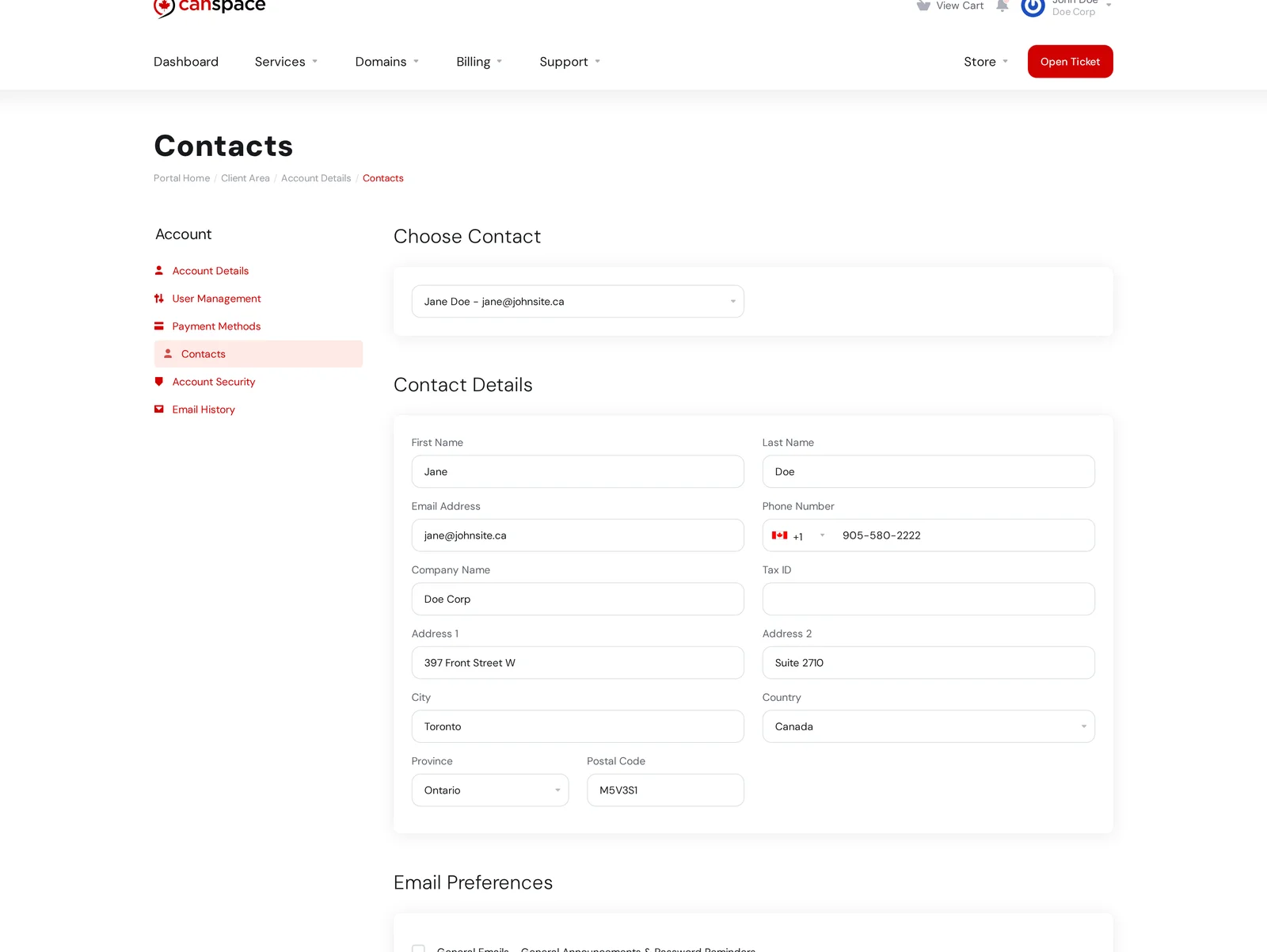
Log in to the client area, click your name in the top right, and choose Contacts.
-
In the Choose Contact dropdown, select Add new Contact.
-
Fill in their details:
- Personal info — first name, last name, email address, phone, company name
- Address — optional, used on invoices when this contact is selected as the billing contact
-
Under Email Preferences, tick which types of emails this contact should receive:
- General Emails — account-wide announcements and password reminders
- Invoice Emails — new invoices, payment confirmations, late notices
- Support Emails — ticket updates
- Product Emails — new service info, renewals
- Domain Emails — domain renewal reminders, registrar notices
-
To also give them login access (recommended if they'll be managing anything), tick Activate Sub-Account and choose which permissions to grant. Common permissions: view active services, manage existing products, view domains, manage contacts, view invoices.
-
Click Save Changes.
When you added a sub-account — what happens next
If you activated sub-account access, the contact can now log in with their own email address. They set their password by clicking Forgot Password at the login screen — WHMCS sends them a reset link. They don't share your password, and revoking their access later is as simple as un-ticking Activate Sub-Account on their contact entry.
Editing or removing a contact
Return to the same Contacts page and pick the contact from the Choose Contact dropdown. Make your changes, or click Delete Contact at the bottom.
Email preferences at a glance
You control which contacts get which emails from the same Contacts page. Common setups:
- You handle everything — your Account Details handle all emails, no contacts needed.
- Accountant gets invoices only — add them as a contact, tick only Invoice Emails.
- Developer handles technical, you handle billing — add developer as a sub-account with Support Emails only.
Related articles
Need help setting up access for a specific person? Open a support ticket


