
To create a new email address at your domain (like [email protected]), use the Email Accounts tool in cPanel. It takes about a minute from start to finish.
Quick steps: cPanel → Email Accounts → + Create → pick a username, set a password, click Create.
Steps
-
Log in to cPanel. See How do I log in to cPanel? if you need a refresher. Once you're in, find the Email section and click Email Accounts (or type email accounts in the search bar at the top).
-
On the Email Accounts page, click the + Create button in the top right.
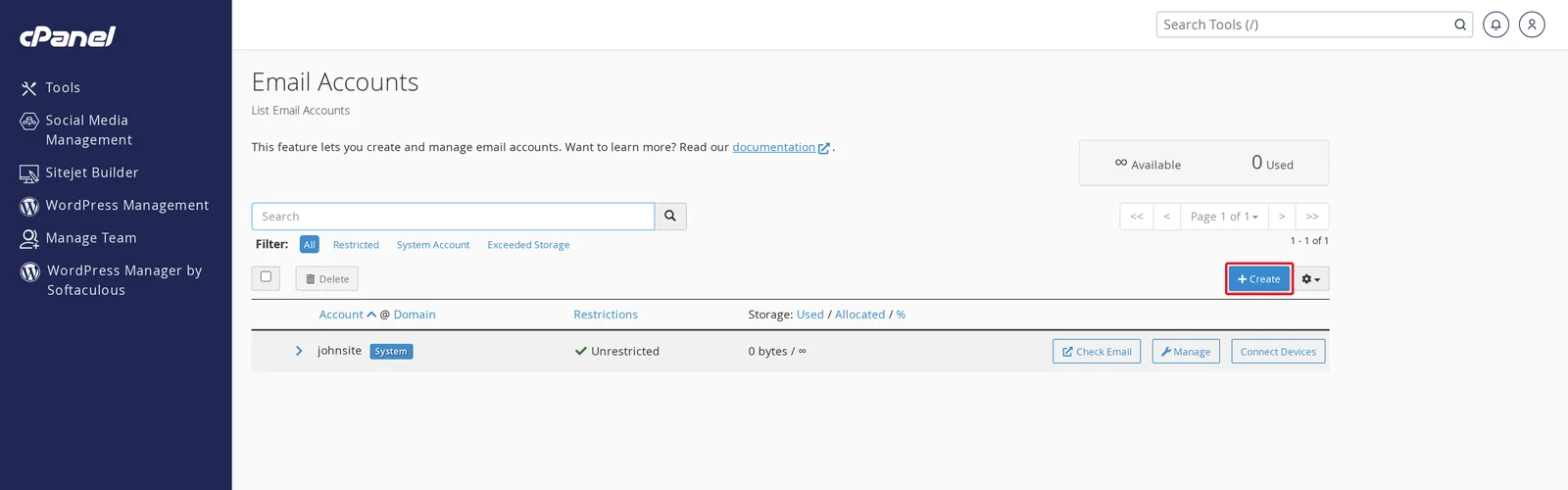
-
Fill in the form:
- Username: the part before the
@— for exampleinfo,sales, or your first name. The@yourdomain.comsuffix is added automatically. - Password: enter a strong password, or click Generate to have cPanel create a secure one for you. Aim for at least 12 characters mixing letters, numbers, and symbols.
Click + Create at the bottom. Your new mailbox is ready to use immediately.
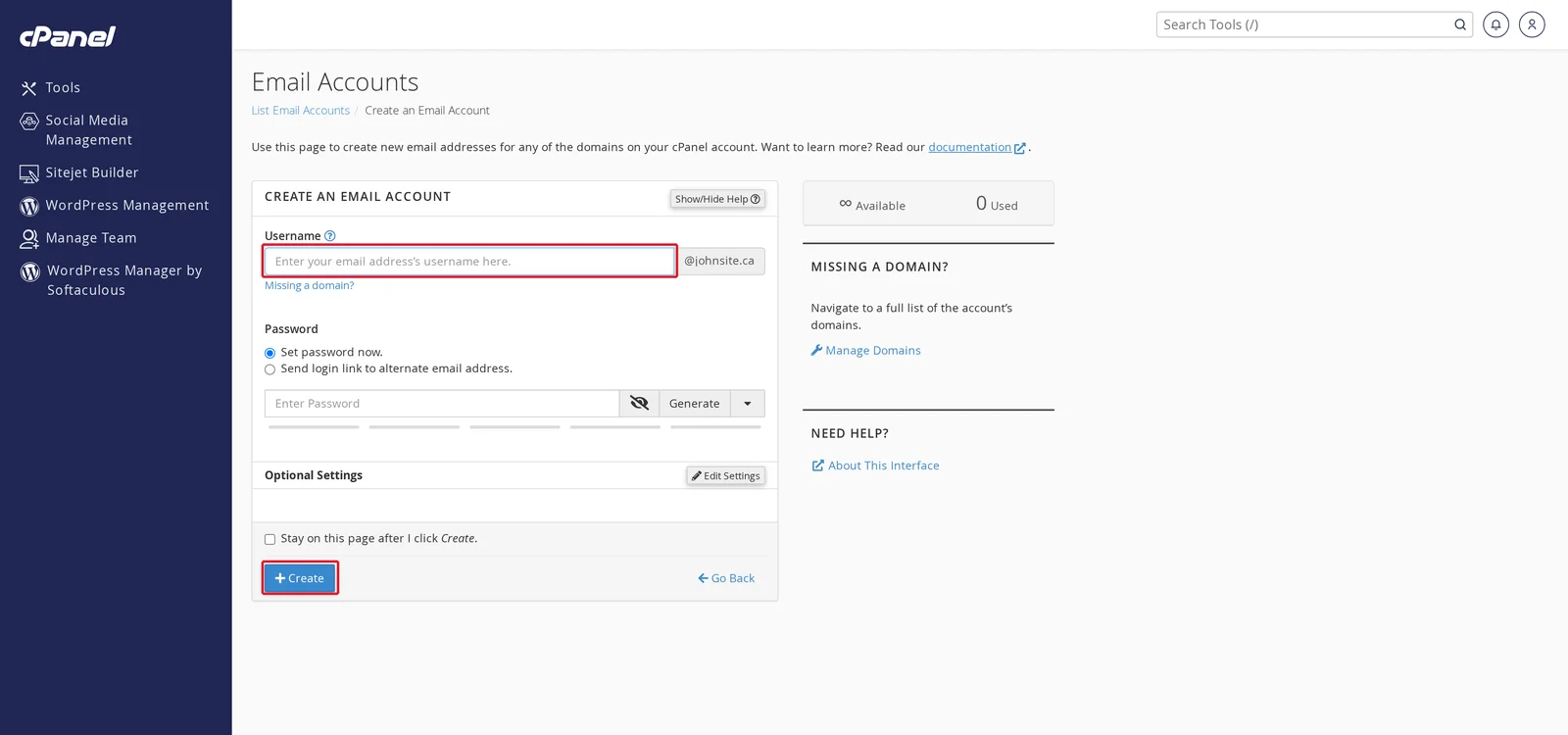
- Username: the part before the
Heads up: Save the password somewhere safe — you'll need it to log into webmail and to configure the account in Outlook, Apple Mail, Thunderbird, or your phone. We can reset it later if lost, but we can't recover the original.
Optional settings
Clicking Edit Settings in the Optional Settings section gives you a few extra controls:
- Storage Space — limit the mailbox's disk quota. Leave at Unlimited unless you want to cap it (useful for shared accounts you don't want filling up your storage).
- Send a welcome email — sends the new account's user a welcome message with their server settings. Handy when you're creating an account for someone else.
- Automatically Create Folders for Plus Addressing — advanced routing option; safe to leave at default.
What's next?
- Log in to webmail to read and send messages from any browser
- Set up the account on your phone, Mac, or desktop mail client
Related articles
- How do I log in to cPanel?
- How do I change my email password?
- Setting up email on Android, Mac, or Thunderbird
Still stuck? Open a support ticket


