
To change the password for one of your email accounts, use the Email Accounts tool in cPanel. If you're the domain owner, you can reset anyone's password on your account — useful if someone loses theirs.
Steps
-
Log in to cPanel. See How do I log in to cPanel? if needed. Open the Email Accounts tool.
-
Find the account in the list and click Manage.
-
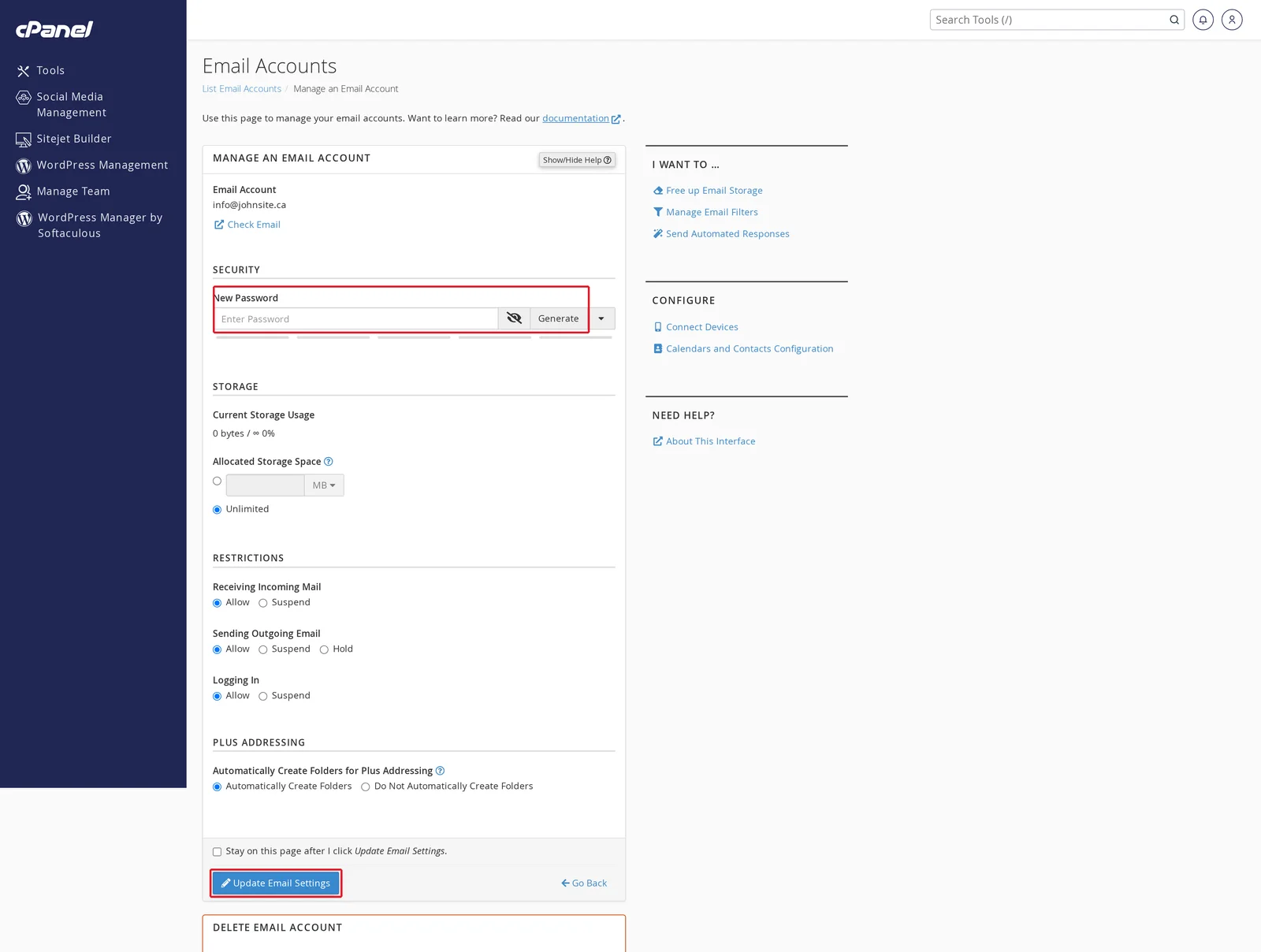
In the Security section, enter a new password (or click Generate to have cPanel create a strong one). Then scroll down and click Update Email Settings to save.
Changing the password from webmail
You can also change your own password from inside webmail without going through cPanel. Log in to webmail, click your name (usually top right) → Password & Security, and enter a new password there. This only changes your own mailbox's password — not anyone else's.
Forgot the current password?
If you're the cPanel account owner, you can reset any mailbox password from cPanel even if you don't know the current one (the steps above). If you're locked out of both the mailbox and cPanel, see How do I log in to cPanel? or open a support ticket.
Related articles
- How do I create a new email account?
- How do I access my Webmail account?
- Setting up email on your device
Still stuck? Open a support ticket


