
Your CanSpace email works with any mail client — Outlook, Apple Mail, Thunderbird, iPhone, Android, and anything else that speaks standard IMAP/SMTP. This article covers the general approach; see the device-specific guides below for step-by-step instructions.
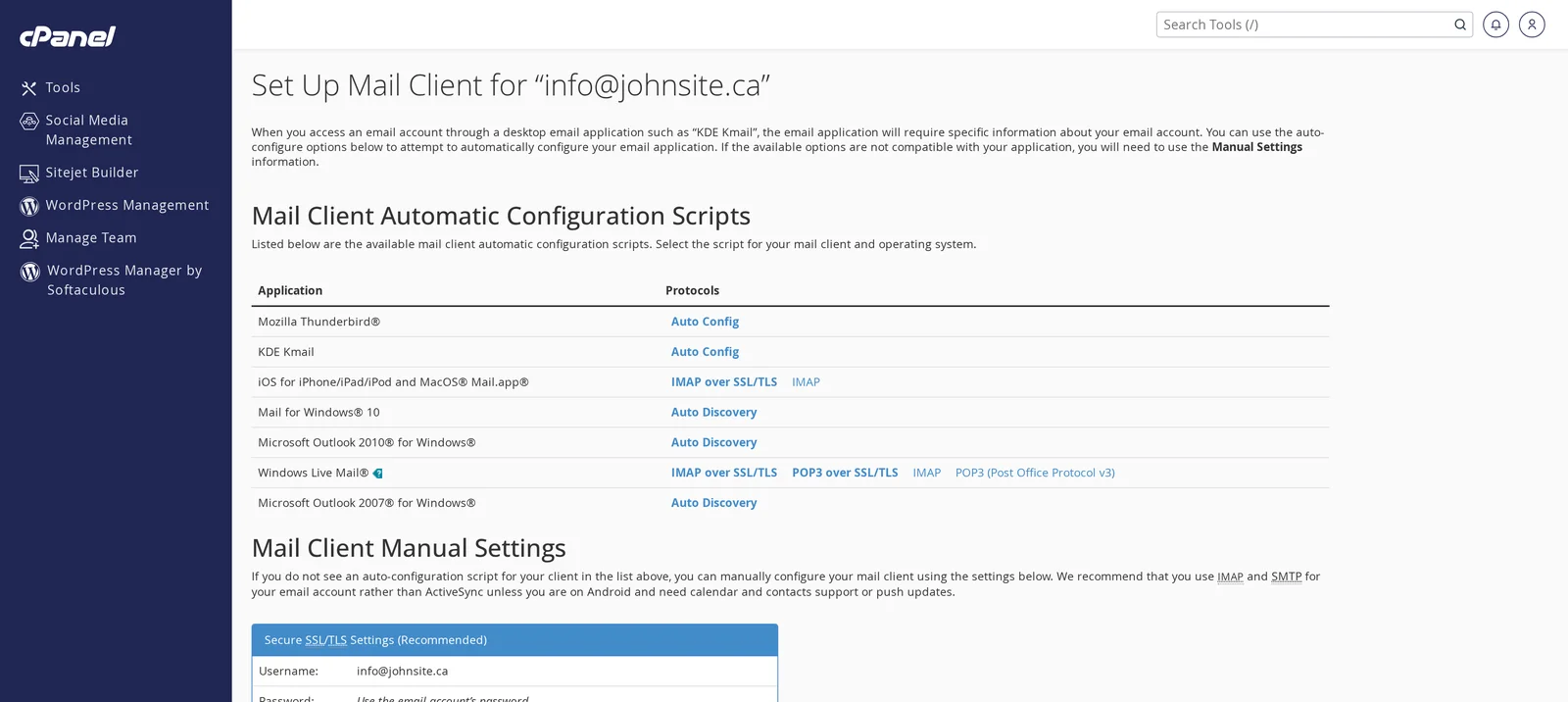
The shortcut: cPanel has a built-in "Set Up Mail Client" tool that either configures your client automatically or gives you the exact settings to copy. See below.
Easiest path: use cPanel's auto-setup
- Log in to cPanel (see How do I log in to cPanel?) and open Email Accounts.
- Click Connect Devices beside the mailbox you want to set up.
- For supported clients (Thunderbird, Apple Mail on iOS/macOS, Outlook 2007/2010, Windows 10 Mail, etc.), click the auto-config link and follow the prompts. cPanel generates a configuration profile that installs all the settings automatically.
- For other clients, use the Mail Client Manual Settings table further down the page (your exact server hostname, ports, and username will be shown there — use those values).
Step-by-step guides per device
Each of the articles below walks through setup for a specific mail client, including screenshots, settings tables, and common-issue fixes:
- Set up email on iPhone, iPad, or Mac (Apple Mail) — one-tap config profile, plus manual setup for iOS and macOS.
- Set up email on Android (Gmail or Samsung Email) — step-by-step for the Gmail app and Samsung Email.
- Set up email in Outlook (Windows) — classic Outlook, new Outlook for Windows, and Outlook 365.
- Set up email in Mozilla Thunderbird — auto-detect and manual setup for Windows, macOS, and Linux.
Manual settings reference
If your mail client isn't covered above, or you'd rather configure it by hand, use these values. Your specific hostname is shown on the Connect Devices page for your account — substitute it for mailserver.canspace.ca below.
Recommended — SSL/TLS (secure)
| Setting | Value |
|---|---|
| Username | Your full email address, e.g. [email protected] |
| Password | Your mailbox password |
| Incoming (IMAP) | mailserver.canspace.ca, port 993, SSL/TLS |
| Incoming (POP3) | mailserver.canspace.ca, port 995, SSL/TLS |
| Outgoing (SMTP) | mailserver.canspace.ca, port 465, SSL/TLS |
| SMTP authentication | Required — use the same username and password as incoming |
IMAP or POP3 — which should I use?
- IMAP (recommended): messages live on the server. Read/delete/move them on one device, and the change is reflected everywhere. This is what you want if you check email on more than one device.
- POP3: messages are downloaded to one device and (usually) deleted from the server. Use this only if you want email on a single computer and prefer it to be offline.
Heads up: If you configured the account using settings like
mail.yourdomain.com and it suddenly stops working, your DNS may have changed. Switch to the server hostname (serverXX.canspace.ca) shown on your Connect Devices page — that always works, even during DNS propagation.Common issues across all mail clients
- "Authentication failed" — double-check the username is the full email address (not just the part before
@) and the password is correct. If you recently changed your password, update it in the mail client. - "Connection refused" or "Connection timed out" — your ISP or network may block ports 993/465. Try from a different network, or ask us to whitelist your IP.
- "Certificate error" — make sure the server hostname in your settings matches the hostname on your Connect Devices page. Using
mail.yourdomain.combefore SSL is provisioned can cause this. - Sending works but receiving doesn't (or vice versa) — you've got one server right but not the other. Re-check incoming and outgoing server names and ports against the table.
Related articles
- How do I create a new email account?
- How do I access my Webmail account?
- How do I change my email password?
- Email troubleshooting checklist
- Understanding email bounce messages
Still stuck? Open a support ticket


