
cPanel is the control panel for your web hosting account. It's where you create email addresses, upload files, set up databases, add domains, install WordPress, and manage every other part of your site — all through a web interface, no command line required.
How to get to cPanel
The easiest way is from your CanSpace client area — one click and you're signed in, no separate password needed. See Log in to cPanel for the step-by-step.
What you'll see inside
cPanel groups its features into sections. When you first log in, you'll see a dashboard that looks like this:
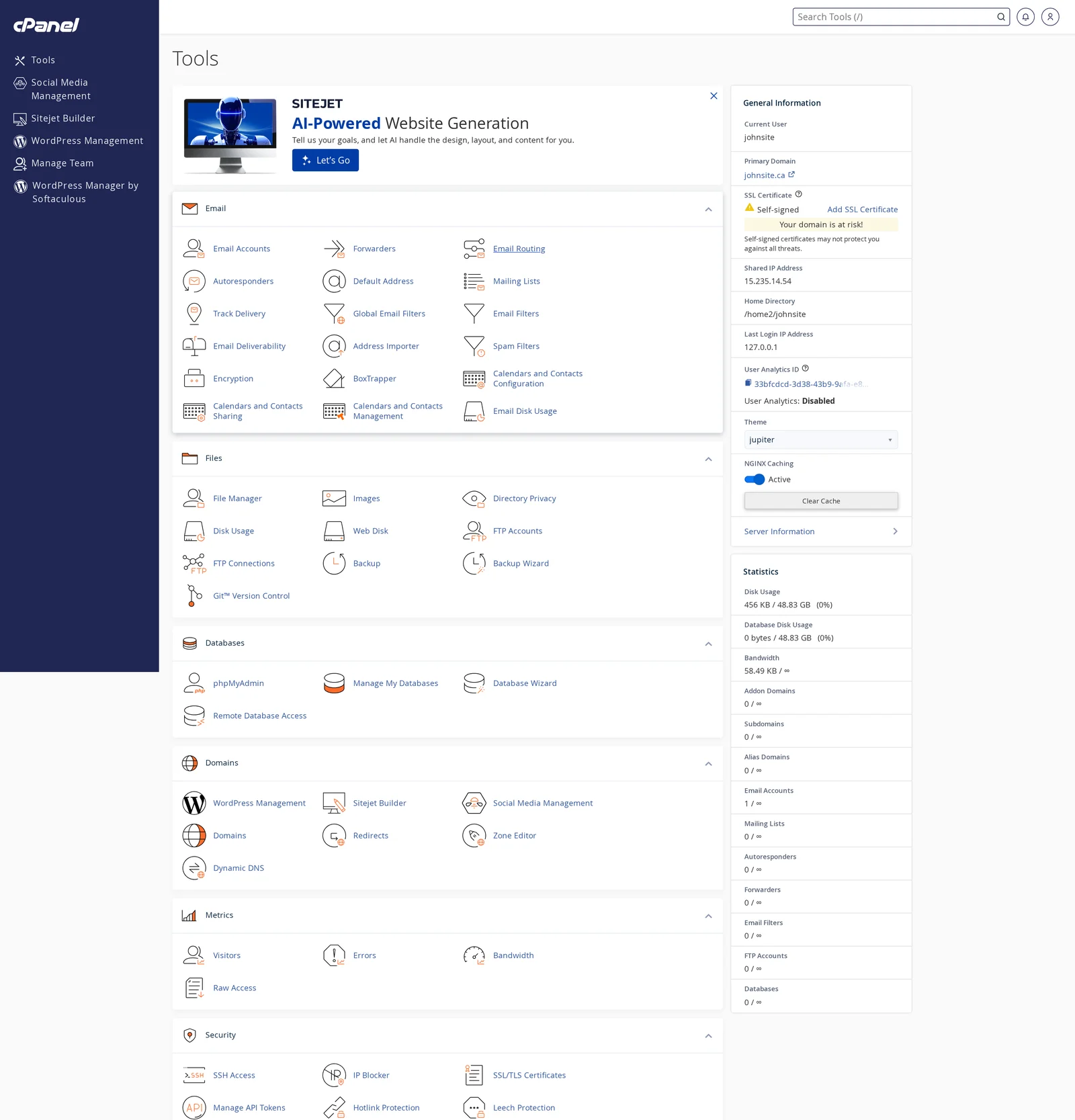
Here's a quick overview of what each section is for:
- Email — create email accounts at your domain, set up forwarders and autoresponders, check spam filters.
- Files — upload your website through the File Manager, create FTP accounts, run backups. See the Files section overview.
- Databases — create MySQL databases, manage them with phpMyAdmin. See the Databases section overview.
- Domains — add extra domains or subdomains to your hosting plan, set up redirects, manage DNS. See the Domains section overview.
- Metrics — see how much disk space and bandwidth you're using, view visitor statistics.
- Security — manage SSL certificates, SSH access, block IPs from your site.
- Software — change PHP version, manage PHP settings, install popular software via Softaculous. See Install WordPress via Softaculous.
- Advanced — cron jobs, error logs, MIME types, and other power-user features.
- Preferences — change your cPanel password, update your contact information, adjust language settings.
Right sidebar: General Information and Statistics
The right-hand sidebar shows at-a-glance info about your account: your cPanel username, primary domain, SSL status, home directory, and IP address. Scroll down and you'll see Statistics — disk usage, bandwidth usage, email accounts used, databases used, etc.
If you're ever asked for your cPanel home directory or server IP when setting up external tools, those values are in this sidebar.
cPanel vs. the CanSpace client area
These are two separate interfaces, and it helps to know which is which:
- CanSpace client area (canspace.ca/clients) — where you manage your CanSpace account: billing, domain registrations, plan upgrades, support tickets.
- cPanel — where you manage the actual technical guts of your website and email: files, databases, email accounts, DNS records inside your hosting account, SSL, etc.
Most of the day-to-day website stuff lives in cPanel. Your CanSpace login, credit card, and support tickets live in the client area.
Related articles
Can't find a specific feature or need a hand? Open a support ticket


