
The Files section of cPanel is where you manage everything that makes up your website: HTML, images, PHP, the whole public_html directory. It also handles FTP accounts, backups, and disk usage.
What's in the Files section
File Manager
The main tool in this section — a browser-based file browser for your hosting account. Upload, download, edit, rename, delete, move, change permissions, extract zip files, and more.
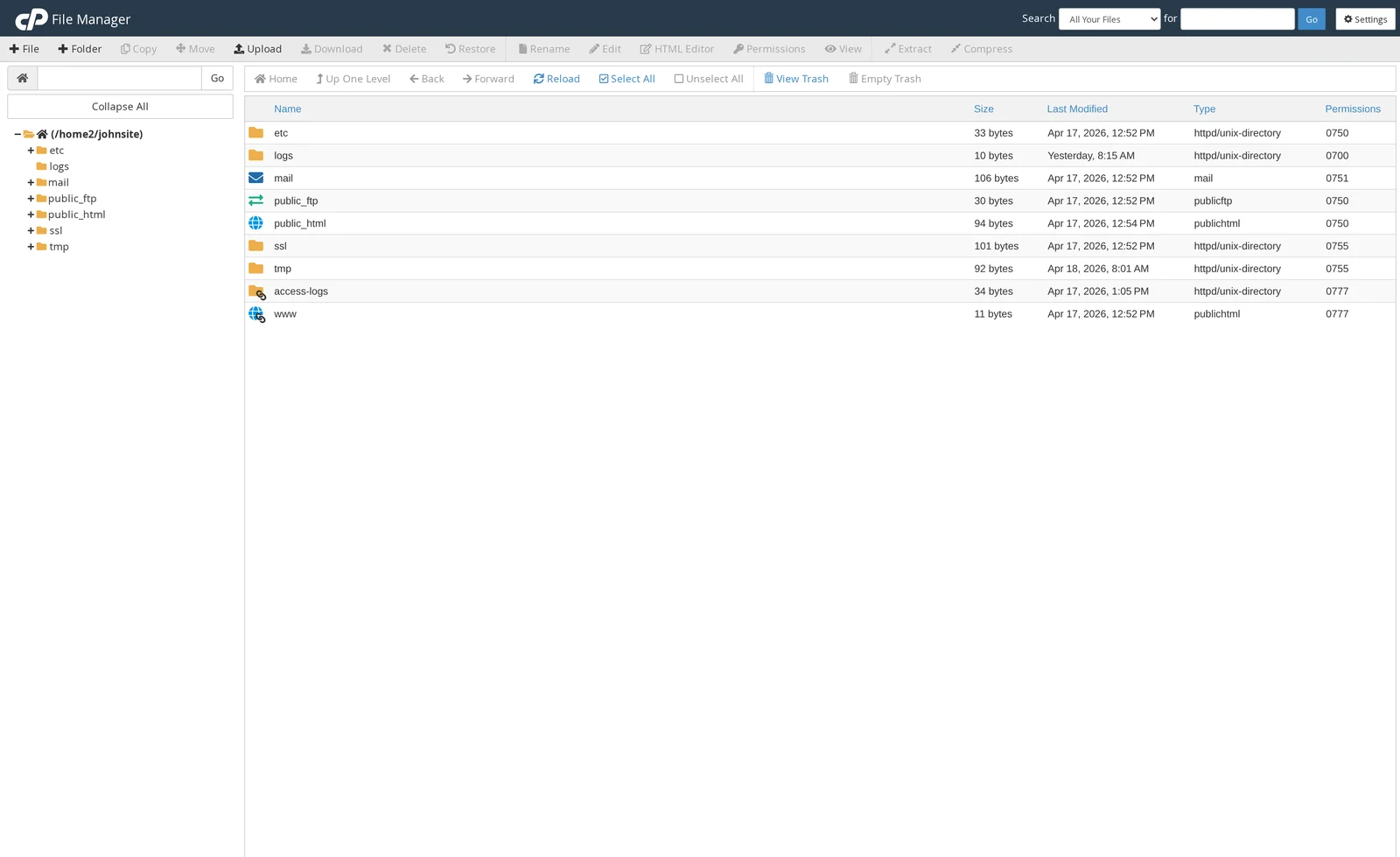
Quick tips:
- Your public website content goes in
public_html/. Files at the top level (outside public_html) are not served by the web. - For an addon domain, files go in
public_html/addondomain.com/(or a custom directory you chose when creating the domain). - The Upload button at the top supports drag-and-drop and multiple files at once. Max file size via Upload is 256 MB — use FTP or SSH for anything larger.
- The built-in Edit button opens a simple text editor, and HTML Editor is a WYSIWYG view. Good for quick fixes; use a real editor for anything substantial.
Images
Resize, convert, and scale image files without leaving cPanel. Useful for one-off image work if you don't have Photoshop or similar handy.
Directory Privacy
Password-protect a folder on your site so only authorized visitors can access it. Commonly used for staging areas, client preview pages, or protected downloads.
Disk Usage
Quick overview of which folders are using the most space on your hosting account. If you're close to your quota, this is a fast way to find out where it went.
Web Disk
Mount your hosting directory as a drive on your computer using WebDAV. Lets you drag files into a folder on your desktop and they upload automatically. It works but most people prefer FTP/SFTP or the File Manager.
FTP Accounts and FTP Connections
Create additional FTP accounts (useful if you want to give a developer limited access to a specific folder without sharing your main cPanel password). FTP Connections shows currently-active FTP sessions.
Backup and Backup Wizard
Download a full backup of your account (files + databases + email config) as a compressed archive, or restore from a backup file. Backup Wizard is the beginner-friendly version — walks you through either option step by step.
Git Version Control
Create and manage Git repositories inside your hosting account — useful for deploying code from GitHub or GitLab directly to your server. Available on Medium and Professional plans (requires SSH, which is disabled by default — open a ticket to enable).
Common tasks
- Upload your website — File Manager → open
public_html/→ Upload. - Create an FTP account for a developer — FTP Accounts → fill in username, password, and directory, then send the credentials.
- Download a full backup — Backup → Download a Full Account Backup.
- Check what's eating your disk space — Disk Usage.
Related articles
Need help with a specific file or backup issue? Open a support ticket


