
Bringing your domain to CanSpace is straightforward and keeps you in full control — no downtime, no changes to your site. This article walks through the transfer process end-to-end.
- Transferring your domain and updating nameservers are two separate steps. You can transfer a domain to us and leave it pointing at its current host — nothing will change for your site or email.
- .ca transfers complete almost instantly.
- .com, .net, .org and most other TLDs take 3-7 days, with one email approval from your current registrar to expedite.
Before you start
At your current registrar, do these three things:
- Unlock the domain. Look for a "transfer lock" or "registrar lock" setting and disable it. (Locked domains reject transfers by design.)
- Get the EPP code (also called an auth code or transfer code). Most registrars have a button labeled "get transfer code," "authorization code," or similar. Some email it to you; some display it on screen.
- Check the contact email on file at your current registrar — particularly for
.com/.net/.orgtransfers, since you may receive an approval email there and may need to click the link to authorize (although usually not).
Steps
-
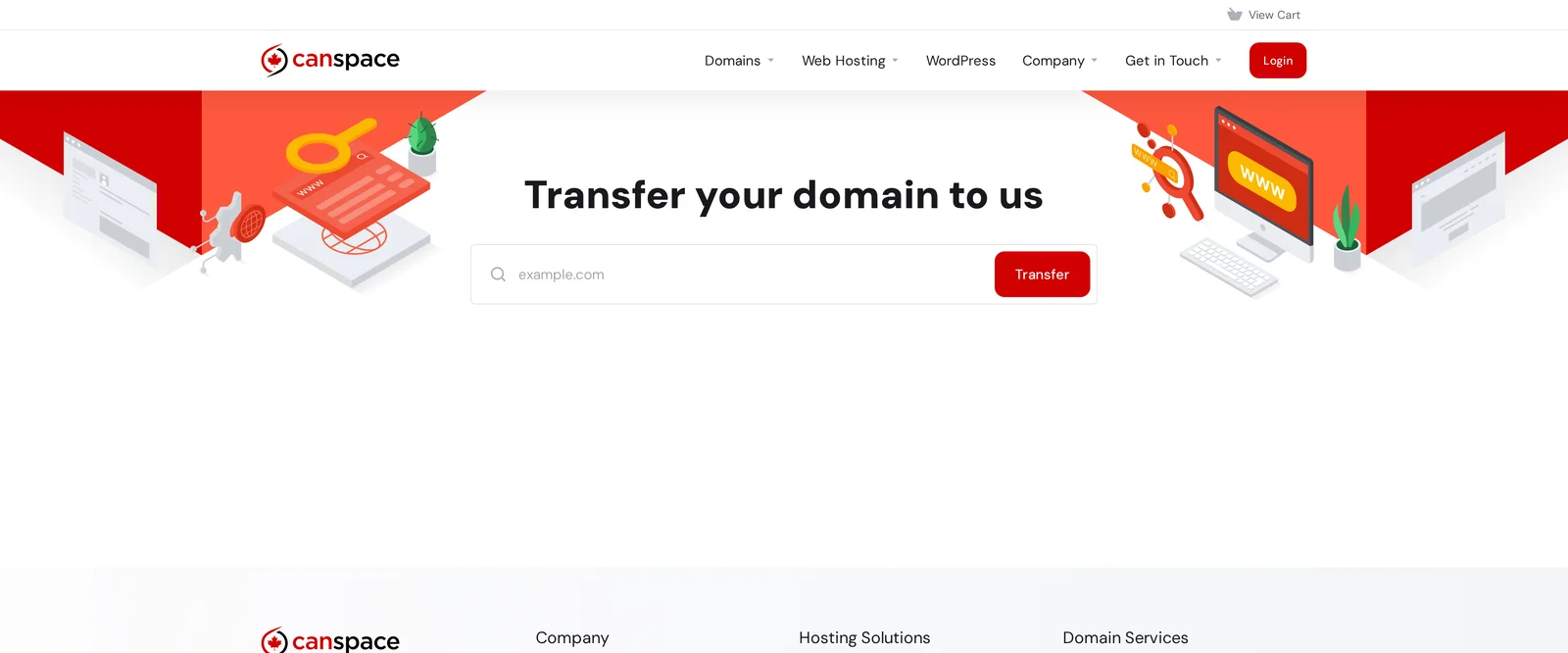
Go to canspace.ca transfer page. Enter your domain and click Transfer.
-
If we can transfer the domain, you'll be asked for the EPP / authorization code you obtained from your current registrar. Paste it in.
-
Complete checkout. If you already have an account with us, log in during checkout so the transferred domain lands in the right account. Otherwise, register a new account.
-
.com / .net / other TLDs only: Watch for an approval email from your current registrar within 5-10 minutes of checkout. Click the link in that email to approve the transfer — this speeds things up from days to hours.
-
Wait for the transfer to complete:
- .ca: usually within minutes
- .com, .net, .org, .info, .biz and most generic TLDs: 1-5 days (sometimes faster)
You'll receive an email when the transfer completes. The domain then appears under Domains → My Domains in your client area.
What happens to my website and email during the transfer?
Nothing — as long as you don't change nameservers. A domain transfer moves registration management from the old registrar to us, but it doesn't change where the domain points. Your site and email continue to work at whatever host they're on.
After the transfer completes, you can update the nameservers (if you want to move hosting too). See How do I change my nameservers?
Transfer pricing
All transfers include a one-year extension on top of the current expiry date. In other words, transferring doesn't cost you extra time — if your domain expires next June, it'll expire the following June after transferring (rather than resetting the date).
For .ca transfers, WHOIS privacy is automatic and free for Canadian residents. See WHOIS privacy options.
Troubleshooting
- "EPP code is invalid" — either the code was typed wrong, or it's expired. Most registrars' EPP codes are valid for a limited time; get a fresh one.
- "Domain is locked" — the transfer lock wasn't disabled at the losing registrar. Disable it, wait a few minutes for the status to propagate, try again.
- "Transfer not permitted — domain too new" — wait until 60 days after the domain was registered or last transferred.
- "Contact email invalid" — the registrant email on file at the losing registrar is wrong or unreachable. Update it there first.
- The email from the losing registrar never arrived — check your spam folder. If it's genuinely not there, contact the losing registrar's support; they can usually resend.
Can I transfer multiple domains at once?
Yes — add them all to your cart on the transfer page before checking out. Each one needs its own EPP code.
Related articles
- How do I change my nameservers?
- How do I get the EPP code for my domain?
- How do I change WHOIS privacy options?
Still stuck? Open a support ticket


