
Two-factor authentication (2FA) adds a second check on top of your client area password. Even if someone obtains your password, they can't sign in without also having your phone. Enabling it takes about two minutes.
What you'll need
- An authenticator app on your phone. Any TOTP-compatible app works — popular options are Google Authenticator, Authy, Microsoft Authenticator, or the built-in authenticator in password managers like 1Password and Bitwarden.
- A safe place to store your backup codes (password manager, or a printed copy).
Enable two-factor authentication
-
Log in to the client area. Click your name in the top right and choose Security Settings from the dropdown.
-
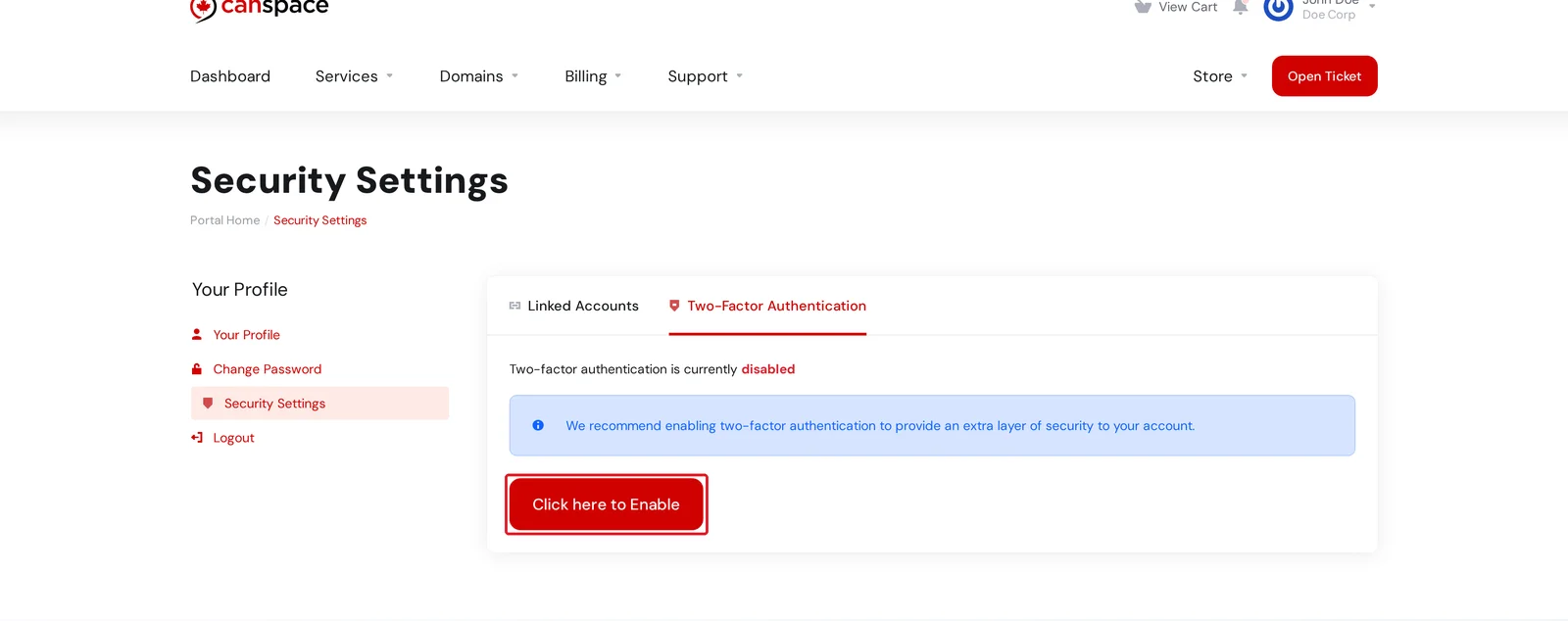
On the Security Settings page, click the Two-Factor Authentication tab, then click Click here to Enable.
-
Select Time Based Tokens (TOTP) and click Get Started.
-
Scan the QR code with your authenticator app. The app will add a new entry for CanSpace and start generating a 6-digit code that changes every 30 seconds.
-
Type the current code from your app into the confirmation field and click Submit.
-
Save your backup code. The confirmation screen shows a one-time backup code — copy it somewhere safe (password manager is ideal). This is what gets you back into your account if you lose your phone.
You're done. From now on, every login will ask for your password plus the current code from your authenticator.
Logging in with 2FA enabled
- Enter your email and password as usual.
- The next screen asks for your 6-digit code.
- Open your authenticator app, find the CanSpace entry, and type the current code.
If you lose your phone
You have two ways back in:
- Use your backup code on the 2FA prompt — it bypasses the authenticator. Each backup code is one-time-use; generate a new one from Security Settings once you're signed in.
- If you don't have a backup code, open a support ticket from an email address that matches your account. We'll verify your identity and disable 2FA so you can get back in.
Disabling 2FA
If you want to turn 2FA off, go to Security Settings, click Disable in the Two-Factor Authentication section, and confirm with your current code. We strongly recommend leaving it on — but the option is there.
Related articles
Locked out and need help? Open a support ticket


