
Android phones and tablets connect to CanSpace email using standard IMAP and SMTP. The built-in Gmail app works on every Android device and supports any IMAP account, not just Gmail. This article walks through setup in the Gmail app; Samsung Email and other third-party clients follow the same pattern with slightly different menus.
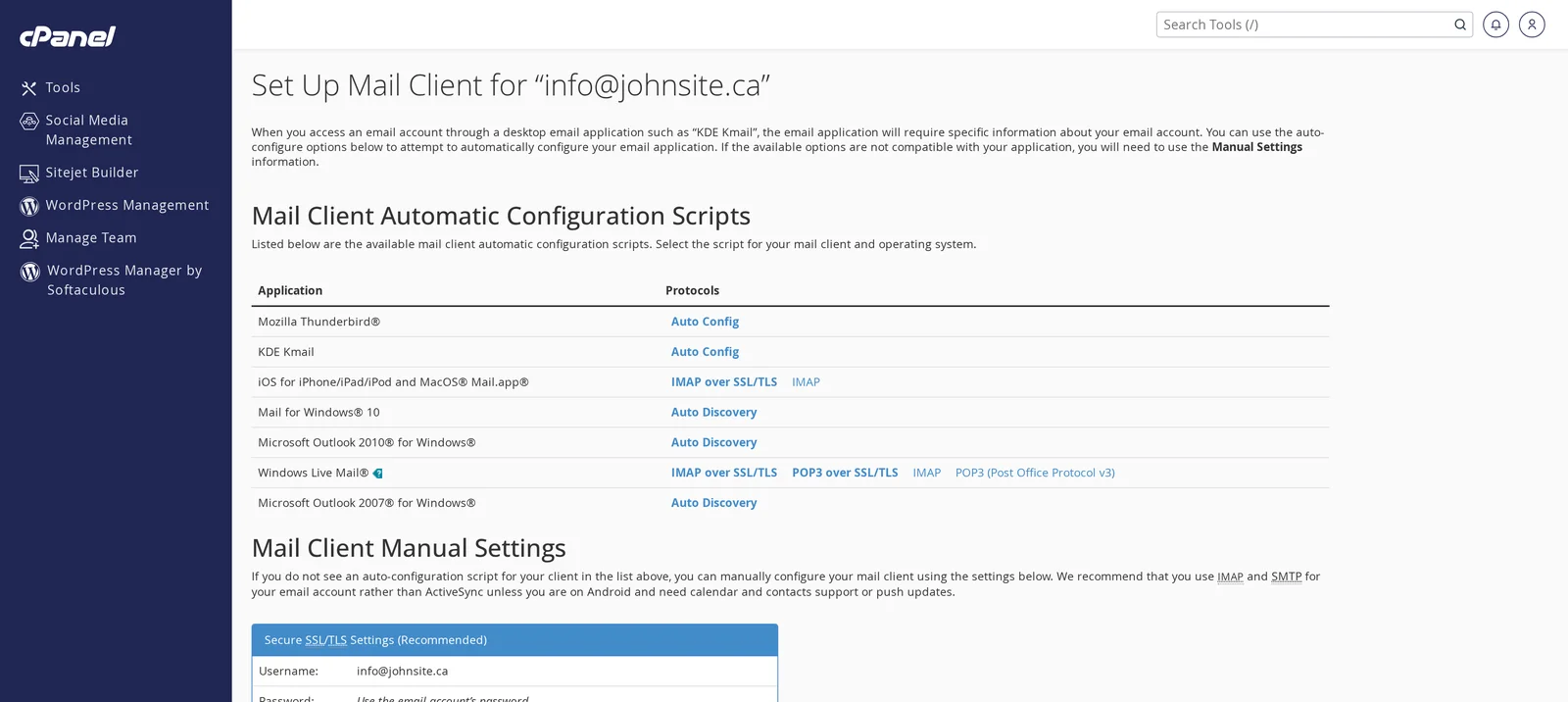
Quick steps: Gmail app → menu → Settings → Add account → Other → enter your email address → choose Personal (IMAP) → enter server details from cPanel's Connect Devices page.
Before you start
- You'll need the mailbox password — not your cPanel password. If you don't remember it, reset it in cPanel first: How do I change my email password?
- You'll need your server hostname (e.g.
eos.canspace.ca). Get it from cPanel's Connect Devices page.
Get your exact settings from cPanel
- Log in to cPanel (see How do I log in to cPanel?) and open Email Accounts.
- Click Connect Devices next to the mailbox you want to set up.
- Note your server hostname. Ports are fixed: IMAP is 993, SMTP is 465, both with SSL/TLS.
Add the account to the Gmail app
- Open the Gmail app. Tap your profile picture in the upper right → Add another account. (First-time setup: skip to step 3.)
- Choose Other from the provider list (not Gmail, Yahoo, Outlook, etc.).
- Enter your full email address (e.g.
[email protected]) and tap Next. - When asked "What type of account is this?", select Personal (IMAP) — not Personal (POP3) or Exchange.
- Enter your mailbox password. Tap Next.
- Fill in the Incoming server settings:
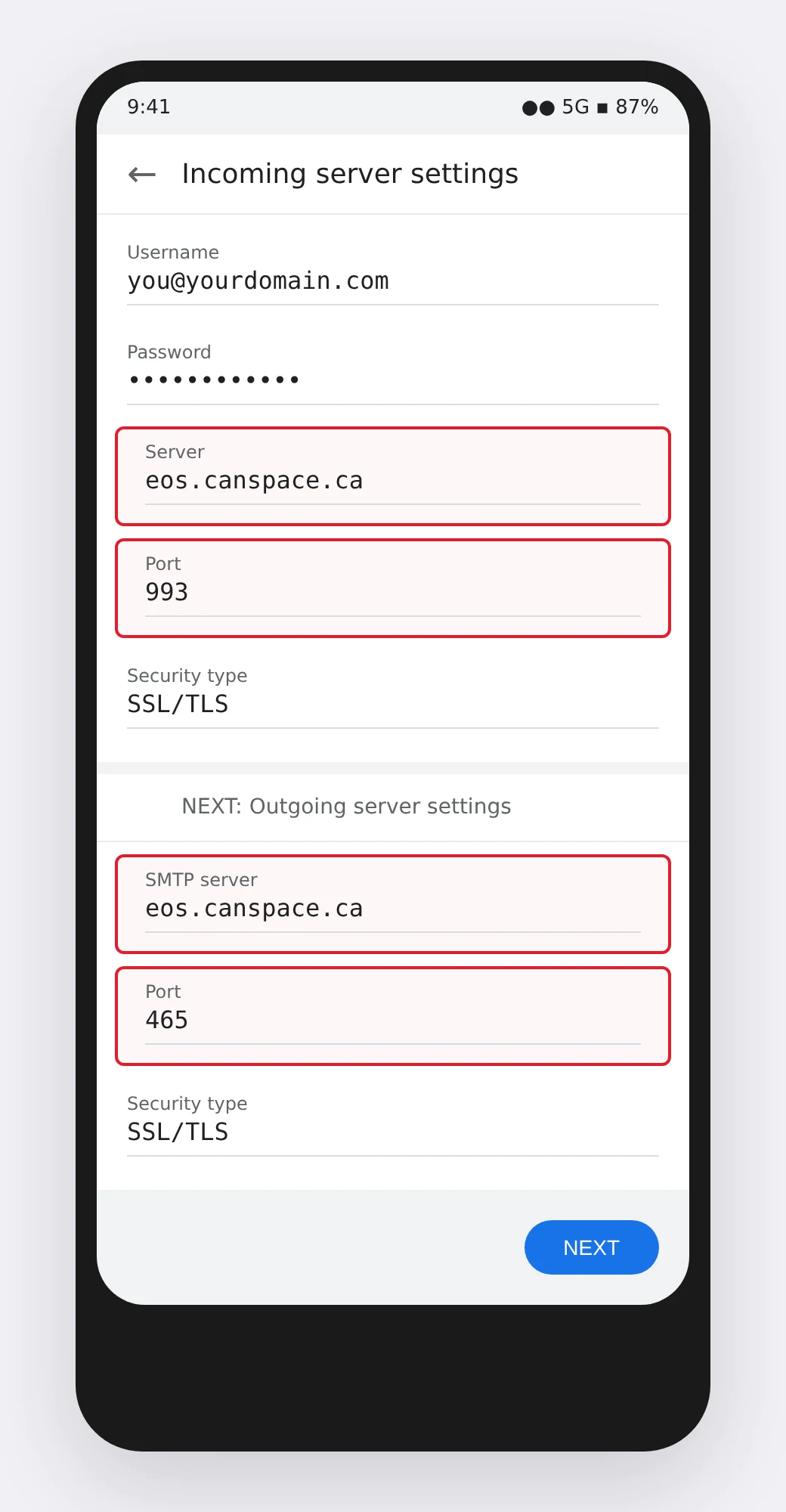
Incoming server settings (IMAP)
| Setting | Value |
|---|---|
| Username | Your full email address |
| Password | Your mailbox password |
| Server | Your server hostname (e.g. eos.canspace.ca) |
| Port | 993 |
| Security type | SSL/TLS |
- Tap Next. Gmail tests the incoming settings.
- Fill in the Outgoing server settings (SMTP):
Outgoing server settings (SMTP)
| Setting | Value |
|---|---|
| Require signin | On (checked) |
| Username | Your full email address (same as incoming) |
| Password | Your mailbox password (same as incoming) |
| SMTP server | Same server hostname (e.g. eos.canspace.ca) |
| Port | 465 |
| Security type | SSL/TLS |
- Tap Next. Gmail tests the outgoing settings.
- Adjust sync options (sync frequency, notifications, etc.) to your preference and tap Next. Set an account display name if you want, and tap Next again to finish.
The account now appears in your Gmail app's account list. Tap your profile picture in the upper right to switch between Gmail and your CanSpace email.
Samsung Email app
The Samsung Email app (default on Samsung Galaxy devices) uses the same settings. The flow is slightly different:
- Open Samsung Email → Menu → Add account → Other.
- Enter email and password, tap Manual Setup → IMAP Account.
- Enter the server details from the tables above.
- Tap Sign In.
IMAP or POP3 — which should I use?
- IMAP (recommended): messages stay on the server. Read or delete on one device, and the change is reflected everywhere. This is what you want if you check email on more than one device.
- POP3: messages are downloaded to the phone and (usually) deleted from the server. Only use this if the phone is the only place you'll ever read this email.
Common issues
- "Username or password incorrect" — the username must be your full email address, not just the part before the
@. Double-check the password by trying to log in at webmail with the same credentials. - "Unable to connect to server" / "Cannot safely connect to server" — usually a typo in the hostname, or Security type is set to None. Make sure it's SSL/TLS.
- "Can't establish a reliable connection to server" — your phone's network (cellular or Wi-Fi) may be blocking port 993 or 465. Try switching from Wi-Fi to cellular (or vice versa). Corporate or school Wi-Fi networks are common culprits.
- Certificate warning — make sure you entered the server hostname exactly as shown on cPanel's Connect Devices page (not
mail.yourdomain.com, which may not yet have an SSL certificate). - Receiving works, but can't send — outgoing server settings are wrong. Confirm port 465, SSL/TLS, Require signin: On, and the same username and password as the incoming server.
- Gmail app says "Can't add another Gmail account" — you probably tapped Google instead of Other at the provider-select step. Back up and choose Other.
- Battery drain — if the account is draining your battery, change Settings → [account] → Sync frequency from Automatic (push) to Every 15 minutes.
Related articles
- How do I create a new email account?
- How do I change my email password?
- How do I access my Webmail account?
- Email troubleshooting checklist
Still stuck? Open a support ticket


