
Outlook works great with CanSpace email. Any version from Outlook 2016 onward — including Outlook for Microsoft 365 and the new Outlook for Windows — can connect using standard IMAP and SMTP. This article walks through both the quick path (cPanel's auto-config) and the manual setup if you prefer to enter settings by hand.
Quick steps: cPanel → Email Accounts → Connect Devices → copy the server hostname and port numbers shown there into Outlook's account setup wizard. The rest is just your email address and password.
Before you start
- You'll need the mailbox password — not your cPanel password. If you don't remember it, reset it via cPanel first: How do I change my email password?
- You'll need your server's hostname (e.g.
eos.canspace.ca,chiron.canspace.ca). Get it from cPanel's Connect Devices page. - We strongly recommend IMAP over POP3 (see below).
Get your exact settings from cPanel
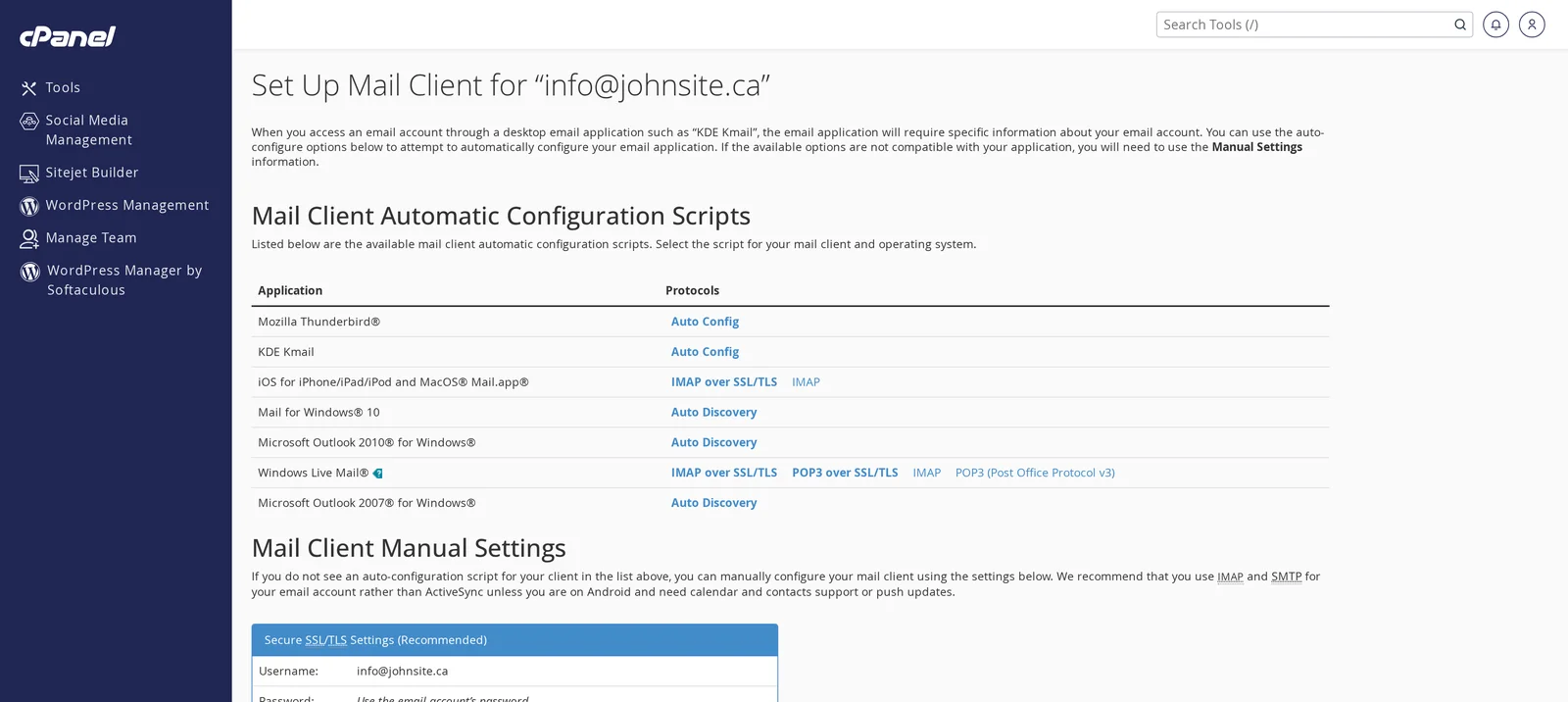
cPanel shows every mail client the exact values to enter, including auto-config scripts for common clients. Do this first — it's the authoritative source for your account's settings.
- Log in to cPanel (see How do I log in to cPanel?) and open Email Accounts.
- Click Connect Devices next to the email address you want to set up.
- Note your server hostname, IMAP port (993), and SMTP port (465). Keep the page open as you configure Outlook.
Set up Outlook (classic / Outlook 365)
- File → Add Account. In the new Outlook, click the gear icon in the upper right → Accounts → Add account.
- Type your full email address (e.g.
[email protected]) and click Connect or Advanced options → Let me set up my account manually. - When prompted for account type, select IMAP.
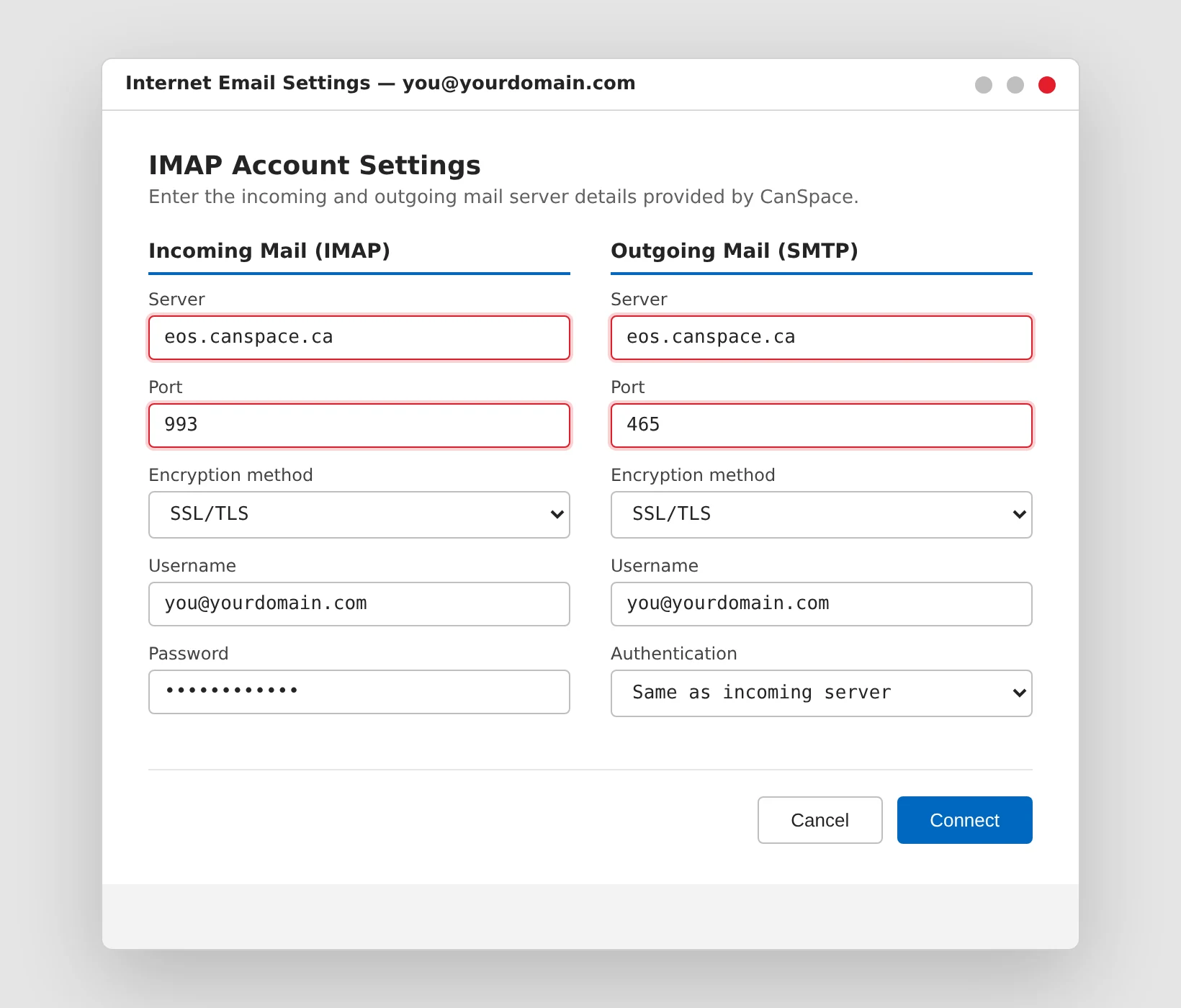
- Fill in the IMAP and SMTP server details using the values from cPanel's Connect Devices page:
Server settings
| Setting | Incoming (IMAP) | Outgoing (SMTP) |
|---|---|---|
| Server | Your server hostname from Connect Devices (e.g. eos.canspace.ca) | |
| Port | 993 | 465 |
| Encryption method | SSL/TLS | SSL/TLS |
| Username | Your full email address (not just the part before the @) | |
| Password | Your mailbox password | |
| Authentication | — | Same as incoming server |
- Click Connect. Outlook will test the connection and, on success, add the account.
Want to skip the manual setup? On cPanel's Connect Devices page, there's an auto-config script for Outlook 2007/2010. Click it and Outlook will configure itself. This doesn't work for Outlook 2016 and newer — Microsoft removed the feature in those versions — but if you're still on an older Outlook, it's the fastest path.
IMAP or POP3 — which should I use?
- IMAP (recommended): messages stay on the server. Read or delete on one device, and the change is reflected on every other device. Use this if you check email on more than one device (desktop + phone is the common case).
- POP3: messages are downloaded to one computer and (usually) deleted from the server. Works, but limiting. Only use this if you want email on a single computer with everything offline.
If you're not sure, go with IMAP. It's almost always the right choice.
Common issues
- "Cannot verify account name or password" — the username must be your full email address, not just the part before the
@. Also double-check the password; if you recently changed it, update Outlook too. Copy/paste from your password manager to avoid typos. - "Your server does not support the connection encryption type" — make sure SSL/TLS is selected for both incoming and outgoing (not "None" or "Auto"). Port 993 requires SSL/TLS, port 465 requires SSL/TLS, port 587 uses STARTTLS.
- "Connection timed out" — your network may block ports 993/465. Common on corporate networks and some school networks. Try from your phone's cellular connection to confirm; if it works there, the issue is network-level. Contact your IT team, or open a support ticket and we can check if our firewall is blocking you.
- "Certificate error" — make sure the server hostname in your settings exactly matches what Connect Devices shows (e.g.
eos.canspace.ca, notmail.yourdomain.com). Using your custommail.subdomain before its SSL is issued can trigger this warning. - Sending works but receiving doesn't (or vice versa) — you've got one server right but not the other. Re-check both server hostnames, ports, and encryption against cPanel's Connect Devices page.
- New Outlook missing "Advanced options" — the new Outlook for Windows (the "rolled-out" one) sometimes lacks a manual IMAP option on the initial screen. Try gear icon → Accounts → Manage accounts → Add email account → Advanced, or switch to the classic Outlook via the toggle in the upper-right.
Related articles
- How do I create a new email account?
- How do I change my email password?
- How do I access my Webmail account?
- Email troubleshooting checklist
Still stuck? Open a support ticket


