
If you have several domains and need to apply the same change to all of them — new nameservers, toggling auto-renew, updating contact information, or bulk renewing — you can do it all in one step from the My Domains page.
Quick steps: Domains → My Domains → tick the checkbox beside each domain you want to change (or the header checkbox to select them all) → use the bulk action bar that appears at the bottom.
Steps
-
Log in to the client area and open Domains → My Domains.
-
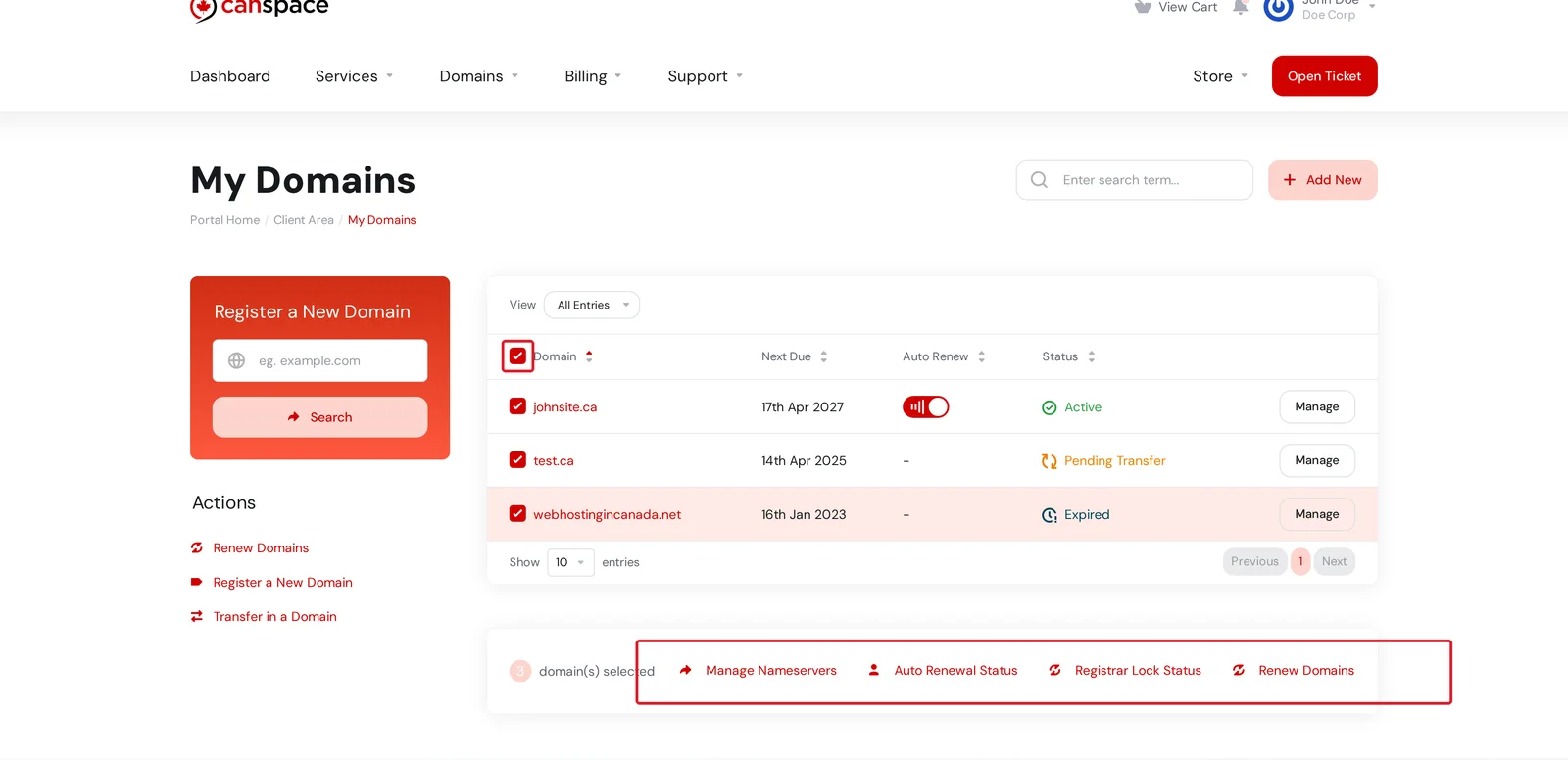
Tick the checkbox in the header row to select all domains on the page, or tick individual rows to select just those. A bulk action bar appears at the bottom of the list.
-
Click the action you want:
- Manage Nameservers — set the same nameservers on all selected domains
- Auto Renewal Status — turn auto-renew on or off for all selected domains
- Registrar Lock Status — lock or unlock all selected domains at once
- Renew Domains — renew all selected domains together (produces a single invoice)
Heads up: Bulk nameserver changes apply to every selected domain. Double-check your selection before confirming — rolling back a mistake means changing each domain back individually.
Tips
- Use the Search box above the domain list to narrow down which domains are visible, then use the header checkbox to select only the filtered set.
- Bulk renewals produce a single consolidated invoice, which is useful for bookkeeping.
- You can't bulk-change contact information across mixed TLDs (e.g. some
.ca+ some.com) because each registry has different required fields. Group by TLD first.
Related articles
- How do I change my nameservers?
- How do I enable or disable auto-renew for my domains?
- How do I renew my domain?
Still stuck? Open a support ticket


