
Our servers use a firewall that automatically blocks IP addresses after repeated failed logins — to cPanel, webmail, FTP, SMTP, or the client area. If you suddenly can't reach your site, email, or control panel from your normal location, there's a good chance your IP has been temporarily blocked. This article walks through how to clear the block.
How to tell if your IP is blocked
The usual symptoms:
- Your website loads fine on mobile data or from another network, but times out or shows "connection refused" from your home or office.
- Your email client suddenly can't send or receive. Outlook may say "cannot connect to the server" or "authentication failed" even though the password is right.
- cPanel or webmail won't load — connection hangs instead of showing the login page.
- FTP (FileZilla, Cyberduck, etc.) fails to connect.
Check your public IP at whatismyipaddress.com so you know the number — you may need to give it to us, or enter it in a firewall panel.
Why blocks happen
Common triggers:
- Wrong password saved on a device. A phone, tablet, or desktop mail client with an old password retries every few minutes and eventually trips the threshold. This is by far the most common cause.
- A script or cron job with bad credentials hammering SMTP, FTP, or cPanel.
- Someone actually trying to break in from your IP — for example, a shared office network where another user mistyped their password too many times.
Once your IP is blocked, all traffic from it to the server is dropped — website, email, cPanel, the whole lot.
Shared hosting: log in to the client area
If you're on a shared hosting plan, the simplest fix is to just log in to your client area from the blocked IP. Our client area detects logins and automatically removes the logging-in IP from the firewall on the server hosting your account — usually within a few seconds.
After logging in, try reaching your site, cPanel, or email again. If it's working, you're done.
VPS and dedicated server clients: unblock via WHM
If you have a VPS or dedicated server with us, you have full control over the firewall and can clear blocks yourself via WHM:
- Log in to WHM at
https://yourhostname.canspace.ca:2087. - Scroll to the bottom of the left-hand menu and find the Plugins section.
- Click ConfigServer Security & Firewall.
- In the csf — Quick Actions box, paste the blocked IP into the Quick Unblock field and click the Quick Unblock button.
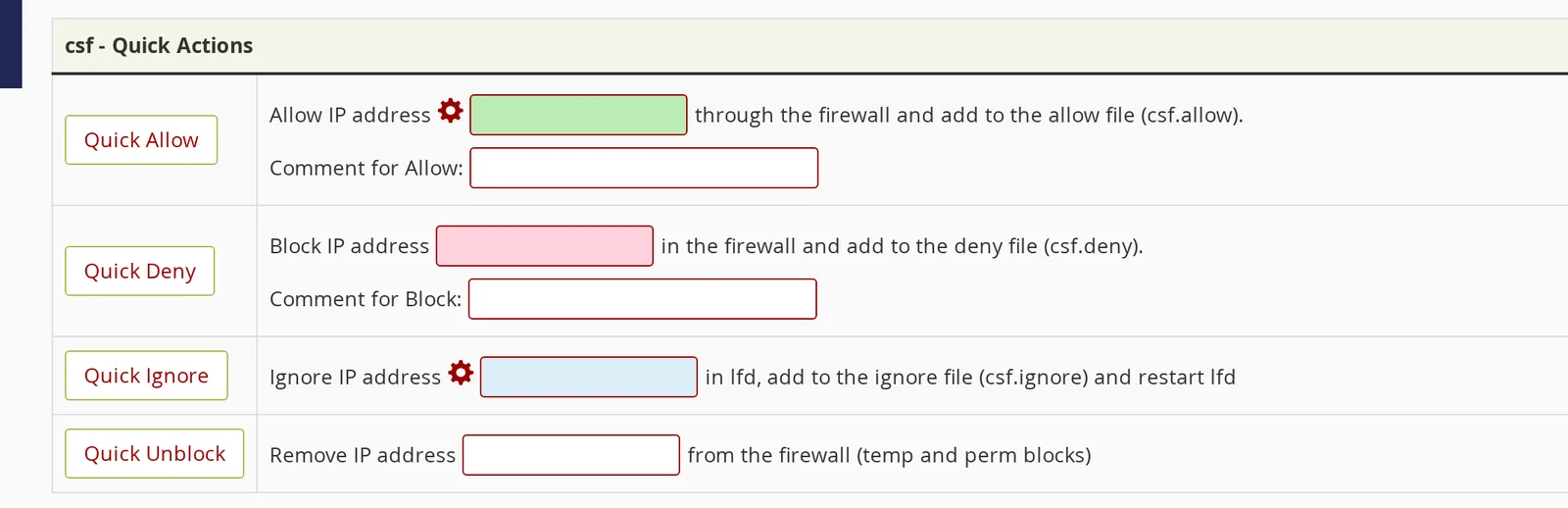
The IP is cleared immediately. If you want to make sure it doesn't get blocked again (for example, because an external server is running a legitimate script that occasionally trips the firewall), you can use the Quick Allow field instead — this adds the IP to a permanent whitelist.
Finding what caused the block
On your VPS or dedicated server, the firewall logs every block to /var/log/lfd.log. Search for the IP to see the reason:
grep 192.0.2.5 /var/log/lfd.log | tail -20Typical entries look like this:
(smtpauth) Failed SMTP AUTH login from 192.0.2.5 (CA): 10 in the last 3600 secs - *Blocked*
(cpanel) Failed cPanel login from 192.0.2.5: 5 in the last 300 secs - *Blocked*
That tells you which service the failed logins were hitting, so you can fix the underlying cause (update a saved password, stop a broken script, etc.).
Fix the cause, not just the symptom
Unblocking your IP is a short-term fix. If you don't address what's triggering the failed logins, your IP will just get blocked again — often within minutes. Before you consider yourself done, check:
- All devices using the affected email account. If you changed your email password recently, every phone, tablet, laptop, and desktop that still has the old password will keep retrying. Update them all.
- Any mail clients configured with outdated server settings (e.g. the old host's server name after a migration).
- Cron jobs and scripts that authenticate to cPanel, FTP, or SMTP — make sure they have current credentials.
- Third-party integrations (backup tools, CI/CD pipelines, monitoring scripts) that may have stale passwords.
Still blocked after all of the above
Open a support ticket from any working network. Include:
- The IP address you're blocked from (check at whatismyipaddress.com).
- What you were doing when it stopped working (for example, "my email stopped sending around 3pm").
- The domain or hostname of your service so we know which server to check.
We'll clear the block, look at the logs to identify the cause, and let you know what to update on your end.
Related articles
Still stuck? Open a support ticket


