
If you've forgotten your cPanel password, or just want to change it for security reasons, you can reset it yourself from your client area in under a minute. This article walks through the process and covers what to do if you run into trouble.
Reset via the client area (recommended)
This is the self-serve method that works whether or not you remember your current cPanel password.
- Log in to your client area with your client-area email and password. (This is separate from your cPanel password.)
- Click Services in the top menu, then click the name of your hosting plan.
- In the left-hand sidebar on the plan page, click Change Password.
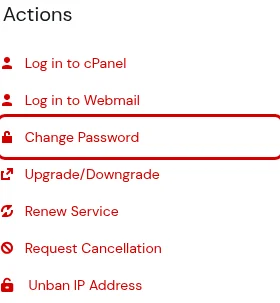
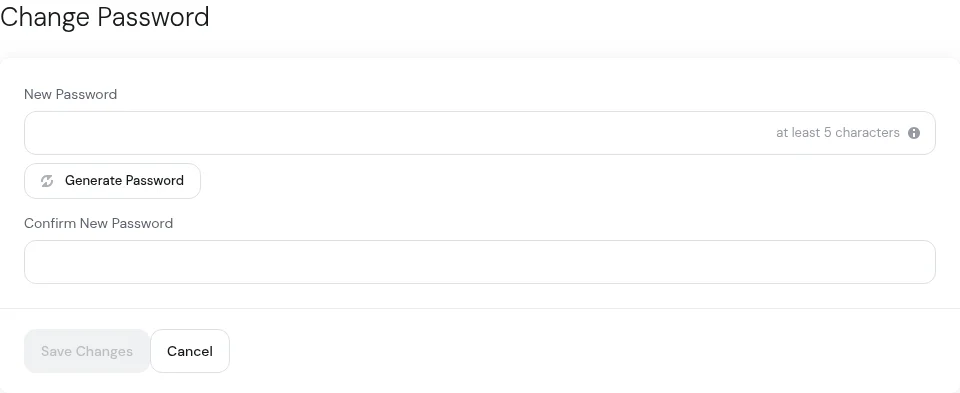
The new password takes effect immediately. Your next cPanel or webmail login will use it.
Change it from inside cPanel
If you're already logged in to cPanel and just want to rotate the password:
- In the top right of cPanel, click your username (or the person icon).
- Click Password & Security.
- Enter your current password, then a new password twice, and click Change your password now.
Choose a strong password
cPanel's built-in strength meter will tell you if a password is too weak. A few practical tips:
- Aim for 16+ characters with a mix of letters, numbers, and symbols. The strength meter needs to reach "Very Strong."
- Don't reuse your cPanel password anywhere else. A password manager (1Password, Bitwarden, Apple Keychain) makes this easy.
- Avoid anything derived from your domain, business name, or birthday — these are the first things automated attacks try.
If you have a reseller plan
Reseller accounts use the same password for both WHM and cPanel — they're the same login. Changing your cPanel password through the client area updates both. If you're changing passwords for a sub-account on your reseller plan (one of your own clients' cPanel accounts), do that from WHM under Password Modification.
Common issues
The change didn't take effect
cPanel passwords update instantly — if the old password is still working, it's usually one of three things:
- A saved password in your browser or password manager auto-filled the old one. Try typing the new password manually.
- An email client (Outlook, Apple Mail, phone) is still using a saved cPanel password for webmail. Update those separately.
- You're logging in at the wrong URL. Your cPanel URL is
https://yourhostname.canspace.ca:2083— check the "New Account Information" email we sent when your plan was set up for your specific hostname.
I reset the password but now my IP is blocked
If you tried the old password several times before resetting and have now been firewall-blocked, see Unblock your IP (CSF firewall) — logging in to the client area typically clears it automatically.
I can't log in to the client area either
If you've lost access to the client area itself, click Forgot Password on the login page. We'll email a reset link to the address on file. If you no longer have access to that email either, open a support ticket from any address and we'll verify your identity and recover access.
Resetting an email account password
Note that your cPanel password is not the same as the password for individual email accounts (like [email protected]). To change an email account password, see How do I change my email password?
Related articles
- How do I log in to cPanel?
- How do I change my email password?
- Unblock your IP (CSF firewall)
- Enable two-factor authentication on your account
Still stuck? Open a support ticket


