
If you want to update the email address you use to log in to the client area — because you've changed email providers, switched from a personal to a business address, or are handing account administration to a colleague — you can do it yourself in a minute.
Change your login email
- Log in to your client area.
- In the top right, click Hello, [your name] (or the person icon on mobile).
- Click Account Details from the dropdown menu.
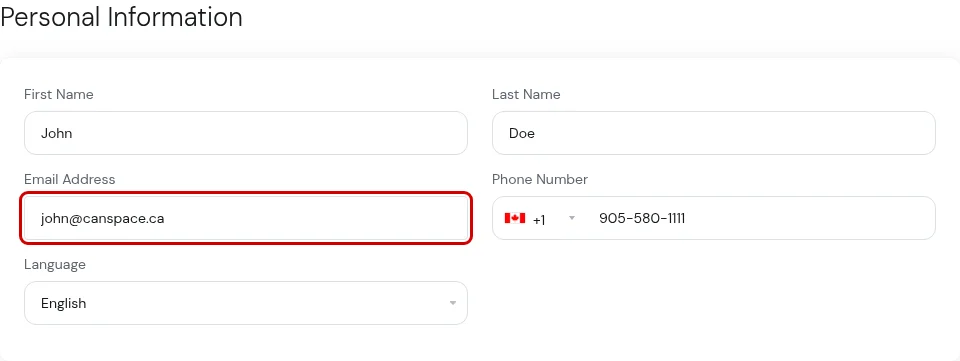
- Update the Email field with your new address. You can also update your name, company, address, or phone number while you're here if any of those are also changing.
- Scroll down and click Save Changes.
The change takes effect immediately. From now on, log in to the client area using the new email. The old address will no longer work.
What this changes
Updating your email here affects:
- Client area login — you log in with the new email.
- Where we send billing notifications — invoice generated, payment received, renewal reminders, etc.
- Where we send ticket replies if you open a support ticket.
- The email address on file for WHOIS contact for any domains registered to you, if the domain's contact info is set to pull from your account profile. Some clients have per-domain WHOIS contacts set separately — see Update WHOIS information.
It does not change:
- Your cPanel password or email-account passwords.
- The email address for individual mailboxes you've set up (for example,
[email protected]) — those are cPanel email accounts and are managed separately.
Adding a second login (for a colleague or team member)
If the goal isn't to replace your login but to give someone else their own access to the client area — for a billing contact, a developer, or an office admin — use Contacts & Sub-Accounts instead. This lets you create a second login with its own email and password, scoped to whatever sections you want (billing only, support tickets only, full access, etc.).
See Add a new contact to your account for the full walkthrough.
Transferring an account to someone else entirely
If you're selling a business or handing over the hosting account to another person permanently, simply changing the email isn't ideal — the account still shows your name and history. In this case, open a ticket explaining what you need. We handle account transfers case-by-case: sometimes it's cleaner to update the account's name and billing details in full, and in some cases we'll create a new account and move the services over.
Double-check before saving
Because your login email is also your password-reset email, make absolutely sure the new address is correct and you control it before you save the change. If you typo the email and then log out, you'd need to contact us to restore access. Tip: open the new inbox in another tab first and verify you can receive mail there.
Related articles
- Add a new contact to your account
- Change the contact information on your account
- Update WHOIS information
- Enable two-factor authentication on your account
Still stuck? Open a support ticket


