
If you're running an Express API, a Next.js app, a Nuxt site, or any long-running Node.js application, you'll want the Setup Node.js App tool in cPanel. It manages the app's lifecycle — start/stop/restart, environment variables, dependency installation — without needing SSH access or custom server configuration.
Before you start
- Have your Node.js app files ready to upload — either the source code (and a
package.json), or a Git repository URL. - Know which Node.js version your app needs. Most modern apps work on Node.js 20 LTS; older apps might require 16 or 18.
- Know your app's entry point (the file that starts the server — usually
app.js,server.js, orindex.js) and the URL path you want it to serve at (e.g.yourdomain.com/apior the rootyourdomain.com).
Create the application
- Log in to your client area and open cPanel for your hosting account.
- In the cPanel search bar, type node and click Setup Node.js App.
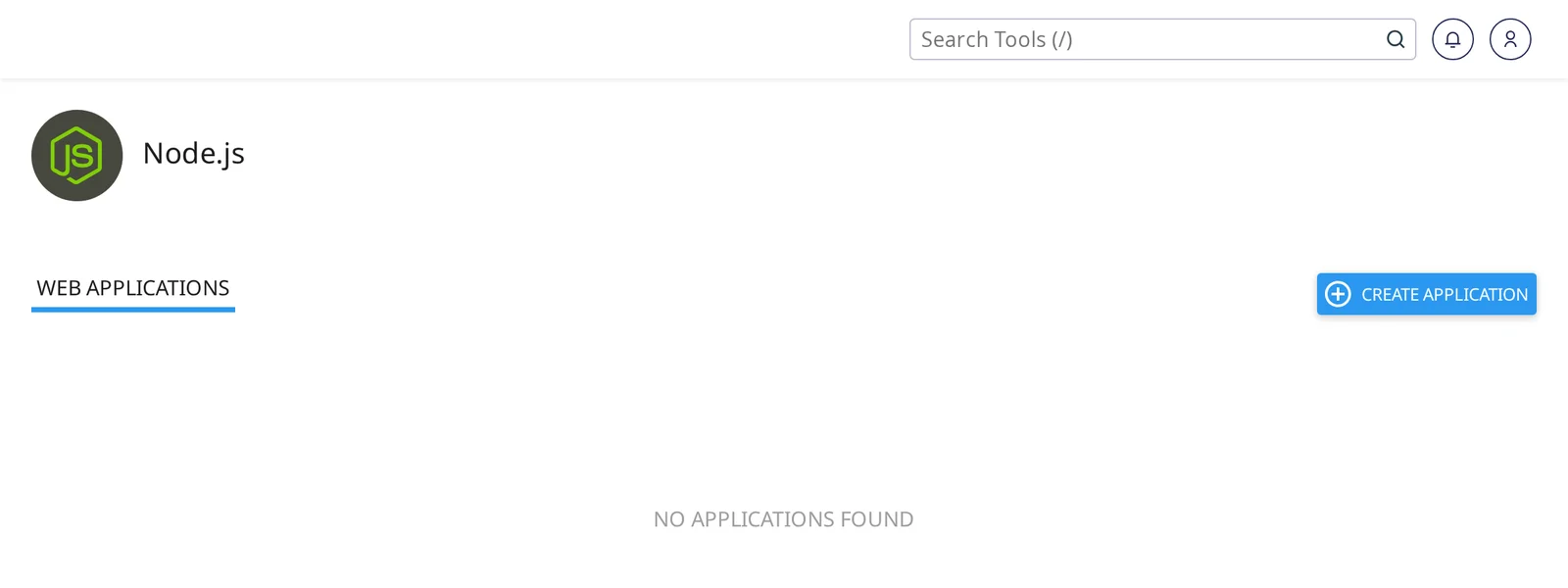
- Click Create Application.
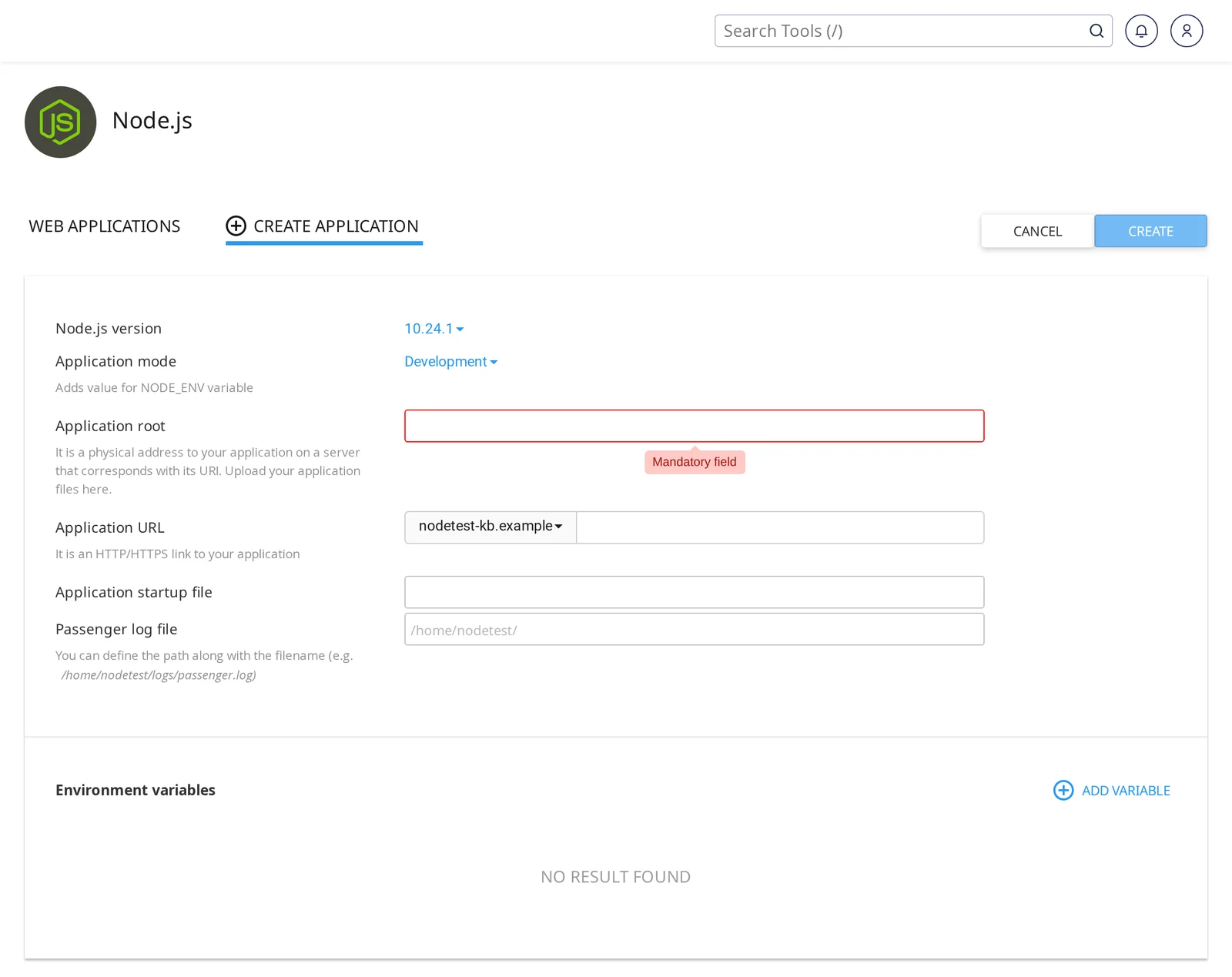
- Node.js version: pick the version your app needs.
- Application mode: Production for a live app; Development enables more verbose logging.
- Application root: the directory where your app's files will live, relative to your home directory. For example,
myappcreates/home/yourusername/myapp/. - Application URL: the domain and path to serve it at — e.g.
yourdomain.comfor the site root, oryourdomain.com/apifor a path. - Application startup file: your entry point, e.g.
app.jsorserver.js. - Passenger log file: leave blank unless you want a custom location.
Upload your app files
Upload your application code into the Application root directory you chose. You can use:
- File Manager in cPanel — navigate to the directory and upload a zip, then extract.
- SFTP (port 5622) — if you have SSH access, drag and drop files.
- Git (requires SSH) — clone your repository into the application root.
Make sure your package.json is at the root of that directory.
Install dependencies (npm install)
Once your files are uploaded:
- Go back to Setup Node.js App in cPanel.
- Click the pencil icon next to your app to open it.
- Click Run NPM Install. This runs
npm installin the application root to install everything from yourpackage.json.
For custom npm scripts (like npm run build), use the Run JS Script dropdown on the same page — select the script name and click Run.
Set environment variables
Any secrets or config your app needs (database credentials, API keys, PORT, NODE_ENV, etc.) go in the Environment variables section of the app page:
- Click Add Variable.
- Enter the variable name and value.
- Click Save.
- Click Restart at the top of the page for the changes to take effect.
Environment variables set here are available in your app as process.env.VARIABLE_NAME.
Start and restart the app
The app starts automatically when you click Create, but any time you upload new code, change environment variables, or update dependencies, click Restart at the top of the app page.
If your app crashes or you need to stop it, use Stop. To bring it back up, click Start.
Work with the app via command line
If you have SSH enabled, you can source the app's Node.js environment from your shell:
source /home/yourusername/nodevenv/myapp/20/bin/activate
cd ~/myapp
The exact path is shown on the app's page in cPanel — copy it from the "Enter to the virtual environment" command. Once activated, you can run node, npm, or any app-specific commands against the correct Node.js version.
Common issues
App shows an Apache or cPanel default page instead of my app
Three things to check:
- The Application URL in Setup Node.js App matches the URL you're visiting.
- The app is Started (green dot in the app list).
- There's no
index.html,index.php, or.htaccessfile in the document root of the same domain that's taking precedence. cPanel's Node.js integration handles routing via Phusion Passenger, but static files in the docroot will be served before the app.
"Module not found" errors on startup
You either haven't run Run NPM Install yet, or a dependency is missing from package.json. Run npm install from the app page and try again.
Changes to code aren't reflected
Click Restart on the app page. Node.js apps are long-running processes and won't pick up code changes until restarted.
Native module compilation errors during npm install
Some npm packages require compiling native binaries (better-sqlite3, sharp, node-gyp-based modules, node-canvas, etc.). These can be flaky on shared hosting. If you hit a persistent compilation error and the package is essential, consider upgrading to a VPS where you have full control over the build environment. Reach out if you'd like to discuss — we can help you pick the right plan.
Which Node.js version should you use?
As a rule of thumb, pick the most recent LTS (Long Term Support) version your app's package.json supports:
- Node.js 20 LTS — current default for new apps. Supported until April 2026.
- Node.js 18 LTS — still in active use, supported until April 2025.
- Older versions — available if your app specifically requires them; upgrading is worthwhile when you can.
Related articles
- Enable SSH and connect from your computer
- Change your PHP version and tune PHP settings
- How do I log in to cPanel?
Don't see Setup Node.js App in your cPanel? Open a support ticket


