
Every hosting account has a disk quota — the amount of storage it can use across website files, databases, email, and logs. When you get close to the limit, cPanel warns you; when you hit it, new uploads, incoming email, and database writes can all fail. This article explains what counts toward the quota, how to see what's using space, and how to free it up.
What counts toward your quota
Everything stored in your account counts:
- Website files — everything in
public_htmland any addon domain document roots. - Email — messages in every inbox, sent items, trash, and spam folder for every email account on your plan.
- Databases — all MySQL databases including their indexes and binary logs.
- Home directory files — anything in your home folder (
/home/yourusername/) including backups, temp files, and hidden directories. - Logs — website access logs, error logs, and cron output (these rotate automatically, but snapshots can add up).
See what's using space
cPanel's Disk Usage tool breaks down usage by directory:
- In cPanel, type disk usage in the search bar and open Disk Usage.
- You'll see a tree of your home directory with sizes for each folder. Click any folder name to drill into it.
- Sort by clicking the size column header to find the biggest consumers.
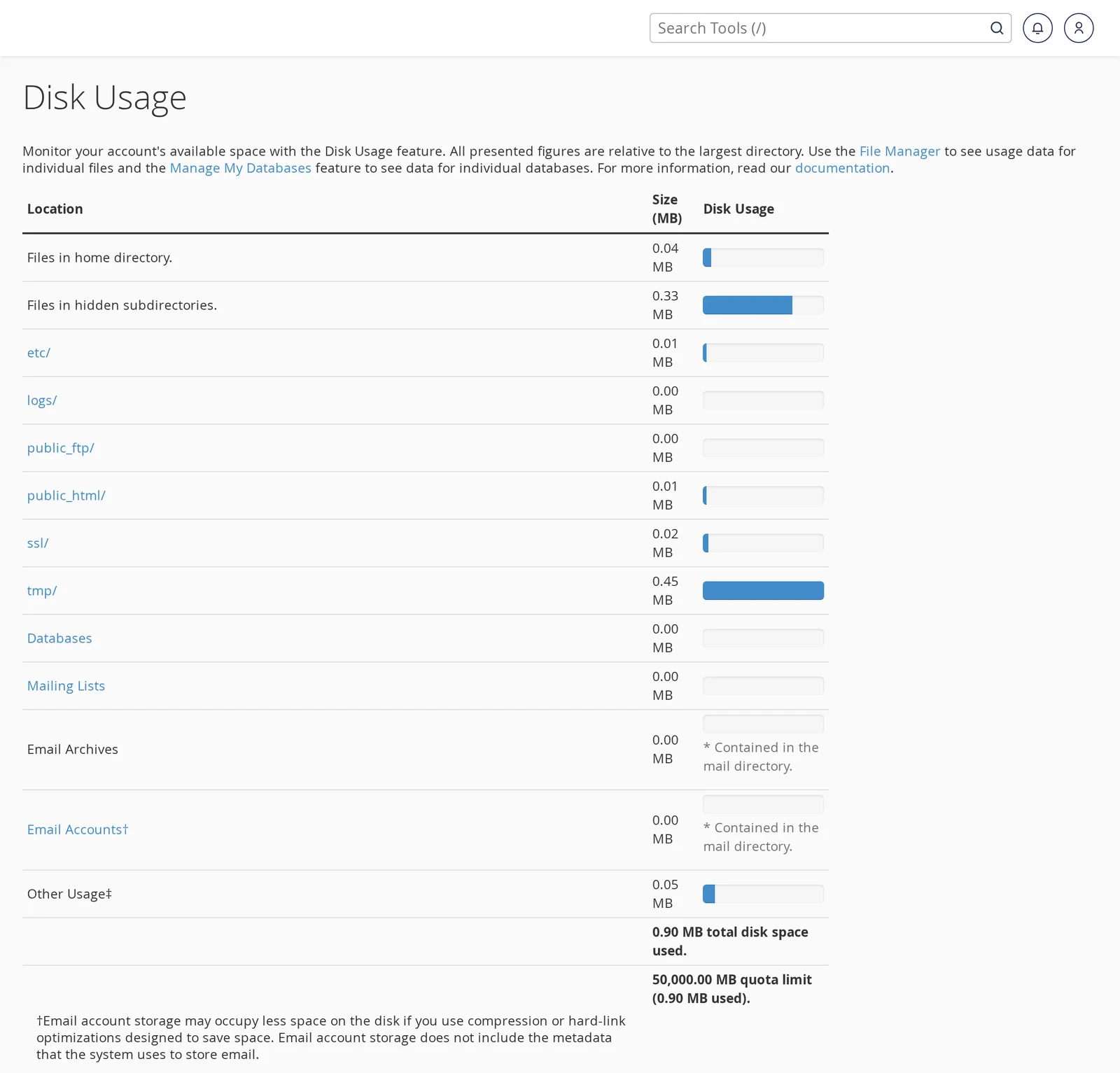
For email specifically, use Email Disk Usage (search for email disk):
- Click Manage next to any account to see how much space each folder (Inbox, Sent, Trash, etc.) is using.
- From there you can delete all messages older than a given age, or empty specific folders.
Common culprits
An overflowing email inbox
If you've been downloading email via POP3 and never clearing the server, years of mail can accumulate. Or you might have a mailing list you signed up for a decade ago quietly piling up. Most clients are surprised to find email is their biggest consumer — particularly when attachments are involved.
Fix: in Email Disk Usage, pick the account, scroll to the bottom, and use the bulk delete tools. The "Delete Messages Older Than" option is a safe starting point if you haven't read old mail in years anyway.
Forgotten backups in public_html
Clients often create a manual backup zip before doing work, then forget about it. Files like backup-2022-03-15.zip, wp-content-old/, or sitename-backup.tar.gz sitting in the web root can be multiple gigabytes each.
Fix: in File Manager, check the document root of each domain and delete any backup archives you no longer need.
WordPress backup plugins piling up files
UpdraftPlus, Duplicator, All-in-One WP Migration, and similar plugins store backups within wp-content/ by default. If the plugin is keeping unlimited backups, expect several GB per site.
Fix: Open the plugin's settings and either reduce the retention (e.g. "keep 3 backups") or point it at cloud storage (Dropbox, Google Drive, S3) instead of local. Then delete the existing local backups via File Manager.
Cache and temp files
Page caching plugins (WP Super Cache, W3 Total Cache, WP Rocket) can accumulate cached HTML files. Image processing plugins (ShortPixel, Smush) may keep originals alongside compressed versions.
Fix: Clear the cache from within the plugin's settings, or delete the cache directory directly: wp-content/cache/ is safe to empty and will be regenerated automatically.
Large log files
Occasionally a misbehaving script writes errors to a log file that grows indefinitely — WordPress debug logs, custom app logs, or cron output that isn't redirected to /dev/null.
Fix: find the offending log (File Manager, sorted by size), delete it, and fix the underlying script. For WordPress, disable WP_DEBUG_LOG in wp-config.php once you're done debugging.
Duplicate and old media in WordPress
WordPress keeps multiple sized versions of every image you upload (thumbnail, medium, large, etc.) and preserves past revisions of posts indefinitely. Over time a media library can balloon to many gigabytes.
Fix: plugins like Media Cleaner identify unused attachments; Better Search Replace or WP-Optimize clear out stale revisions and transients.
If you're genuinely at your limit
If you've cleaned up what you can and still need more room, it's probably time to look at a larger plan. From the client area, you can upgrade in a few clicks with a prorated credit for your remaining term — see Upgrade or downgrade your hosting plan. Or open a ticket and we'll recommend an option that fits.
What happens if you go over
When your account hits its quota:
- Incoming email may be deferred or rejected back to the sender.
- Database writes may start failing — login to your site, post creation, e-commerce transactions, etc.
- New file uploads via File Manager, SFTP, or WordPress's media uploader will fail.
- Existing pages continue to serve normally — read-only site access still works.
cPanel typically warns you before you hit the ceiling (an email notification to the account's contact address). Don't ignore those — deal with the cleanup before you're scrambling because something critical has stopped working.
Related articles
Need help cleaning up? Open a support ticket


