
Email forwarders (also called aliases) let you accept mail at one address and have it automatically delivered to another. They're useful for routing addresses like [email protected] or [email protected] to a personal inbox, consolidating multiple addresses into one, or giving different team members their own addresses that land in a shared inbox. This article covers how to set them up in cPanel.
Forwarder vs. email account — what's the difference?
An email account has its own mailbox on the server. Mail arrives, is stored, and you log in (via webmail, Outlook, phone, etc.) to read it. It uses disk space on your account.
A forwarder has no mailbox. Mail arrives at the forwarder address and is immediately relayed to one or more destination addresses, then deleted from our server. Nothing is stored and no disk space is used.
When to use which:
- Use a forwarder when you want an address on your domain (like
[email protected]) but don't want a separate inbox for it — just have everything go to your existing personal or team inbox. - Use an email account when the address has its own identity, you want to be able to send from it, and you want a searchable archive of messages to and from it.
You can combine them: create [email protected] as a full email account, and also set up [email protected] and [email protected] as forwarders pointing to it. All three addresses reach the same inbox, but only info has a mailbox.
Create a forwarder
- Log in to your client area and open cPanel for your hosting account.
- In the cPanel search bar, type forwarders and click Forwarders.
- Click Add Forwarder.
- Fill in the form:
- Address to Forward: the part before
@of the address you want to create (e.g.info). The domain is selected in the dropdown next to it. - Destination: Forward to Email Address and enter the destination (can be another address on your domain, or an external address like a Gmail account).
- Address to Forward: the part before
- Click Add Forwarder.
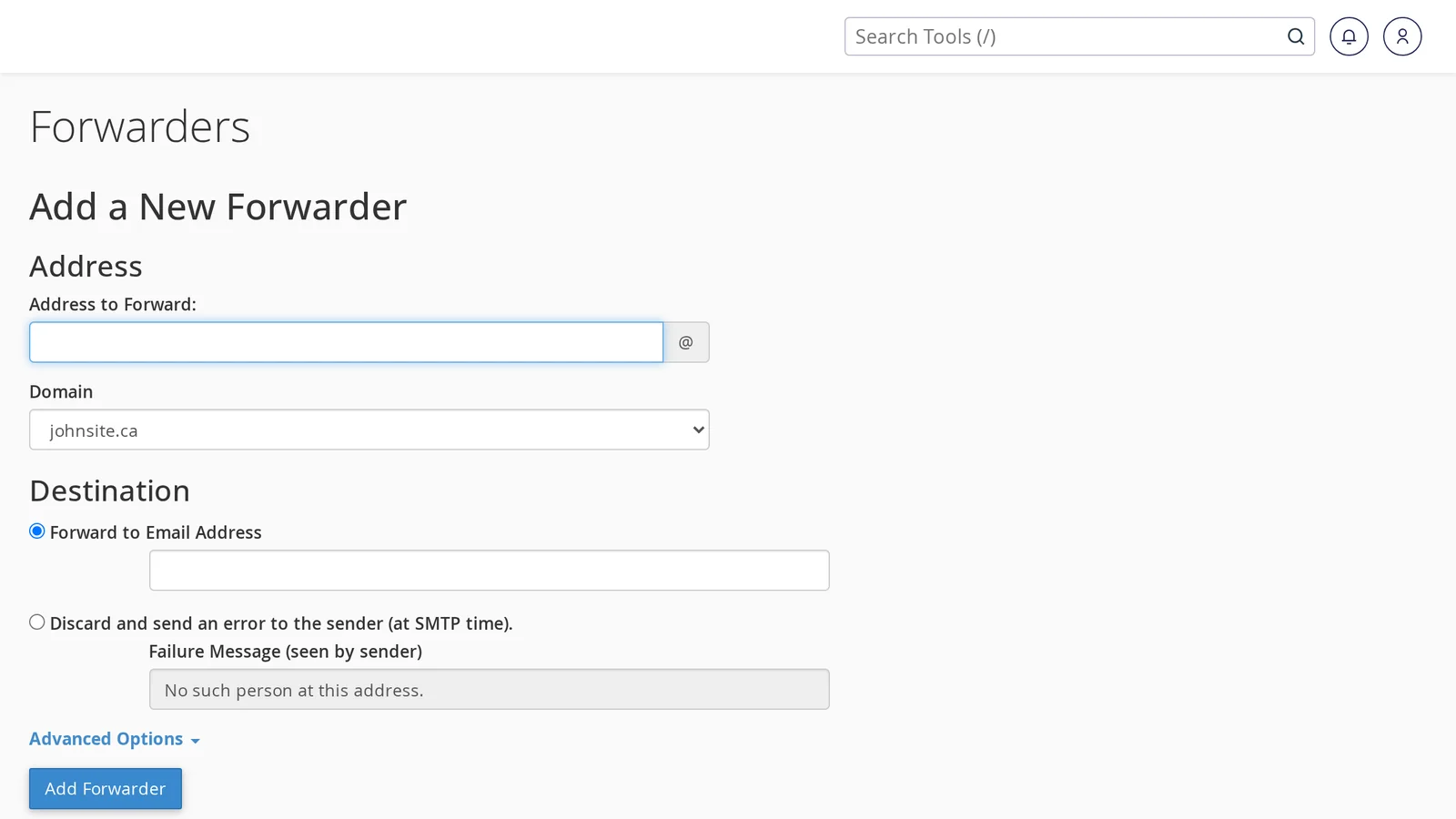
The forwarder is live immediately. Mail sent to the forwarding address will start arriving at the destination within seconds.
Forward to multiple addresses
cPanel's interface only lets you specify one destination per forwarder, but you can create multiple forwarders with the same source address pointing to different destinations:
- Create a forwarder from
[email protected]to[email protected]. - Create a second forwarder from the same
[email protected]to[email protected].
Mail to [email protected] will be delivered to both destinations.
Forward a whole domain
If you want every address on a domain to forward somewhere, use a domain forwarder instead of creating individual forwarders:
- On the Forwarders page, click Add Domain Forwarder.
- Pick the source domain, and enter the destination domain.
- Click Add Domain Forwarder.
All mail to [email protected] will be rewritten and sent to [email protected]. Useful for consolidating a secondary domain into your primary one.
Forwarder gotchas
Sending from a forwarder
Forwarders only handle incoming mail. You can't send email "from" a forwarder address because it's not a real inbox — there's no mail server to authenticate against. If you want to be able to both receive and reply from [email protected], you need it set up as a full email account, not a forwarder.
In webmail and most mail clients, you can then add an "identity" or "send as" alias so replies appear to come from [email protected], but the underlying account that sends the mail is still your main inbox.
Gmail forwarding quirks
If you forward to a Gmail address and are also trying to "send as" the forwarded address from Gmail, Gmail will require you to verify ownership of the forwarding address. It'll send a verification code to the forwarded address (which then bounces back to Gmail via the forwarder) and click the confirmation link in the code email. Straightforward but occasionally confusing on the first setup.
Spam appearing to come "from" your domain
When a forwarder passes mail along, the recipient's mail server sees the message as coming from your domain (the forwarder's domain), not from the original sender. If a spam message gets forwarded, it can temporarily affect your domain's sender reputation. This is usually minor, but if you get a lot of spam at a forwarded address, consider switching it to a real email account so spam is filtered into a local spam folder instead of being relayed.
Loops
Don't forward an address to itself, or to another address that forwards back. Example of what not to do: forward [email protected] to [email protected], and [email protected] to [email protected]. The mail server will detect the loop and reject the message, but it'll generate bounce messages.
Delete or modify a forwarder
On the Forwarders page, existing forwarders are listed in a table. Next to each, you'll see:
- Delete — removes the forwarder. Mail to the source address will no longer be accepted (unless it's also a real email account or another forwarder).
- To change where a forwarder points, delete the existing one and create a new one. cPanel doesn't have an "edit" option for forwarders.
Forwarders vs. external email routing
Forwarders are a local cPanel feature — mail arrives at our server first, then we forward it onward. If you want all mail for your domain to go directly to an external provider (Google Workspace, Microsoft 365, Zoho), you want to change your MX records instead, not set up forwarders. See:
Related articles
- How do I create a new email account?
- Autoresponders and out-of-office replies
- Understanding email bounce messages
Still stuck? Open a support ticket


