
An autoresponder automatically replies to every email that arrives at a given address. Most commonly used for out-of-office notifications ("I'm on vacation until July 10th"), but also handy for signup confirmations, generic acknowledgements, or temporary "we've moved to a new address" notices. This article covers how to set one up in cPanel.
Create an autoresponder
- Log in to your client area and open cPanel for your hosting account.
- In the cPanel search bar, type autoresponders and click Autoresponders.
- Click Add Autoresponder.
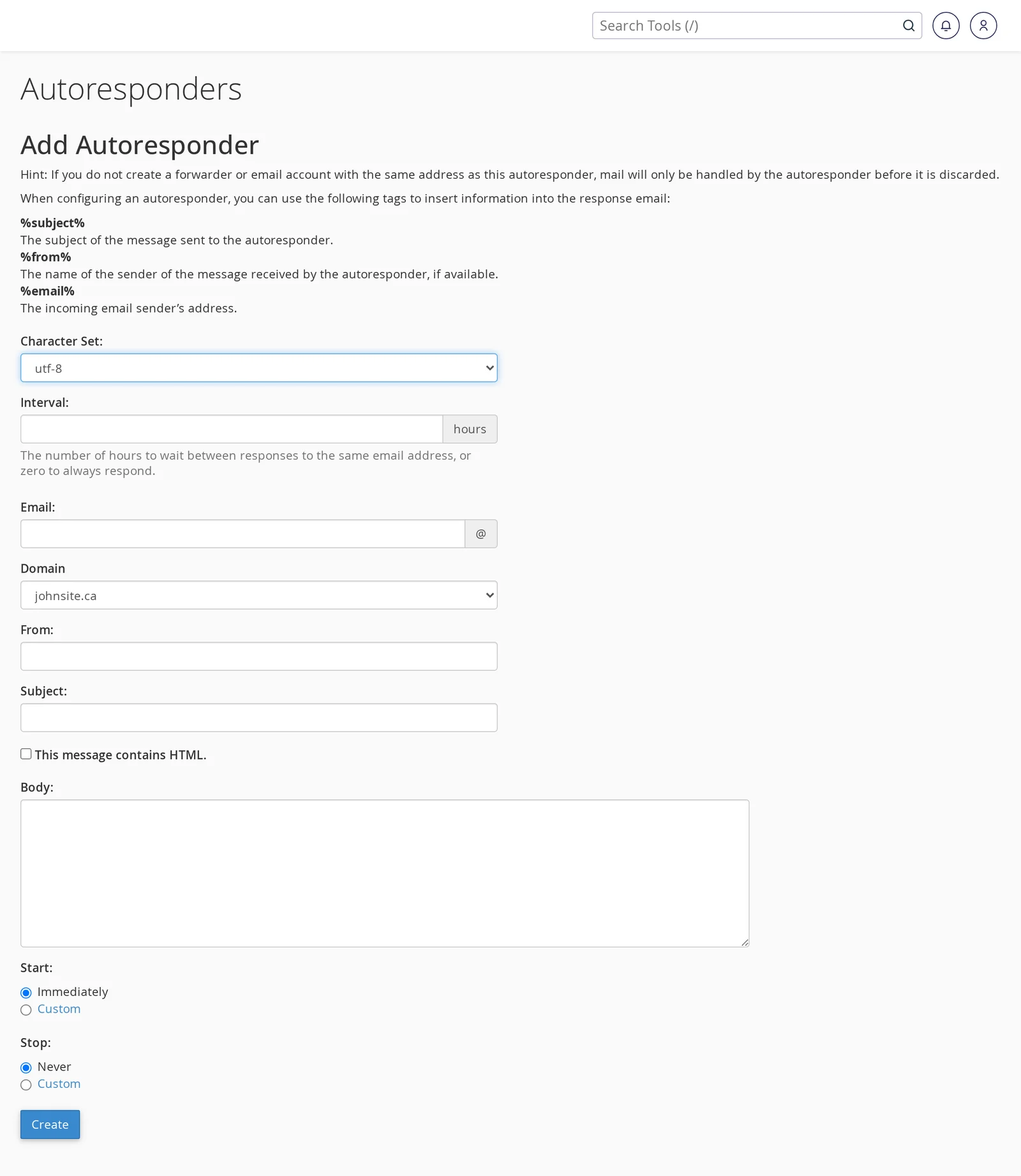
- Fill in the form:
- Character Set:
utf-8is the safe default — handles any language and accented characters. - Interval: hours to wait before sending another autoresponse to the same sender. The default (24 hours) means if someone emails you five times in a day, they'll only get one autoresponse. Set this higher for chatty senders, or to
0to respond every single time. - Email: the address you're setting the autoresponder for. Select the domain from the dropdown.
- From: the name that appears as the autoresponder's sender. Use your name or something like "Vacation Reply."
- Subject: the subject line of the autoresponse. You can include the placeholder
%subject%to reference the original message's subject (e.g. "Re: %subject%"). - HTML: check this only if your body is HTML-formatted. For most out-of-office replies, plain text is fine — leave unchecked.
- Body: the message itself. See the examples below.
- Start / Stop: choose Custom and set specific start and stop dates and times, or leave as Immediately with no stop time for a permanent autoresponder.
- Character Set:
- Click Create/Modify.
Example autoresponders
Vacation / out of office
Subject: Out of office
Body:

Thanks for your email.

I'm out of the office until July 10 and will have limited access to email.
I'll respond to your message when I return.

For anything urgent, please contact Jane at [email protected].

Thanks,
John
Role account acknowledgement
For addresses like support@ or info@ where you want to confirm receipt:
Subject: We received your message
Body:

Thanks for reaching out to Example Corp.

We've received your message and will get back to you within 1 business day.
If your request is urgent, please call us at (555) 123-4567.

— Example Corp Support
Address retired
Handy when you've moved a role and want to redirect senders without breaking existing email flow:
Subject: This address is no longer in use
Body:

The address [email protected] is no longer being monitored.

Please send future emails to [email protected].

Thanks!
Available placeholders
You can use these in the subject or body, and cPanel will substitute them with data from the original message:
%subject%— the original message's subject%from%— the original sender's name and email%email%— the original sender's email address only
Most out-of-office messages don't need these, but they're useful for custom acknowledgements that reference what the sender wrote.
Autoresponder vs. full mailbox rules
Autoresponders fire from the server when mail arrives, regardless of whether you've seen the message. They're simple and reliable, and work whether or not you're logged in to your mail client.
If you need more nuanced behaviour — "reply only to messages from people in my contacts," "don't reply to messages matching certain keywords," "forward first then reply" — you want a mail filter (also in cPanel, under Email Filters) or the rules feature in your mail client (Outlook rules, Gmail filters).
Common questions
Will people get a reply every time they email me?
Only once per Interval. With the default 24-hour interval, a given sender will get one autoresponse within any 24-hour window no matter how many messages they send. This prevents the "vacation bot loops" that can happen when two autoresponders email each other.
Will the autoresponder reply to spam?
Messages that are filtered as spam by the server generally don't trigger the autoresponder — the filter kicks in before the autoresponder runs. Occasional spam that slips through will get replied to, which is why keeping your spam filter up to date matters.
Will the autoresponder reply to mailing lists and newsletters?
It tries not to. Mail servers use header conventions (Auto-Submitted, List-Unsubscribe, Precedence: bulk) to indicate a message is automated, and cPanel's autoresponder respects those. Most legitimate mailing list traffic won't trigger a reply.
Does it also send the reply to me?
No. The autoresponder sends only to the original sender. Your inbox still receives the original message as usual.
Edit or delete an autoresponder
On the Autoresponders page, each active autoresponder is listed in a table. Next to each entry you can Edit (change the message, interval, or schedule) or Delete (remove it entirely).
If you set a custom Stop date when creating it, the autoresponder automatically stops firing at that time — no need to come back and delete it. Useful for vacation replies: set the stop date to when you return, and it handles itself.
Related articles
- How do I create a new email account?
- Email forwarders and aliases in cPanel
- How do I access my Webmail account?
Still stuck? Open a support ticket


