
WHM (Web Host Manager) is the server-level control panel for reseller hosting plans. It's where you create cPanel accounts for your clients, set up hosting packages, manage DNS, and control everything across all your sub-accounts. This article covers how to log in.
https://yourserver.canspace.ca:2087 (the URL is in your Welcome Email), or single-sign-on from the CanSpace client area (Services → My Services → Log in to WHM).Method 1 — direct login
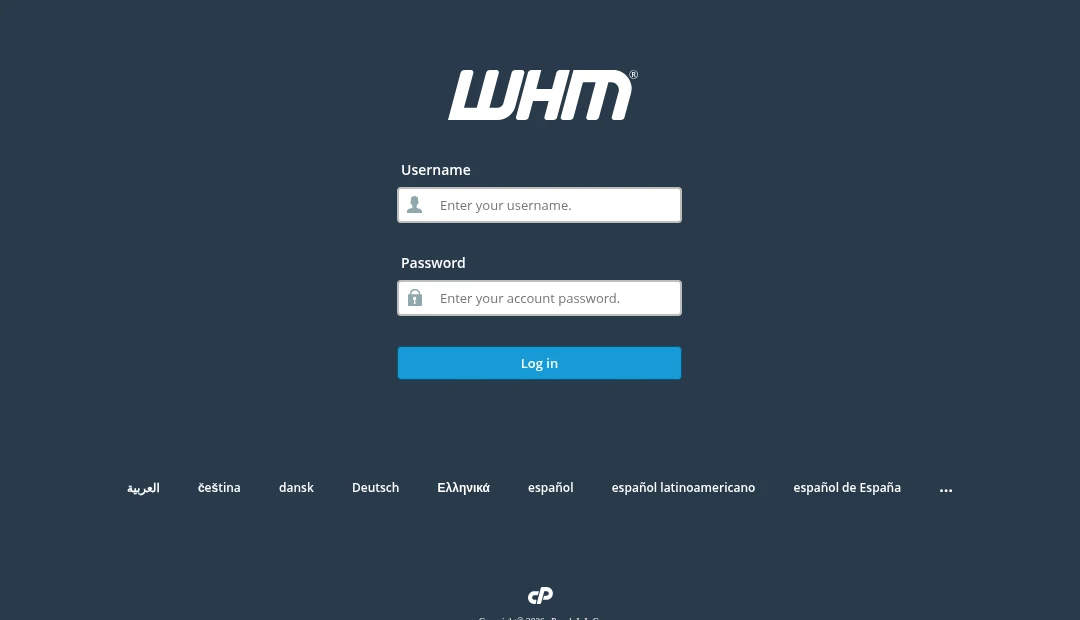
- Open your Welcome Email from CanSpace — the one you received when your reseller plan was set up. It contains a WHM URL in the format
https://yourserver.canspace.ca:2087along with your username and password. - Paste the WHM URL into your browser.
- Enter your reseller username and password, then click Log in.
Method 2 — single sign-on from the CanSpace client area
If you'd rather not keep the WHM password on hand, you can jump straight to WHM from your CanSpace client area.
- Log in to the client area.
- Click Services in the top navigation, then My Services.
- Click your reseller hosting service to open its management page.
- On the left sidebar under Actions, click Log in to WHM. A new tab opens straight into WHM — no password needed.
What you'll see when you log in
WHM is a big interface. The left sidebar lists everything grouped into categories (Server Configuration, Account Functions, Packages, DNS, etc.). The main area shows a Favorites panel and basic server info.
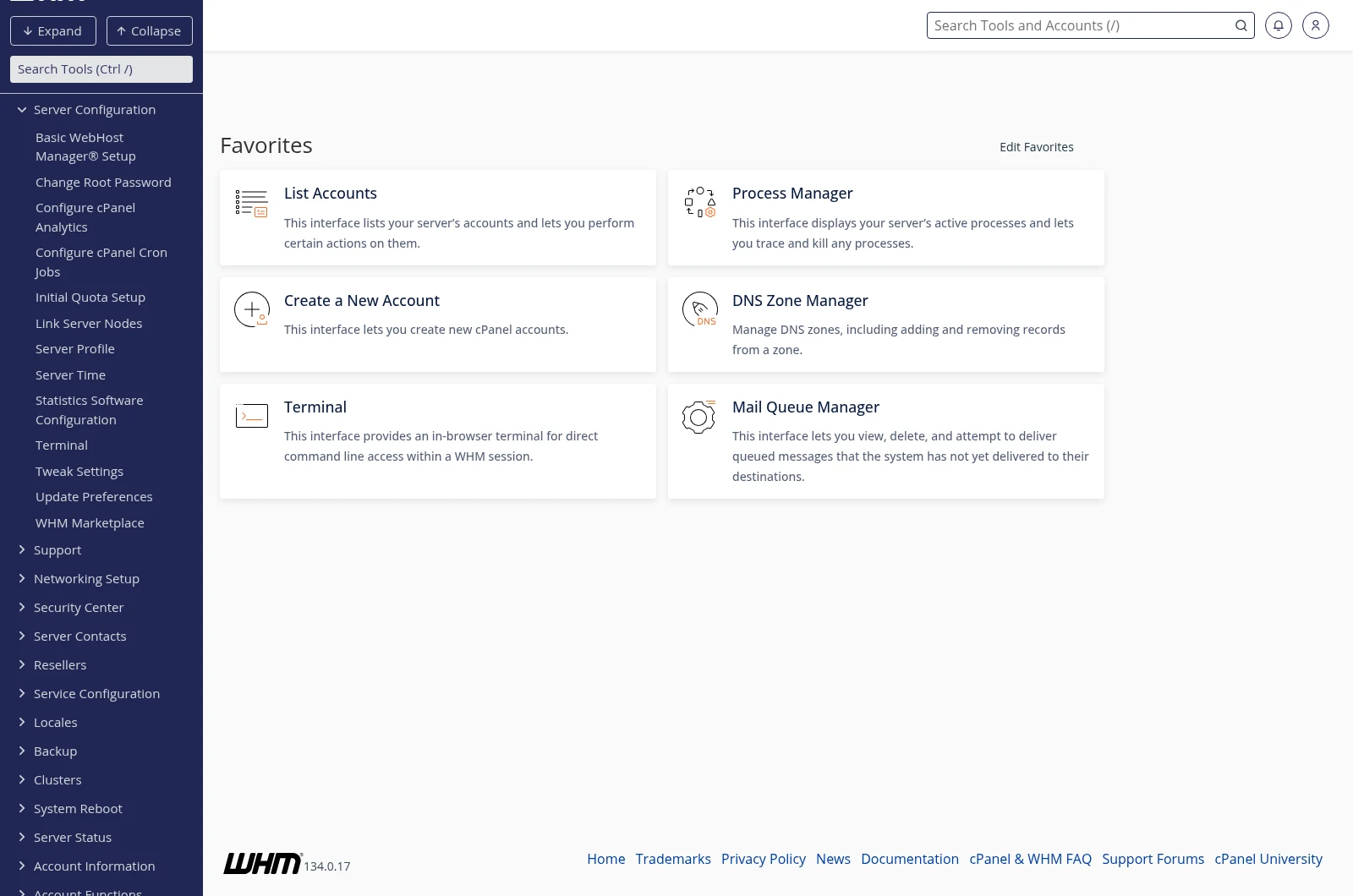
The most useful tools you'll want to find first:
- Create a New Account (under Account Functions) — creates a new cPanel account for one of your clients. See How do I create a new cPanel account?
- Add a Package (under Packages) — defines a hosting "plan" with specific resource limits you can then assign to client accounts. See How do I create new packages?
- List Accounts (under Account Information) — shows every sub-account on your reseller plan, with quick actions (suspend, terminate, log in as user, modify).
- Modify an Account (under Account Functions) — change an account's plan, disk quota, contact email, etc.
- Manage Account Suspension — suspend a client who hasn't paid; unsuspend once they do.
Can't log in?
- "Invalid login": make sure you're using the reseller username (the one from your Welcome Email) and the matching password. This is separate from your CanSpace client area login.
- "Your connection is not private" / "Certificate error": the server's hostname (e.g.
yourserver.canspace.ca) has an SSL certificate that covers it directly — make sure you're using that exact hostname, not a custom one that's still propagating. - "Connection refused" or timeout: your network (ISP, corporate firewall, coffee shop WiFi) may block port 2087. Try from a different network. If it's consistently blocked, open a support ticket with the IP you're connecting from and we'll investigate.
- IP blocked by firewall: too many failed login attempts can block your IP. Open a ticket from another network and we can unblock.
Resetting your WHM password
In WHM, go to Server Configuration → Change Password. If you're locked out entirely, open a support ticket with your reseller domain and we can reset it for you.
Related articles
- How do I create a new cPanel account?
- How do I create new packages for new cPanel accounts?
- How do I log in to cPanel?
Still stuck? Open a support ticket


