
A "cPanel account" is one hosting account on your reseller plan — typically one per client or one per site. This article walks through creating a new account in WHM, which is the day-to-day task for any reseller.
Quick steps: WHM → Account Functions → Create a New Account → fill in the domain, username, password, email, and package → Create.
Before you start
- A domain name. The account gets tied to one primary domain. The client can add addon domains later via their cPanel.
- A package to assign. Packages define the resources (disk, bandwidth, email accounts, etc.) available to the account. If you haven't created any yet, see How do I create new packages? — or use the default packages for now and create custom ones later.
- An email address for the account — used for server notifications and for the client to receive their welcome email.
Create the account
- Log in to WHM (see How do I log in to WHM?).
- In the left sidebar, expand Account Functions and click Create a New Account. Or, use the Search box at the top and type "create".
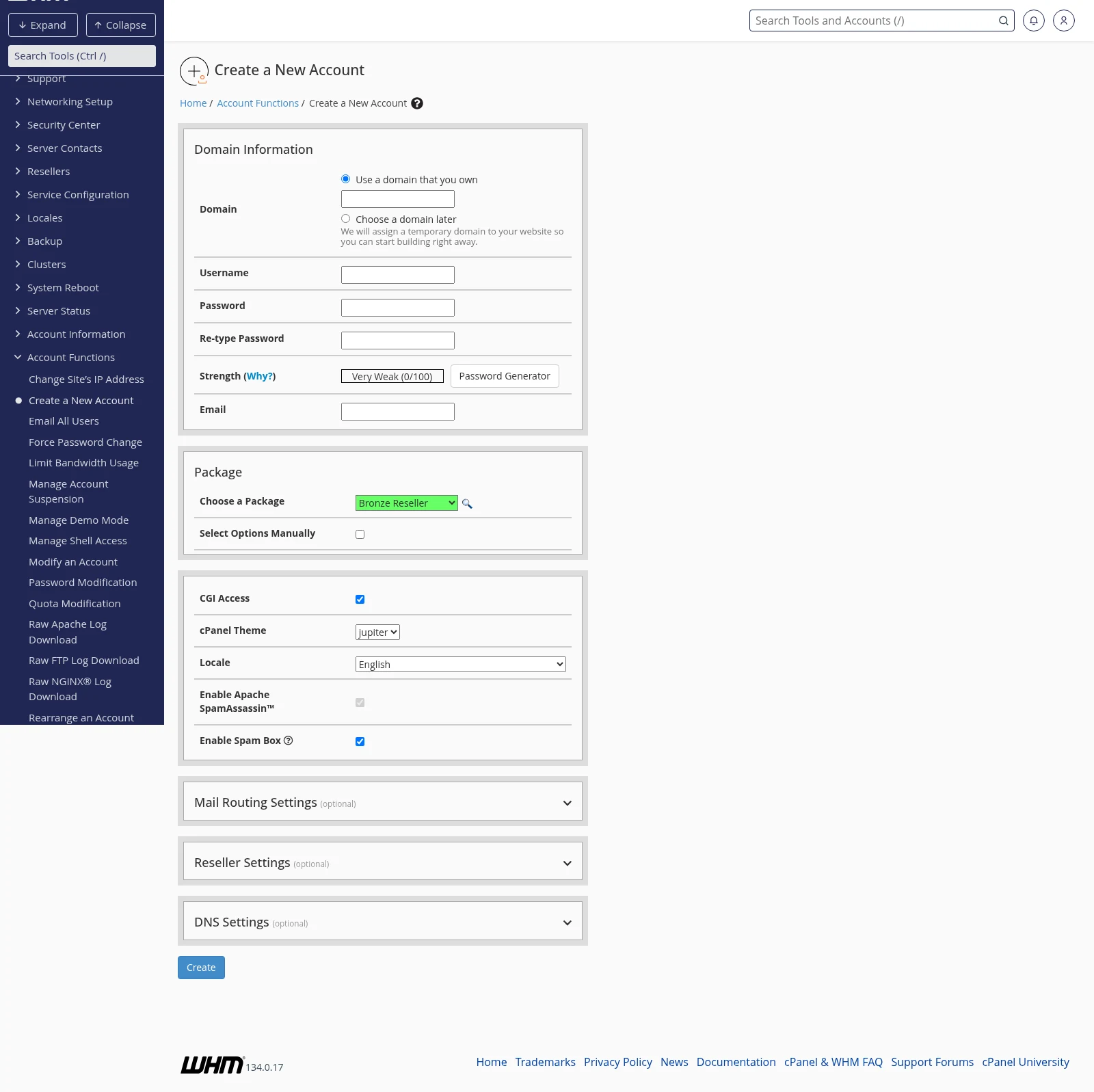
- Fill in the Domain Information section:
- Domain: your client's primary domain (e.g.
acmeclient.com). WHM auto-generates a suggested username from this, which you can change. - Username: the cPanel username. This is used for SSH, FTP, and as a database prefix. Short, lowercase letters and digits work best.
- Password: at least 8 characters. Click Password Generator to get a strong random one — save it somewhere safe before leaving the page.
- Email: the client's contact email. System notifications go here.
- Domain: your client's primary domain (e.g.
- Select a Package from the dropdown. This determines the resource limits for the account. If you're just testing, pick any existing package — you can change it later via Modify an Account.
- Most of the other fields (Settings, Mail Routing, Reseller Settings, DNS Settings) can be left at defaults. If you understand them, configure as needed; otherwise the defaults are safe.
- Click Create at the bottom.
WHM creates the account in a few seconds. The page will show the account details and, depending on your WHM settings, send a welcome email to the address you specified.
Field reference (the ones you'll actually touch)
Domain Information section
| Field | What it does |
|---|---|
| Domain | The primary domain for the account. Will be the URL the client visits to reach their site. |
| Choose a domain later | Creates the account with a temporary subdomain. Useful if your client hasn't registered a domain yet. |
| Username | cPanel login name and system username on the server. 8 characters or less is safest for legacy tool compatibility. |
| Password | Initial login password. Strength meter shown; click Password Generator for a random strong one. |
| Where cPanel sends backup completion notifications, quota warnings, etc. |
Package section
- Choose a Package: pre-defined resource bundle. Select the package that matches what your client is paying for.
- Select Options Manually: bypass packages entirely and set quotas by hand. Useful for one-off customizations, but messy long-term — create a package instead.
Settings section
- CGI Access: leave checked unless you have a specific reason to disable it.
- cPanel Theme: our servers use
jupiter(the modern default). Leave it. - Locale: interface language for the client's cPanel. Default English is fine; the client can change it later.
- Spam Filters: leave enabled. Our servers have spam filtering pre-configured for all accounts.
After creation, the account is fully functional — but the client's domain probably isn't pointing to your server yet. Ask them to update their nameservers to your reseller nameservers (see the "Nameservers" section of your welcome email). They can also use the hosts file preview method to test before switching DNS — see How to preview your site before updating DNS.
Common issues
- "Sorry, the domain you entered is already on this server": another account already owns this domain. Check List Accounts to find it.
- "You have reached the maximum number of accounts": your reseller plan has a fixed account limit. Review which accounts are still active, terminate any that aren't, or upgrade to a higher-tier reseller plan. Open a support ticket if you need to change plans.
- "Password does not meet minimum strength": use the Password Generator, or pick something more complex.
- Can't select the package I want: packages with a reseller prefix (e.g.
youruser_small) are visible only to the reseller who created them. If you can't see one you expect, check Edit a Package.
After account creation
From List Accounts you can:
- Log in as the user (cPanel SSO — handy for troubleshooting).
- Modify the account (change package, quota, email).
- Suspend / Unsuspend (e.g. non-payment holds).
- Terminate the account (deletes it permanently — use carefully).
Related articles
- How do I log in to WHM?
- How do I create new packages for new cPanel accounts?
- How to preview your site before updating DNS
Still stuck? Open a support ticket


